RealPresence Collaboration Server (RMX) 1500/1800/2000/4000 Getting Started Guide
Polycom®, Inc. 197
4 Close the Windows Explorer screen.
5 In the Temporary Internet Files and History Settings dialog box, click OK.
6 In the Internet Options dialog box, click OK to close it.
7 Close the Internet Explorer session and reopen it.
8 Connect to the Collaboration Server.
If the problem persists, continue with Procedure 3.
Procedure 3: Managing Add-ons Collisions
In some cases, previously installed add-ons, such as anti virus programs can create collisions between
applications and prevent the installation of a new add on. Disabling these add-ons may be required in order
to install the Collaboration Server Web Client.
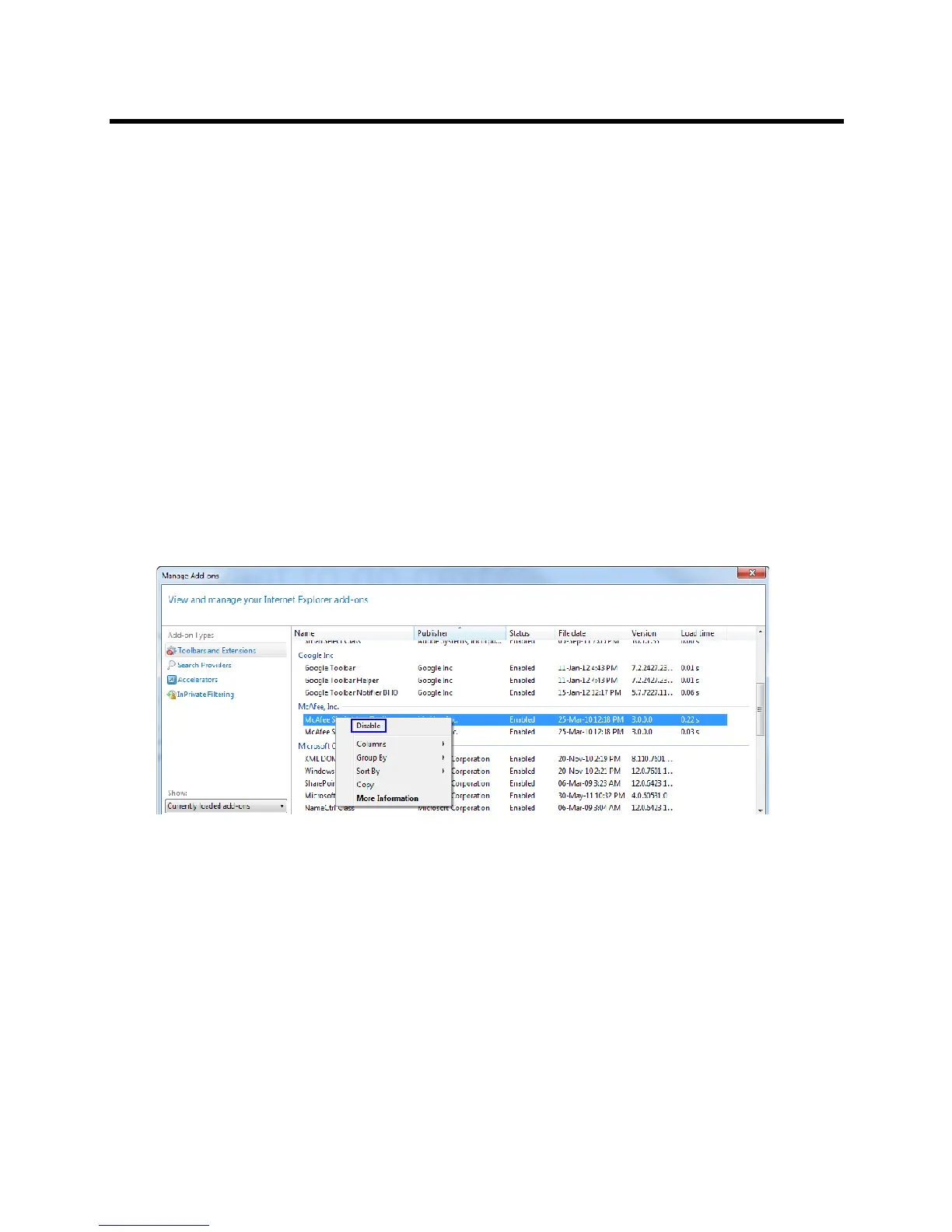
To disable an add-on:
1 In the Internet Explorer, click Tools > Manage Add-ons.
The Manage Add-ons - Toolbars and Extensions dialog box opens.
2 Scroll to the add-on to disable (for example, the anti virus add-on), right-click it and then click
Disable.
Alternatively, select the add-on and click the Disable button.
3 Click the Close button to close this dialog box.
4 Connect to the Collaboration Server.
If the problem persists, continue with the Procedure 4.














 To Next Page