RealPresence Collaboration Server (RMX) 1500/1800/2000/4000 Getting Started Guide
Polycom®, Inc. 159
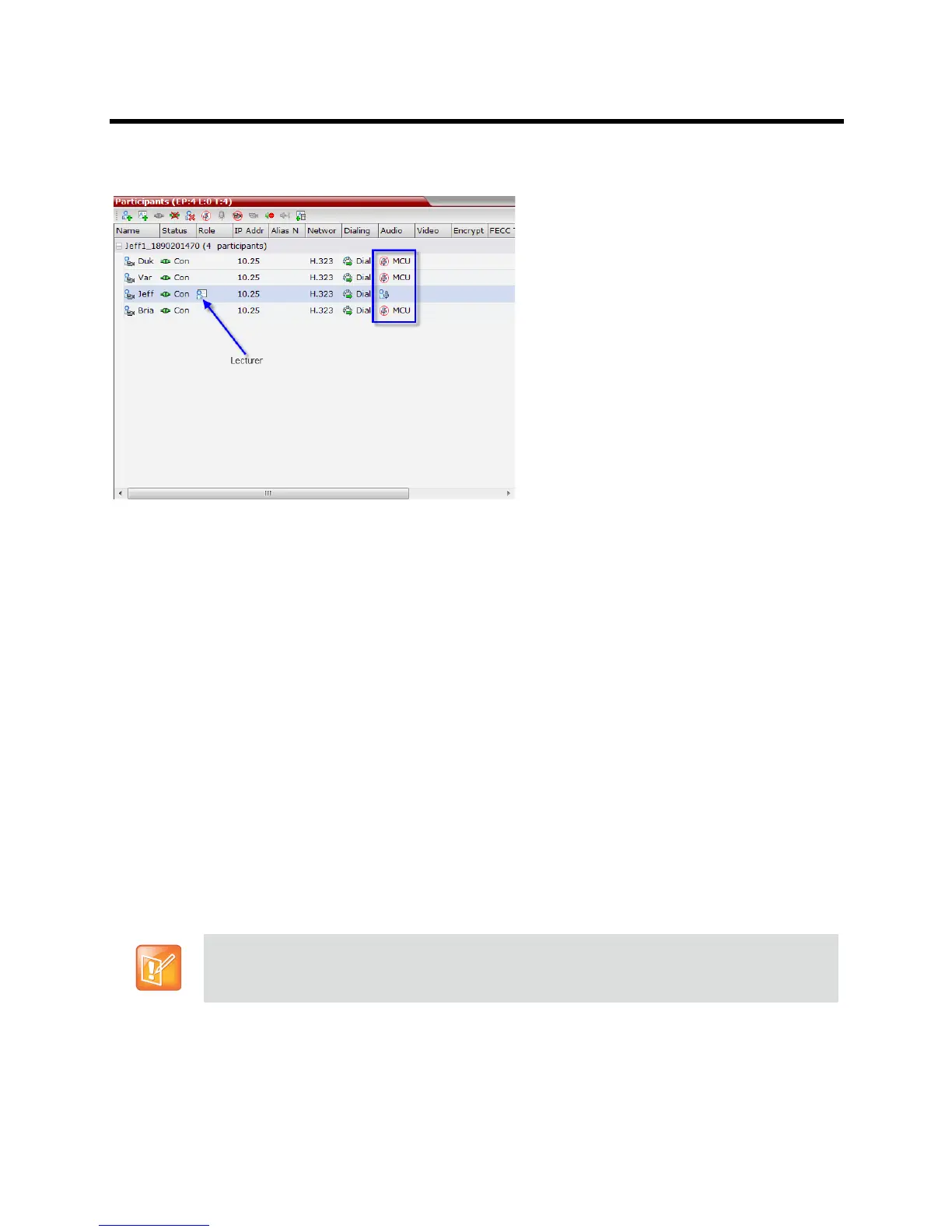
When the Mute Participants Except Lecturer option is enabled and a conference has started, the Mute by
MCU icon is displayed in the Audio column in the Participants pane of each participant that is muted.
Sending Messages to All Conference Participants Using Message Overlay
(AVC-based Conferences)
Messages can be sent during a conference to a single participant, selected number of participants or all
participants in an ongoing conference. For more information see the Polycom® RealPresence Collaboration
Server (RMX) 1500/1800/2000/4000 Administrator’s Guide Packet Loss Compensation (LPR and DBA)
AVC CP Conferences.
To send messages to all conference participants using Message Overlay:
1 In the Conferences List pane, double click the name of the conference to have Message Overlay
enabled or right-click the conference name and then click Conference Properties.
2 Click the Message Overlay tab.
3 Select the Enable check box.
4 In the Content field, enter the text to be displayed to all the conference participants.
The number of characters that can be included in a message varies according to the language and
can differ due to the type of font used. For example, the available number of characters in Chinese
is 32 and 48 for English and Russian.
5 Modify the remaining fields in the dialog box to display the message as required.
6 Click OK
To cancel the Message Overlay display:
1 Repeat Step 1 and Step 2 in the Sending Messages to All Conference Participants Using Message
Overlay (AVC-based Conferences)
When sending text messages using Message Overlay and stopping the text messaging in the
middle, you must change (and then cancel the change) one of the message overlay properties in the
Conference Properties - Message Overlay dialog box before you can re-send the same message.














 To Next Page