RealPresence Collaboration Server (RMX) 1500/1800/2000/4000 Getting Started Guide
Polycom®, Inc. 84
42 Refresh the browser periodically until the Login screen is displayed.
43 When the Login screen is displayed, enter your Username and Password and click Login.In the
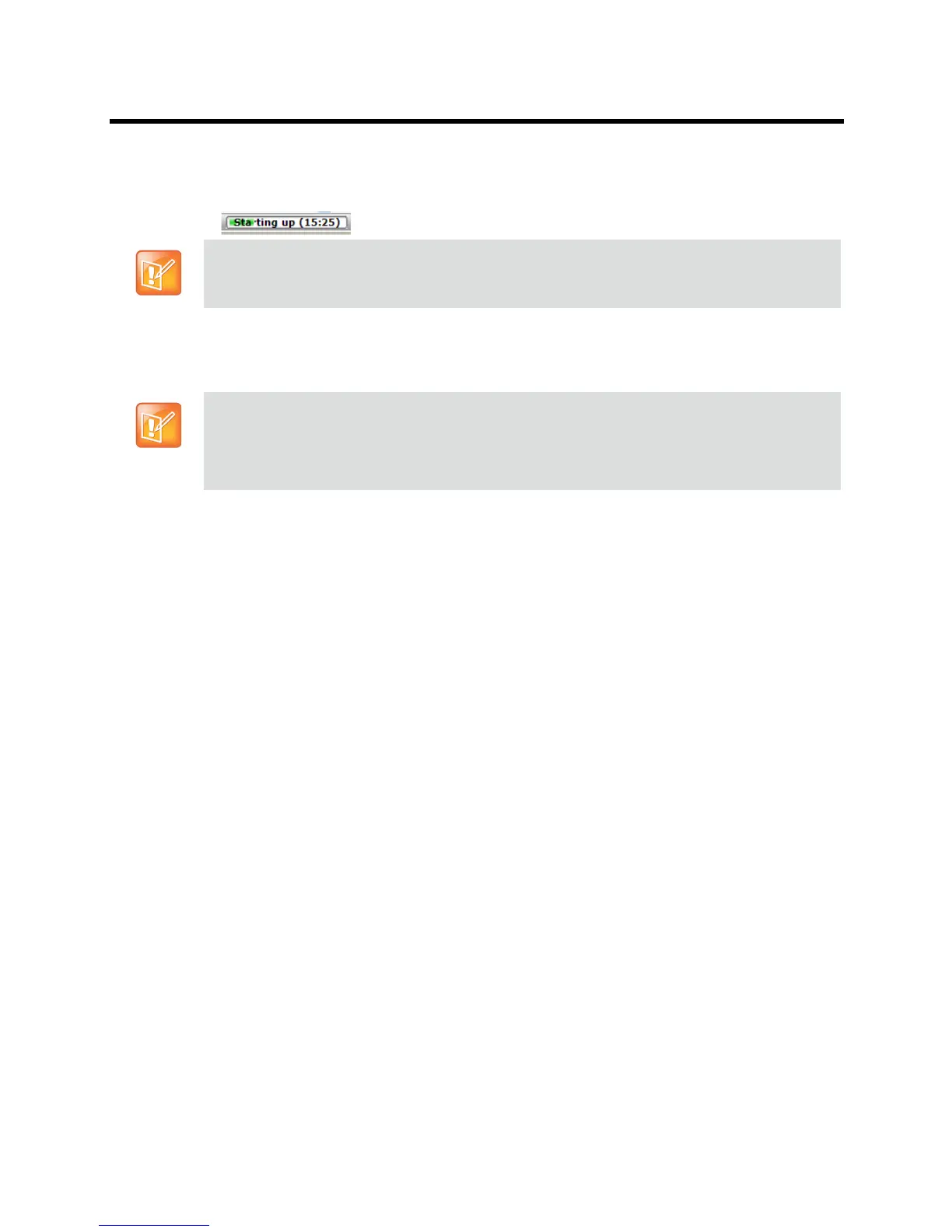
Collaboration Server Web Client’s Main Screen an MCU State indicator displays a progress
indicator showing the time remaining until the system start-up is complete
..
44 The system is now fully configured and if there are no other System Errors, the green READY/RDY
LED (on the 2000/4000 the LEDs are on the CNTL module) turns ON and the ERROR/ERR LED is
OFF.
Selecting the Collaboration Server Web Client Languages
By default, the Collaboration Server Web Client interface is displayed only in English. However, the system
administrator can choose the languages available for selection on the Login screen. These languages are
represented by flags.
To choose the languages for selection in the Login screen:
1 On the Collaboration Server menu, click Setup > Customized Display Settings > Multilingual
Setting.
2 Click the check boxes of the languages to appear in the Login screen of the Collaboration Server
Web Client. For more information see the Polycom® RealPresence Collaboration Server (RMX)
1500/1800/2000/4000 Administrator’s Guide, Multilingual Setting .
If the selected language is not supported by the browser or the workstation’s Operating System, the
Collaboration Server Web Client is displayed in English.
3 Click OK.
4 Log out and reconnect to the Collaboration Server.
The Login screen will display the flags of the selected languages.
RealPresence Collaboration Server (RMX)
1500/1800/2000/4000 Default Conferencing Settings
The Collaboration Server is shipped with default pre-configured conferencing entities set to CP (AVC)
Conferencing Mode, which allow the MCU users and participants to start CP AVC ongoing conferences
without further configuration.
If the default User (POLYCOM) remains or the Collaboration Server time was not set, the active
alarm is not deleted and the system status remains in Major.
For system security reasons the system is not fully configured until the default user is deleted.
The Fast Configuration Wizard configures the Default IP Network Service with common parameters.
Specific or additional settings (e.g. for ICE, or Secured Mode) should be performed once the initial
configuration is complete. For detailed description of the IP Network Services, see the Polycom®
RealPresence Collaboration Server (RMX) 1500/1800/2000/4000 Administrator’s Guide, Network
Services.














 To Next Page