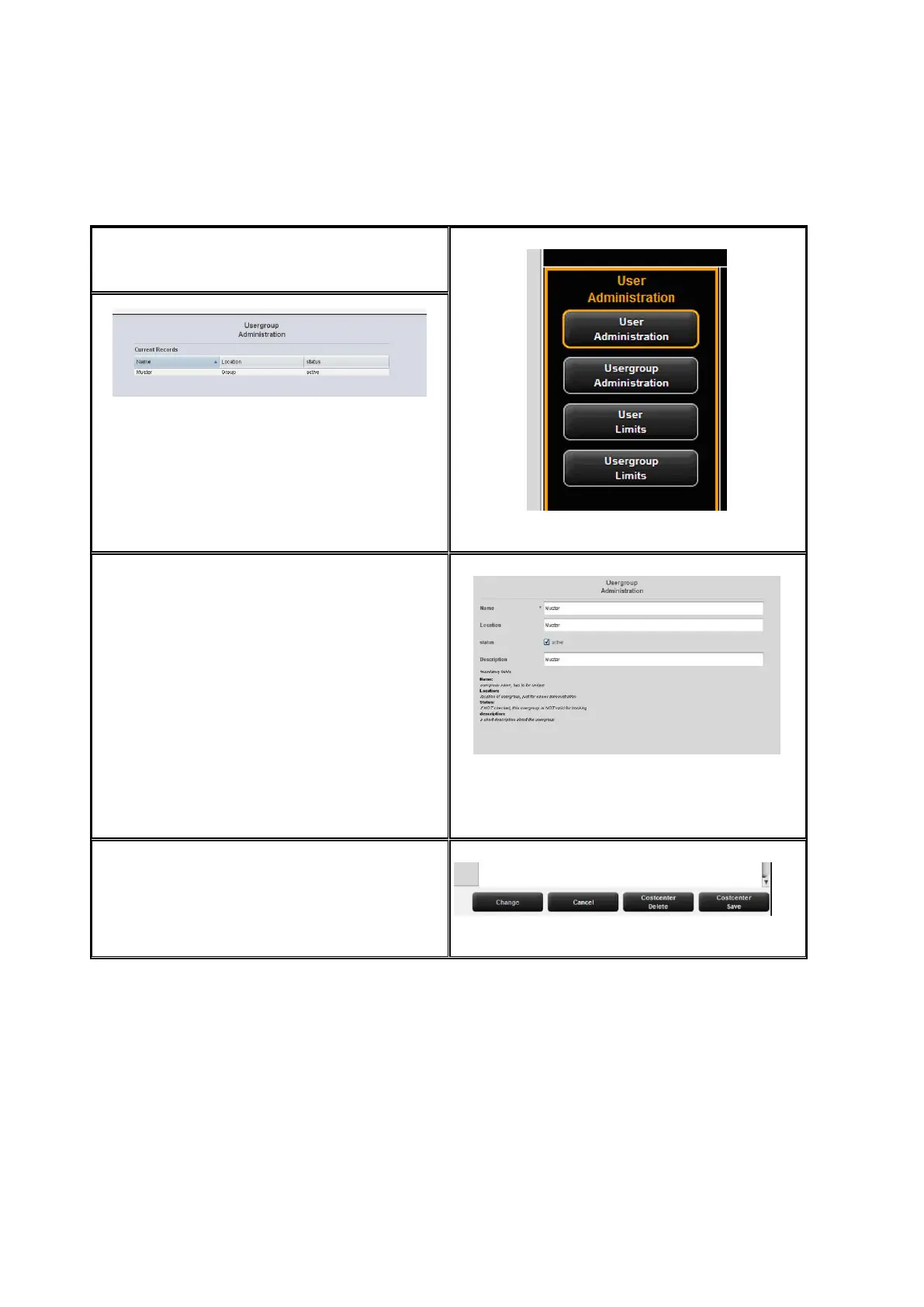
By clicking User group administration a list
with all user groups available in the system
pops up.
Figure 7.10: User group administration
Figure 7.11: User group list
By double-click the user group selected
before opens to make changes or to view a
list of the users currently allocated.
By pressing the Add button, the menu for a
new entry opens.
The name of a user group has to be unique.
The fields Location and Description only
serve ease of administration.
By means of the field Status an allocated
limit can be suspended temporarily; i.e. NO
job category limits can be booked for this
user group.
Figure 7.12: Create user groups
Modifications in the main window are
confirmed, rejected, or deleted – if allowed –
by means of the buttons.
Figure 7.13: Buttons – User group administration
In the following, the configuration of user-related limits is described as an example. This
process is equal for all other limits (user groups, cost centers, and cost center groups)
except for the labels which may be different.



 To Next Page