Table of Figures
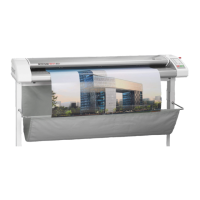
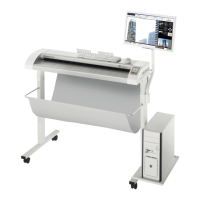
Figure 1.1: ROWE Scan 600 .......................................................................................................................... 12
Figure 1.2: Control panel ROWE Scan 600 .............................................................................................. 13
Figure 1.3: Rear view ROWE Scan 600 / USB slot side box .............................................................. 14
Figure 1.4: Unpacking of ROWE Scan 600 .............................................................................................. 14
Figure 2.1: Installation screen...................................................................................................................... 17
Figure 2.2: Selection of language ............................................................................................................... 17
Figure 2.3: Welcome dialog box .................................................................................................................. 18
Figure 2.4: Selection of target directory .................................................................................................. 18
Figure 2.5: Installation process ................................................................................................................... 19
Figure 2.6: Windows logo testing ............................................................................................................... 19
Figure 2.7: Driver installation completed ................................................................................................ 19
Figure 2.8: Homepage for installation of plug-ins ................................................................................ 20
Figure 2.9: License agreement for plug-ins ............................................................................................ 20
Figure 2.10: Complete installation of plug-ins....................................................................................... 20
Figure 2.11: Prompt to shut computer down ......................................................................................... 21
Figure 2.12: USB 3.0 plug (connection scanner) .................................................................................. 21
Figure 2.13: USB 2.0 plug (connection scanner) .................................................................................. 21
Figure 2.14: Disable Windows update ...................................................................................................... 22
Figure 2.15: Installing driver automatically ............................................................................................ 22
Figure 2.16: Continuing driver installation ............................................................................................. 22
Figure 2.17: Driver installation finished................................................................................................... 23
Figure 2.18: Start Setup Wizard .................................................................................................................. 23
Figure 2.19: Connection establishment ................................................................................................... 23
Figure 2.20: License installation ................................................................................................................. 24
Figure 2.21: Calibration of scanner............................................................................................................ 25
Figure 3.1: Position of ON / OFF switch .................................................................................................... 28
Figure 3.2: Control panel ............................................................................................................................... 28
Figure 4.1: Desktop link ScanManager ..................................................................................................... 30
Figure 4.2: How to position the document .............................................................................................. 30
Figure 4.3: Start button control panel ...................................................................................................... 30
Figure 4.4: Control panel ............................................................................................................................... 31
Figure 5.1: Desktop link ScanManager ..................................................................................................... 34
Figure 5.2: ROWE ScanManager overview .............................................................................................. 34
Figure 5.3: Settings button ........................................................................................................................... 35
Figure 5.4: ScanManager - Settings ........................................................................................................... 35
Figure 5.5: Functions ScanManager........................................................................................................... 35
Figure 5.6: Main viewer .................................................................................................................................. 36
Figure 5.7: Interaction overview viewer - main viewer ...................................................................... 37
Figure 5.8: Toolbar with action keys ......................................................................................................... 38
Figure 5.9: Toolbar above Main Viewer .................................................................................................... 40
Figure 5.10Toolbar under Main Viewer .................................................................................................... 41
Figure 5.11: Scan settings ............................................................................................................................. 44
Figure 5.12: Settings Storage location ..................................................................................................... 45
Figure 5.13: Target folder .............................................................................................................................. 45
Figure 5.14: "Scan to Mail" - E-mail address .......................................................................................... 45
Figure 5.15: Storage location - USB data carrier .................................................................................. 46
Figure 5.16: Settings - File format .............................................................................................................. 46
Figure 5.17: Multipage settings ................................................................................................................... 47
Figure 5.18: Settings - Copy ......................................................................................................................... 48
Figure 5.19: Printer selection ....................................................................................................................... 49
Figure 5.20: Folder settings .......................................................................................................................... 49
Figure 5.21: Extended settings for ROWE printer ................................................................................ 50
Figure 5.22: Output settings for inkjet printer ...................................................................................... 51


 To Next Page