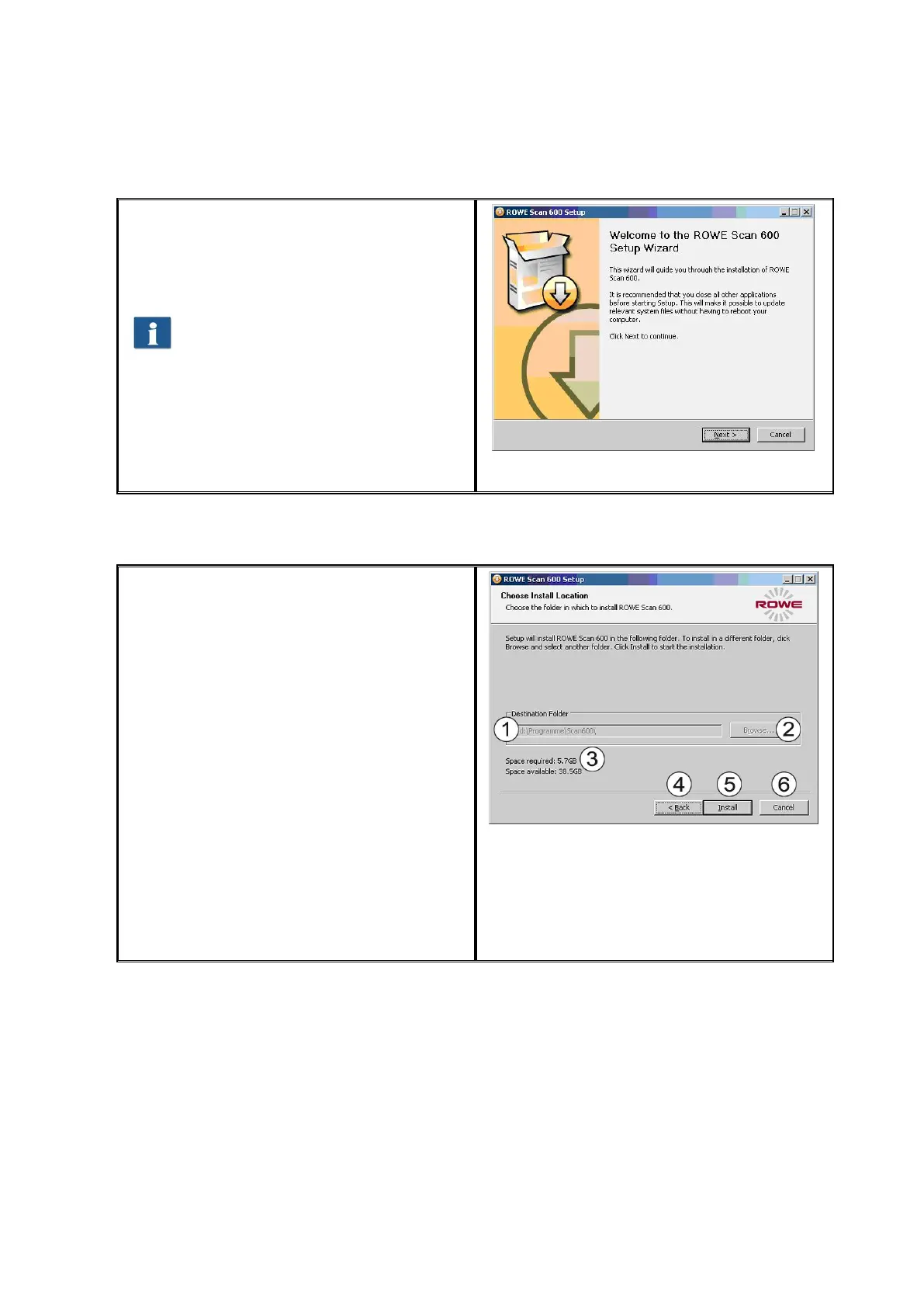
Afterwards, the welcome window is
displayed as shown in Figure 2.3.
By clicking "Next“ you access the
installation directory (Figure 2.4).
You can stop the installation process
at any time by pressing the "Cancel"
button. The software is not installed
then. However, the ROWE Scan 600
scanner cannot be operated in this
case.
When selecting the folder (Figure 2.4), a
folder where to install the ROWE Scan 600
software is already suggested. The shown
figures have the following meaning:
1. Destination folder: Currently
selected target directory is
displayed
2. Browse: Selecting another target
directory
3. Information on the required and
available storage space
4. Back: Return to previous dialog box
5. Install: Start and / or continue
installation
6. Cancel: Cancel installation
prematurely. The scanner cannot
be used in this case.



 To Next Page