Switch the scanner ON, boot the PC, and
afterwards start ScanManager.
For this purpose, double-click on the icon on
the desktop or use the link in the Start menu.
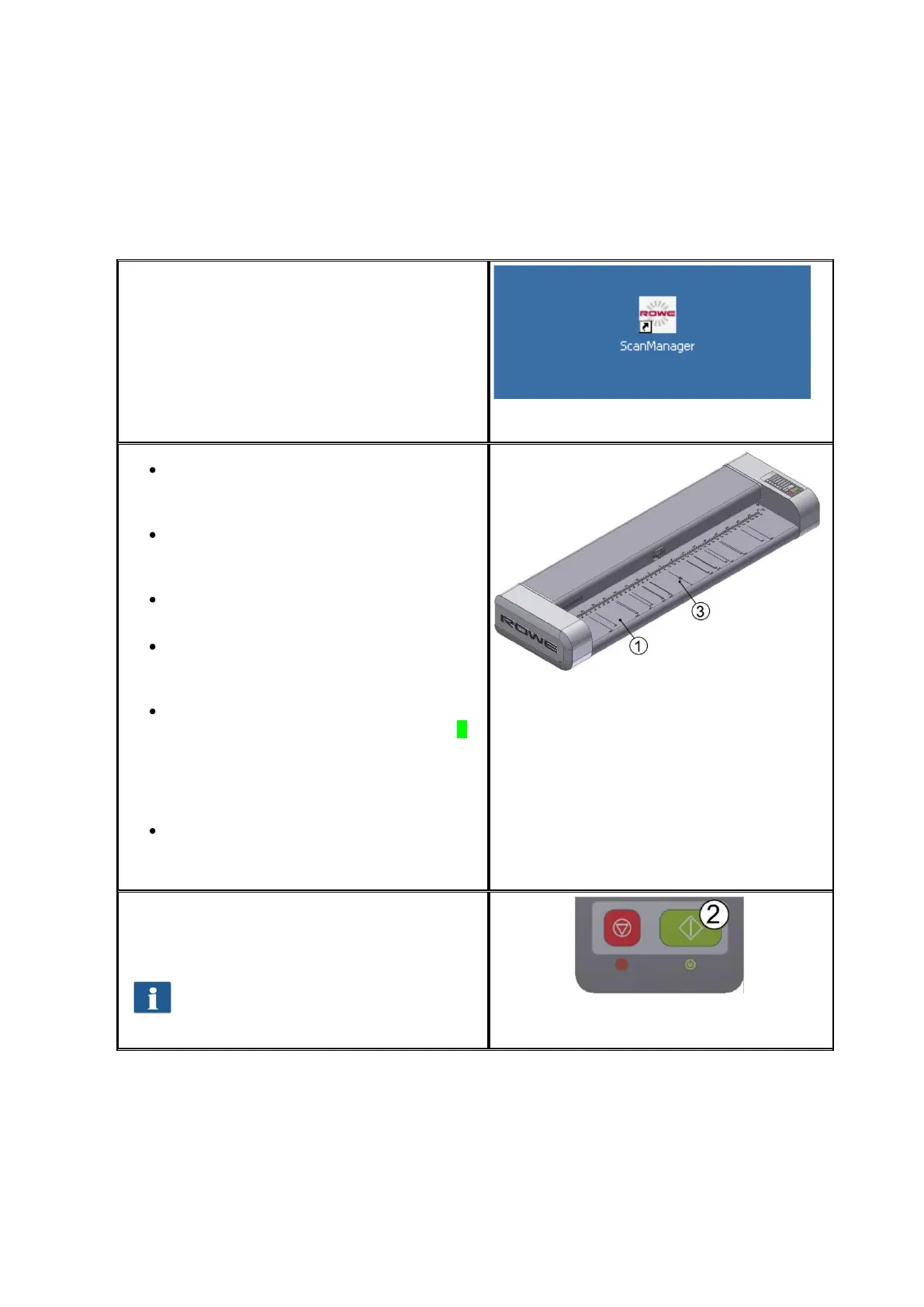
Place the document onto the feed
table (1) with the printed side facing
up.
Align the document in a way that the
zero point (3) is in the middle of the
document.
Feed the document into the scanner
until the scanner takes it in.
Select the requested color mode in
ROWE ScanManager (see Chapter
5.11.3.1 on Page 52).
Select the requested scan format in
ROWE ScanManager (see Chapter 0
on Page 57) if applicable. For the
document width being recognized
automatically, select the default
setting "Auto“.
Select the storage location in ROWE
ScanManager (see Chapter 5.11.1.1
on Page 45) if required.



 To Next Page