9. Enhanced cutting function: By means of this function you can easily cut the edges
of an image and position cutting edges pixel by pixel. When you activate the
button, red lines first appear on the outside in the Main Viewer. Now, you can
"grab" these lines by means of the mouse and pull them into the image. When
you start the output now, you are asked whether you want to output the marked
detail or the entire image.
The advantage of this function when compared to function Cut detail (5)
mainly is the fact that you can set four cutting edges while zooming any detail
in. This is how you can position edges precisely – in particular for large-sized
drawings.
This function can only be used if ScanManager PRO license option is available.
10. Reset width detection: This function allows to deactivate automatic width
detection for the scan effected before. This function is particularly useful if the
scanned document is damaged resulting in a failure of the automatic width
detection. In this way, you can prevent contents from getting lost without having
to scan the document again and / or select another scan format. When pressing
this button the image is displayed in the same width as if you had selected the
option "Auto (Sensor)" under Scan format. E.g., you can then cut the image
manually using the Enhanced cutting function (8) if requested. Further
information on width detection and scan format can be found in Chapter 5.11.3.3
on Page 57.
11. Delete image: Here you can delete the currently displayed image from the
Viewer. The image is now being removed from the Viewer, i.e. it does not get lost
if it was already saved as file.
12. Undo and Repeat: By means of this tool you can undo the last activities. Actions
undone before can be repeated only!
A document CANNOT be loaded into the Viewer again with this tool! However,
any type of modification such as black correction can be undone and / or
repeated.
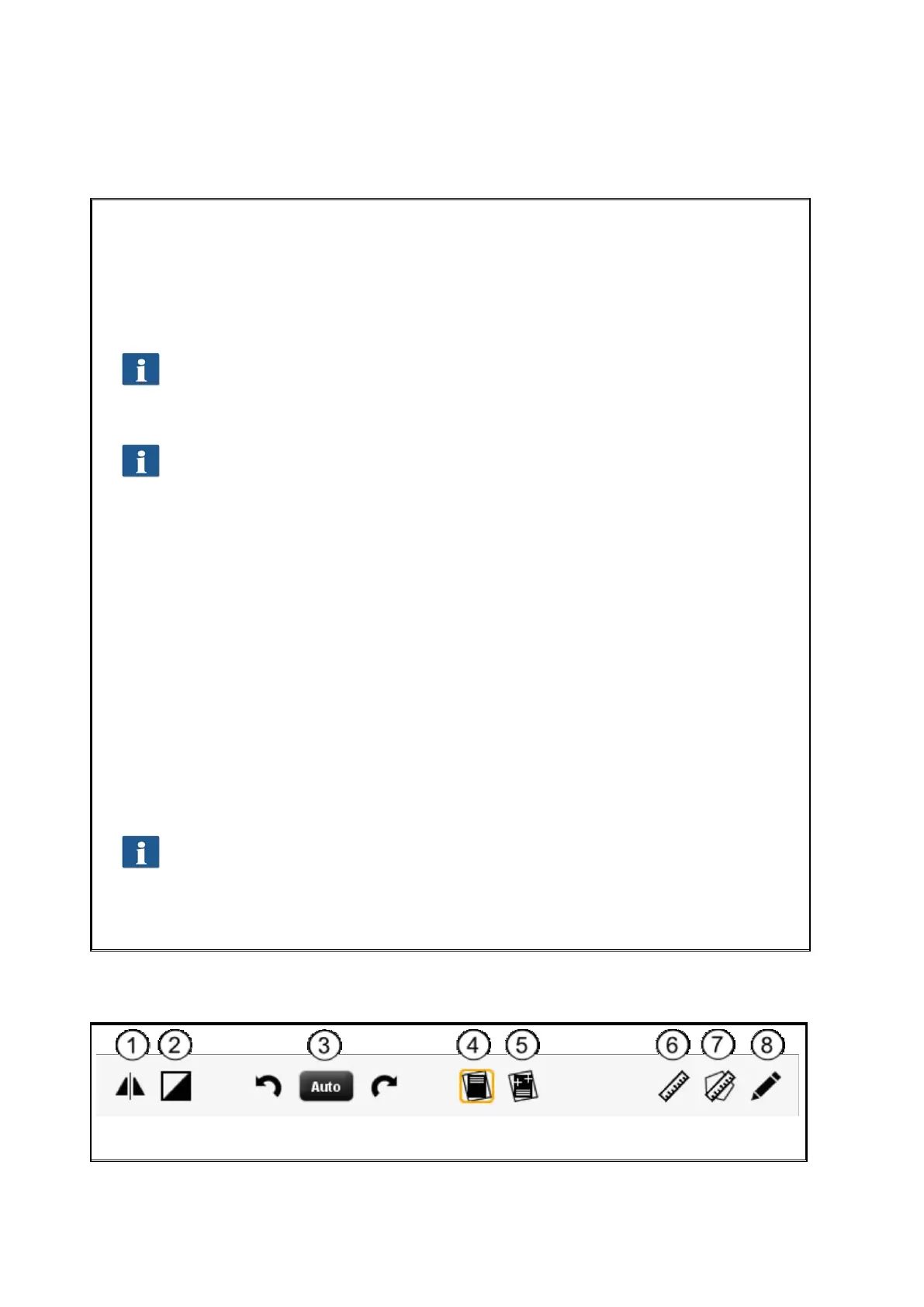
5.10 Toolbar Editing and Measuring Functions
Figure 5.10 Toolbar under Main Viewer



 To Next Page