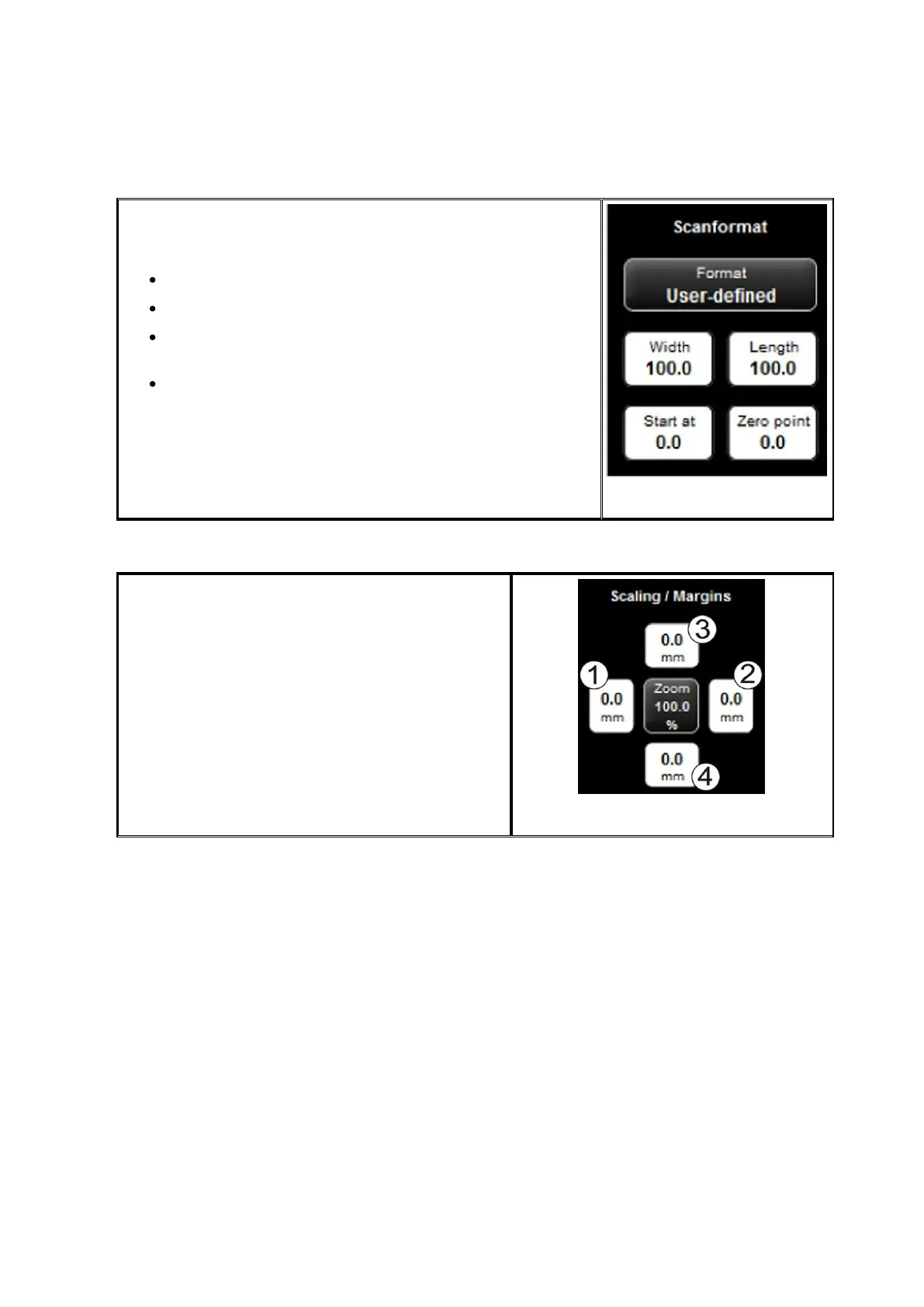
User-defined: If you select "User-defined“, you can enter
any dimension for the scan range in the displayed text
fields:
Width: Scan width in mm
Length: Scan length in mm
Start at: Start position in feeding direction from
beginning of document in mm
Zero point: The zero point is marked in the middle
of the feed table of the scanner. In the default
setting, the middle of the document has to be close
to the zero point. By means of this option, you can
shift the reference point for the middle of the
document to the left (negative value) or right
(positive value).
Figure 5.32: User-defined format
5.11.3.4 Scaling / Margins
In the area "Scaling / Margins" you can add, cut
off, extend, or reduce margins on the four sides
of a document.
Enter positive values in the four text fields in
order to enlarge the left (1), right (2), front (3)
and / or rear margin (4) (white). If you want to
cut the margin off, simply enter negative values.
By means of the "Zoom" button, you access a
submenu where you can select extensive scaling
options.
Figure 5.33: Scaling / margins



 To Next Page