5.11.3.1 Color Mode
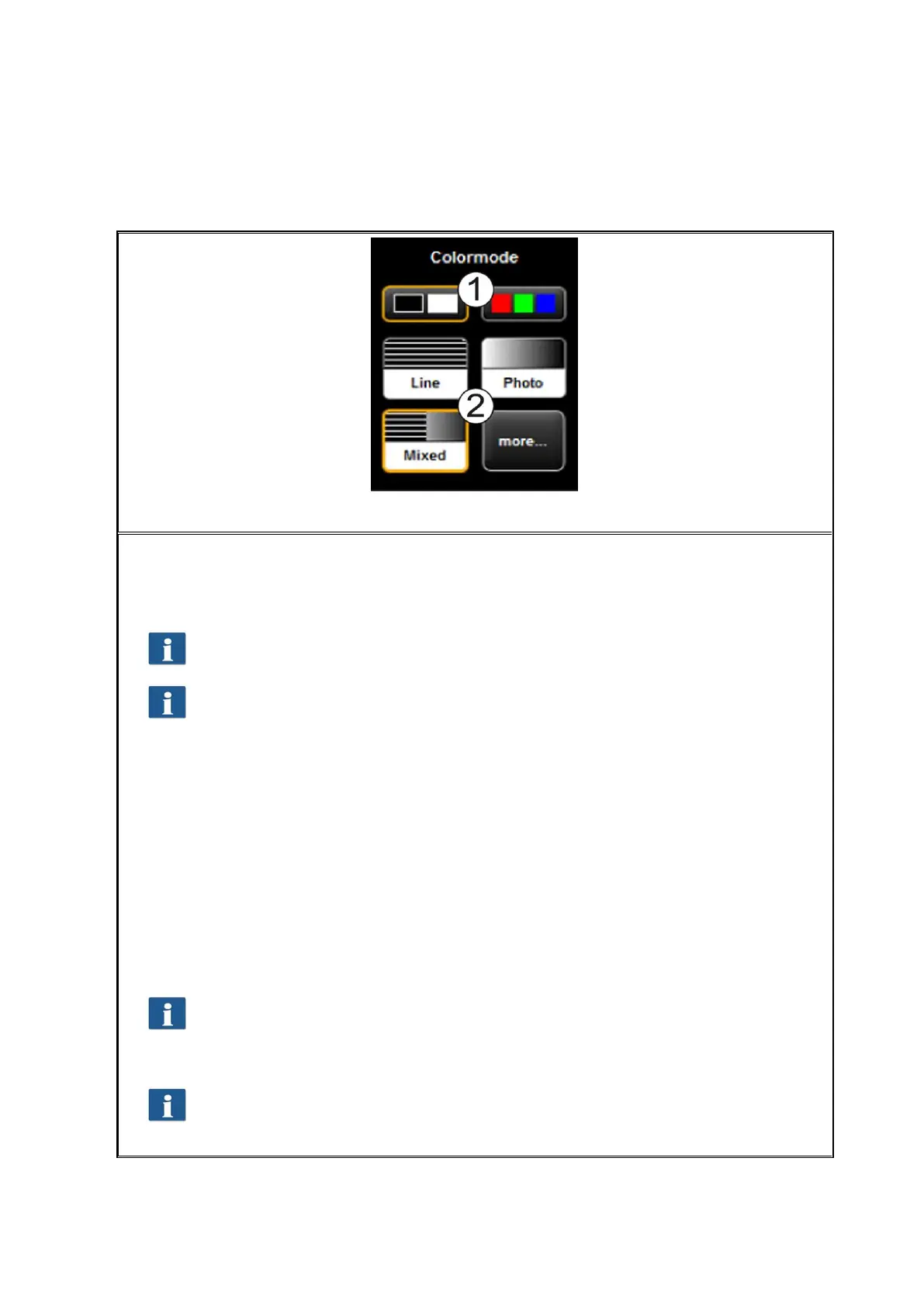
One of the most important settings is the color mode.
1. Selection of Color (RGB) and gray scale and / or black/white. The following scan is
effected in the mode set here.
Color scans are only possible if the license option "Color" is available.
If you effected a grayscale and / or black/white scan and switch to color later,
the image is, however, displayed in gray scale in the Viewer.
2. Choose original type: Here, you can easily achieve the best quality for many
different types of originals by selecting the condition of the scanned original.
Specially optimized settings are then selected to achieve the best possible result.
Select "Line" if the original exclusively includes line structures and / or
homogenous areas (e.g. CAD drawings).
Select "Photo“ if the original includes complex structures and color
gradients (e.g. photos, posters, etc.)
Select "Mixed“ if the original includes line structures as well as color
gradients.
More: Behind this button there are more special document types in addition
to "Line“, "Photo“, and "Mixed" (e.g. optimization for maps, etc.)
If you are not sure to which original type a document is to be allocated, you
can test which settings meet your requirements best as the display in the
Viewer is updated immediately with the selected mode. You do not have to
scan the document again.
If you scan a special original which does not match any of the available
settings, you can perform further individual modifications in the expert mode
(see 5.11.3.2 ).


 To Next Page