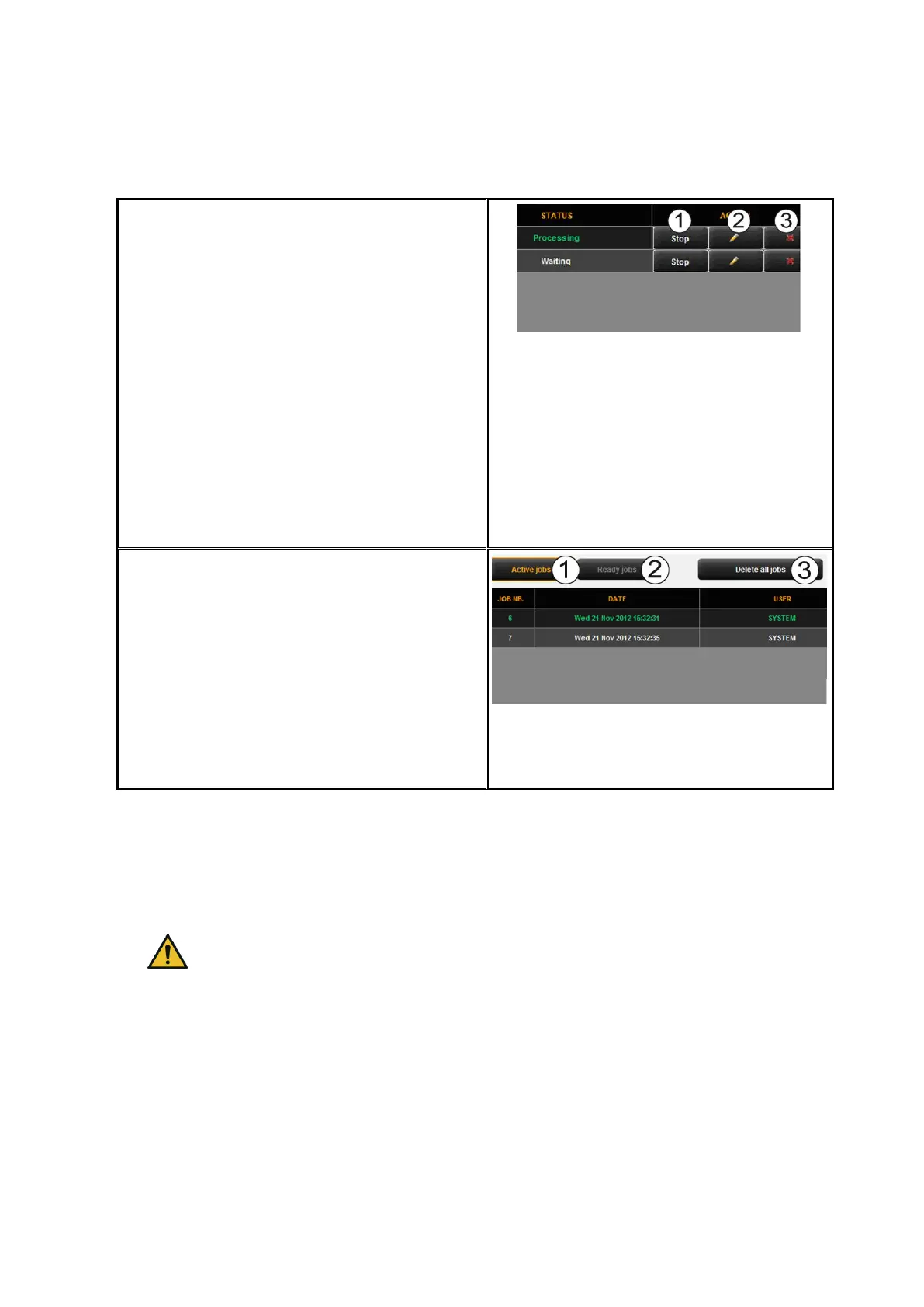
The following actions are available to control
individual print jobs:
1. Stop: Stopping a print job
(depending on the printer model this
may not be possible if the printer
already started the print process).
2. Edit: By means of this button, you
can edit the job using PrintMaster
PRO and output the job again with
the modified settings if applicable.
For details please see Chapter
PrintMaster PRO (5.14) as from Page
66.
3. Delete: If the output has not yet
been started, you can delete the job
if you do not want to output it.
Figure 5.44: Edit print jobs
Moreover, the buttons above the table
provide the following options:
1. Active jobs: Displays jobs which have
not yet been processed.
2. Ready jobs: Displays jobs which have
already been finished (provided for
future updates).
3. Delete all jobs: By means of this
button you can cancel all print jobs
shown in the list.
Figure 5.45: Settings job list
5.14 PrintMaster PRO
By means of the function "PrintMaster PRO" you can create extensive print jobs as single
files or complete sets with individual settings for each file. An overview of PrintMaster
PRO is given in Figure 5.46.
You can use PrintMaster PRO only if the license option "PrintMaster PRO" is
available.
5.14.1 Layout of PrintMaster PRO



 To Next Page