If active, only information on the selected
period of time will be displayed. This search
key can be used as follows:
Arrow up/down only changes the date by
one day. If the mouse pointer is positioned
in the area of the month, the month is
changed; this also applies to the year.
All filter criteria can be combined. If all filter criteria are selected, press the button Create
order report (1) to update the tabular report in the main window.
For further analysis the order report can also be exported in a file with comma-separated
values (*.csv). By means of the button Export CSV (2) a CSV file will be created in the
selected folder (3). When creating the file, all filter criteria selected above will be
considered.
In order to define the storage location, actuate the button Location (3) and select the
requested target folder on your computer. Your own user folder is preset first.
In the text field File name (4) a name can be allocated to the CSV file to be created. By
default, orderreport.csv is used. File extension .csv will be added by the program
automatically.
By means of the Explorer (5) button, the set folder can be opened to access the exported
file directly.
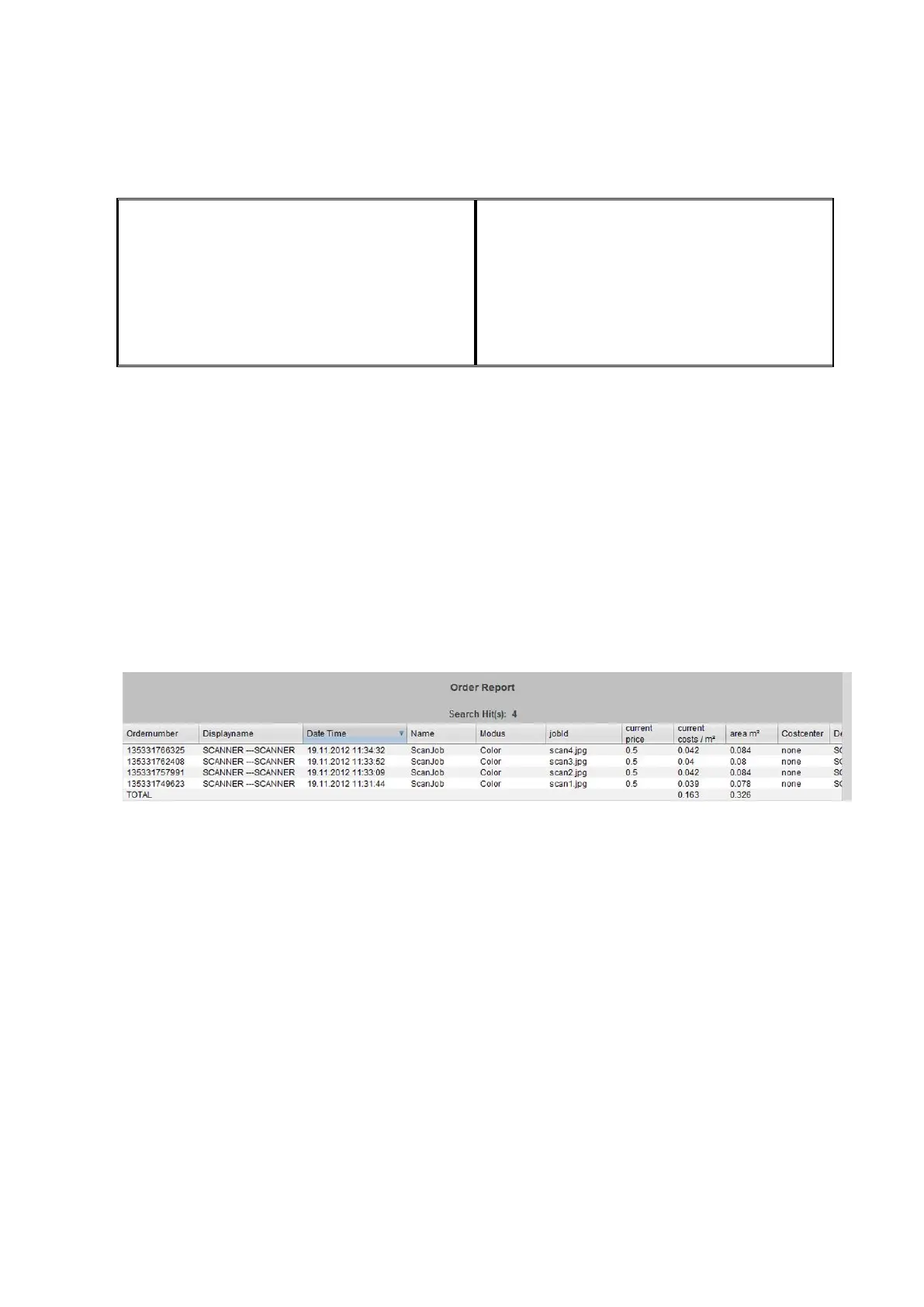
Figure 7.3: Order report table
In the tabular view of the order report, information is sorted by date of creation (see
Figure 7.3). Sorting can be applied to any column of the order report by clicking the
header of the respective column.
The system allocates an order number to each order. Interrelated jobs are given the same
order number. Example: Prescan and scan or scan and subsequent print.
The view of the standard version deviates from the Cost Control Professional view in that
information on cost centers and costs is given in the Professional version, only.



 To Next Page