Making Connections Messaging 119
Note:Toviewyourdraftemailmessages,intheInbox,tapMenu >Drafts.
Note:Toviewyoursentmessages,intheInbox,tapMenu >Sent.
Check Received Gmail Messages
Yourphoneallowsyoutoaccess,read,andreplytoallyourGmailmessages.
Open Gmail Messages from Notifications
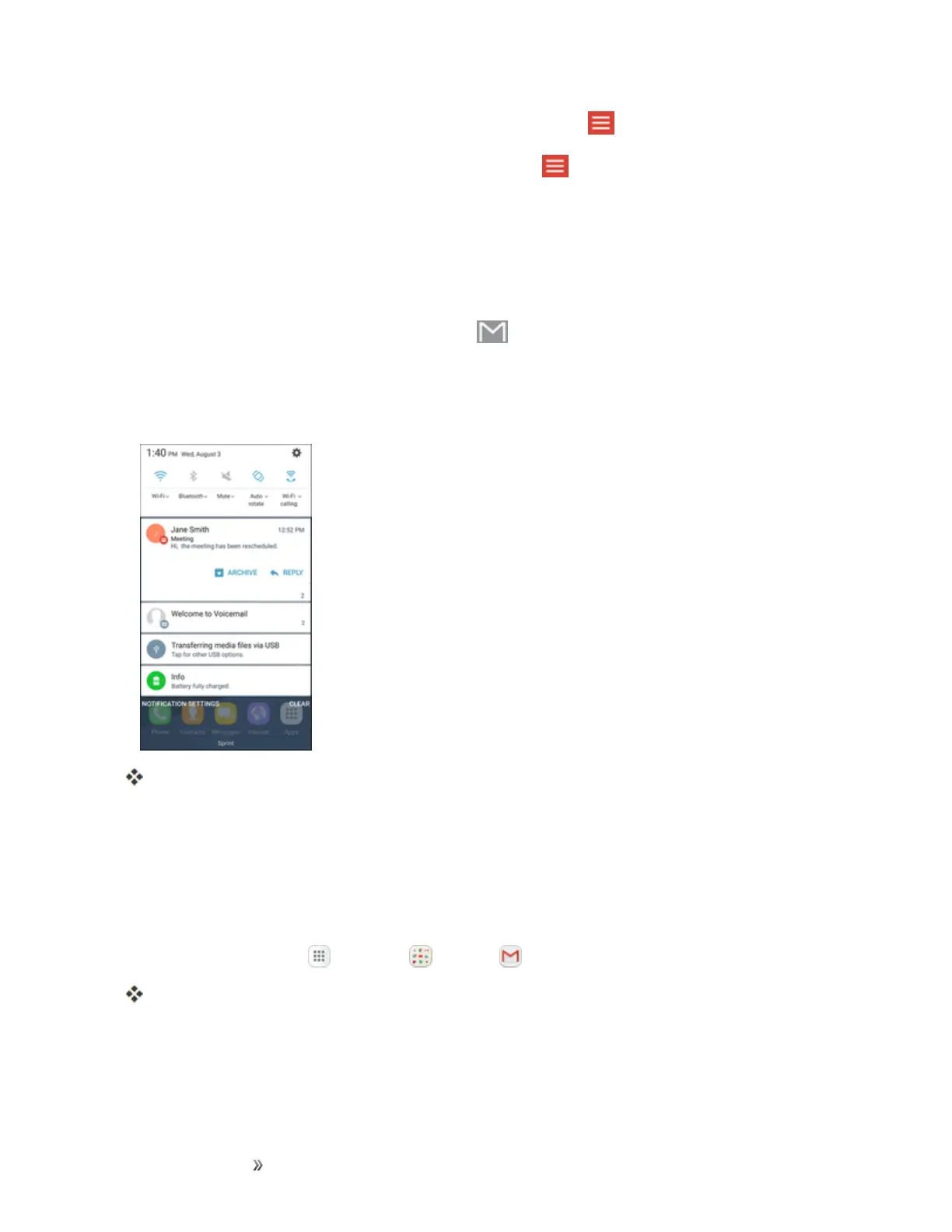
WhennewGmailarrives,youwillseeNew Gmail inthestatusbar.
1. Pulldownthestatusbartodisplaythenotificationpanel.
2. Tapthenewmessagefromthenotificationpanel.
ThenewGmailmessageopens.
l IfyouhavetwoormorenewGmailmessages,tappingthenotificationopenstheGmail
Inbox.
Open Gmail Messages from the Inbox
YoucanalsoreadandreplytoallyourGmailmessagesfromtheGmailInbox.
1.
Fromhome,tap Apps >Google >Gmail .
TheGmailInboxopens.
2. Tapthemessagethreadyouwanttoview.







 To Next Page