Settings Personal Settings 277
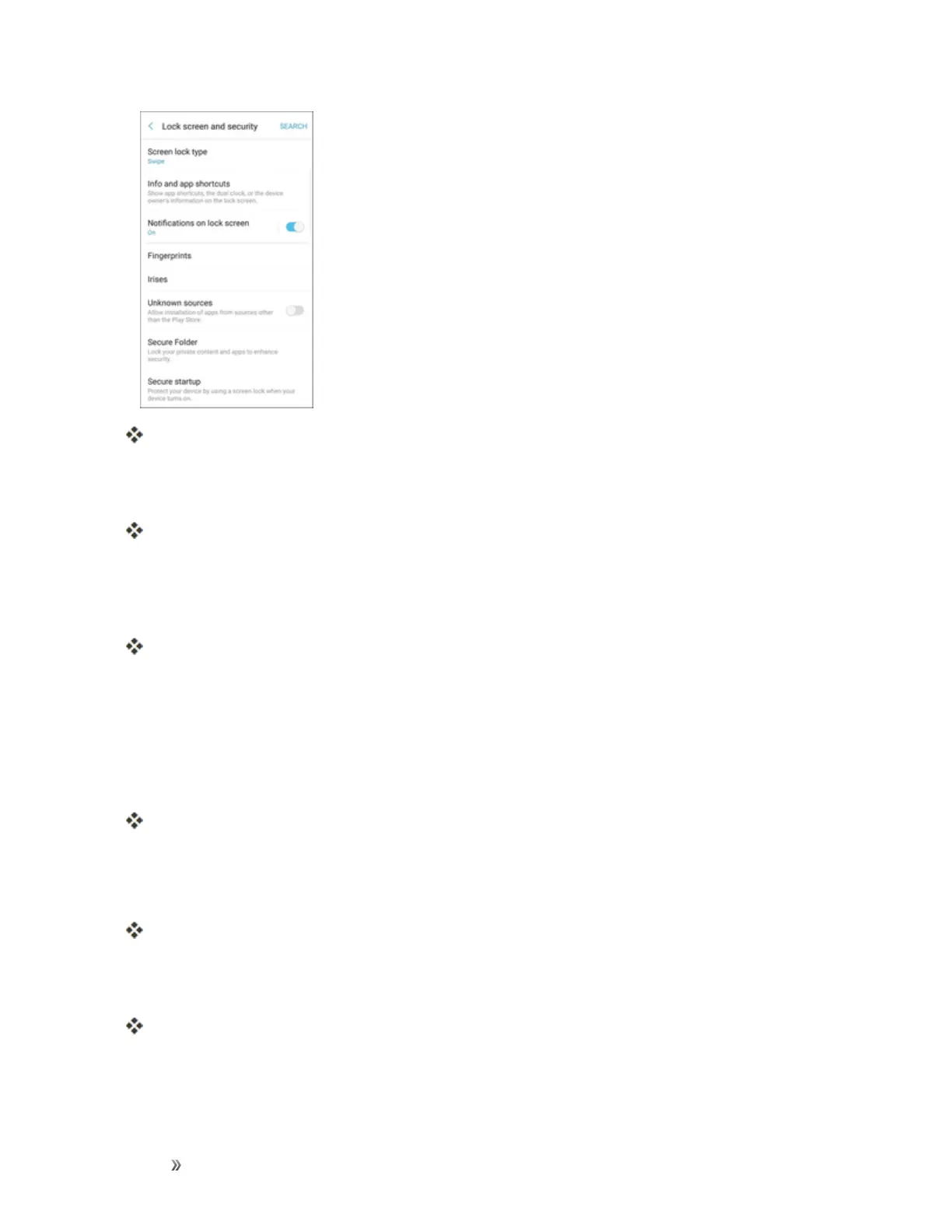
Thelockscreenandsecuritymenuopens.
2. TapScreen lock typeandfollowthepromptstoenteryourpattern,password,fingerprint,oriris
scan.
TheScreenlocksettingsmenuopens.
Use Swipe to Unlock the Screen
n FromtheScreenlocktypemenu,tapSwipetosavethesetting.
Thescreenlockisset.
Use a Screen Unlock Pattern
1. FromtheScreenlocktypemenu,tap Pattern.
2. Drawthescreenunlockpatternbyconnectingatleastfourdotsinavertical,horizontal,or
diagonaldirection.Liftyourfingerfromthescreenwhenfinished.
Thephonerecordsthepattern.
3. TapContinue.
4. Whenprompted,drawthescreenunlockpatternagain,andthentapConfirm.
Thescreenunlockpatternissaved.
5. EnterabackupPIN,tapContinue,re-enterthePIN,andtapOKtosaveyourscreenunlock
pattern.
Thescreenlockisset.
l Ifyoufailtodrawthecorrectunlockpatternonthescreenafterfiveattempts,youwillbe
promptedtowaitfor30secondsbeforeyoucantryagain.













 To Next Page