Settings Device Settings 259
4. TapDone,andconfirmwhenprompted.
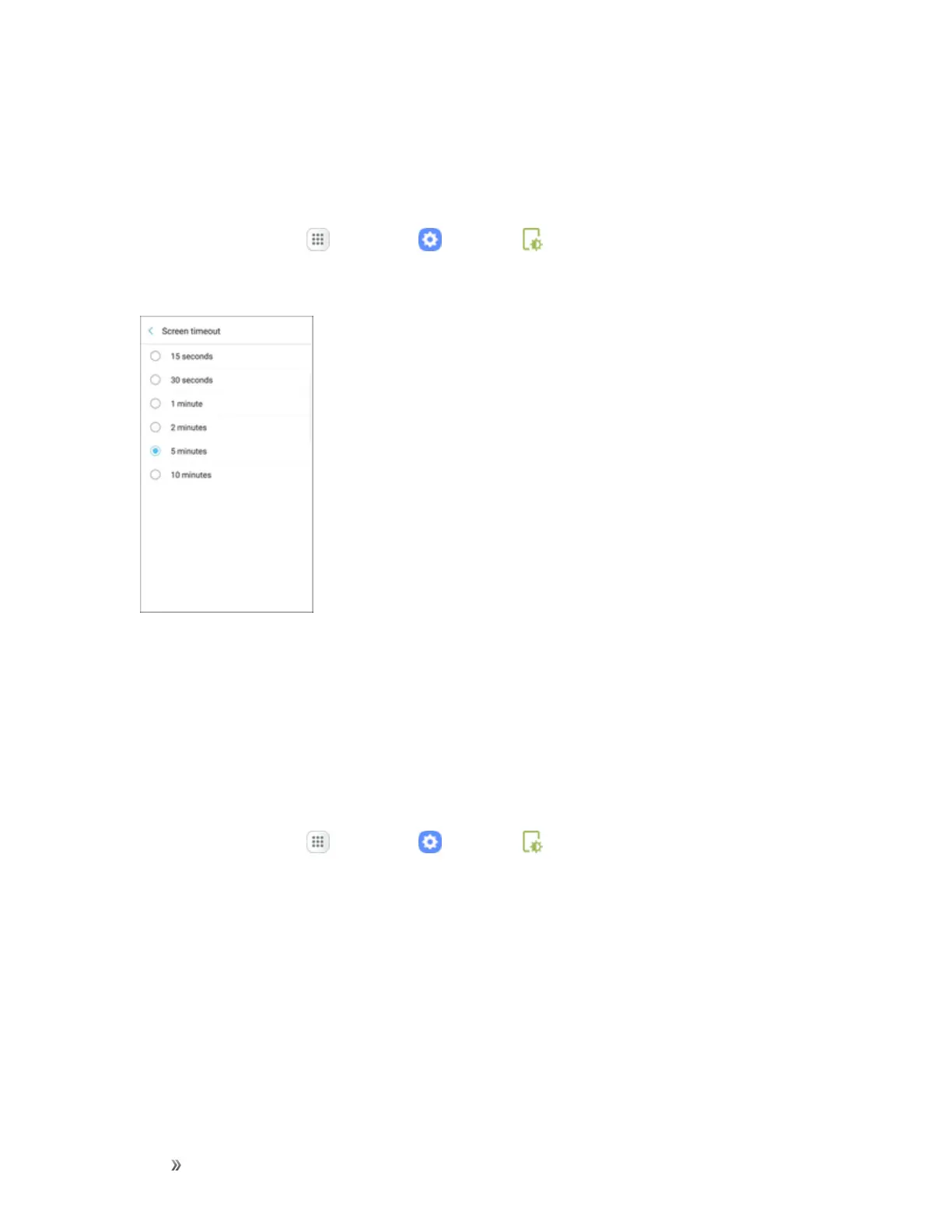
Screen Timeout
Turnthescreenoffafterasetamountoftime.
1.
Fromhome,tapApps >Settings >Display .
2. TapScreen timeout.
3. Chooseatimeperiod.
Always On Display
Seeimportantinformationwithoutunlockingthescreen.Youcanselectanimageorinformationto
showonthestandbyscreen.Double-tapanotificationicontoviewthatnotification.
Note:Ifyoudouble-tapanotificationandascreenlockisenabled,youarepromptedtounlockyour
device.
1.
Fromhome,tapApps >Settings >Display .












 To Next Page