SEEDMASTER 2023
82
13. Set the application type for each product by touching the drop-down and selecting Granular
RPM Maintained for the Application Mode. Do this for each product and touch next.
14. If the Machine shares all the section drivers. Choose YES and then touch next.
NOTE: If the sections don’t share all drivers skip to step 19.
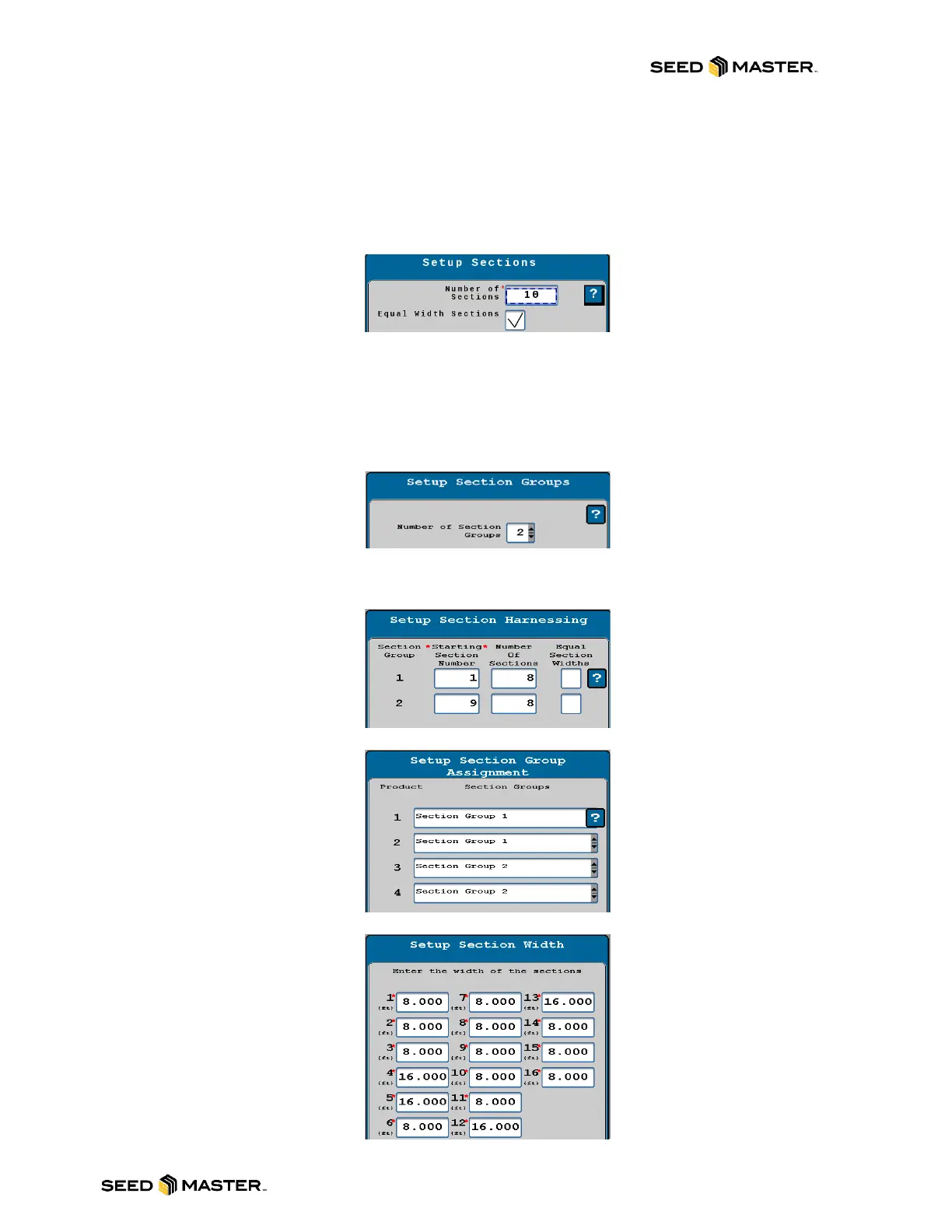
15. Enter the number of zones for the Number of Sections. If the sections are equal width, leave the
check mark on for this setting. The Master Clutch and Power to Apply will remain with NO check
marks. Touch next.
16. The section widths for each section will be displayed. Each section is X amount of feet. Review
and confirm. Touch next.
17. There are NO Auxiliary Drivers installed. Touch next.
18. Section Summary will display the products and sections and the assigned driver and switch
review. Touch next. Note: You may have two pages for the summary. Skip to step 25.
19. If the Machine DOES NOT share all the section drivers, choose NO and then touch next.
20. Enter the number of Section Groups.
21. An example of the section group mapping will be displayed. Review the guide then touch next.
22. Enter the Starting Section Number and Number of Sections associated with the starting
number. Touch next.
23. Select the section group that is associated to the corresponding product.
24. Enter the widths of each section then touch next and review summary and touch next.



 To Next Page