Alerting and Reporting
11. For any Field item click the sort asterisk and select the desired sort type (none,
ascending, or descending) to affect the sort order for the report.
12. Click Execute SQL Query to view the report in the resorted form.
13.
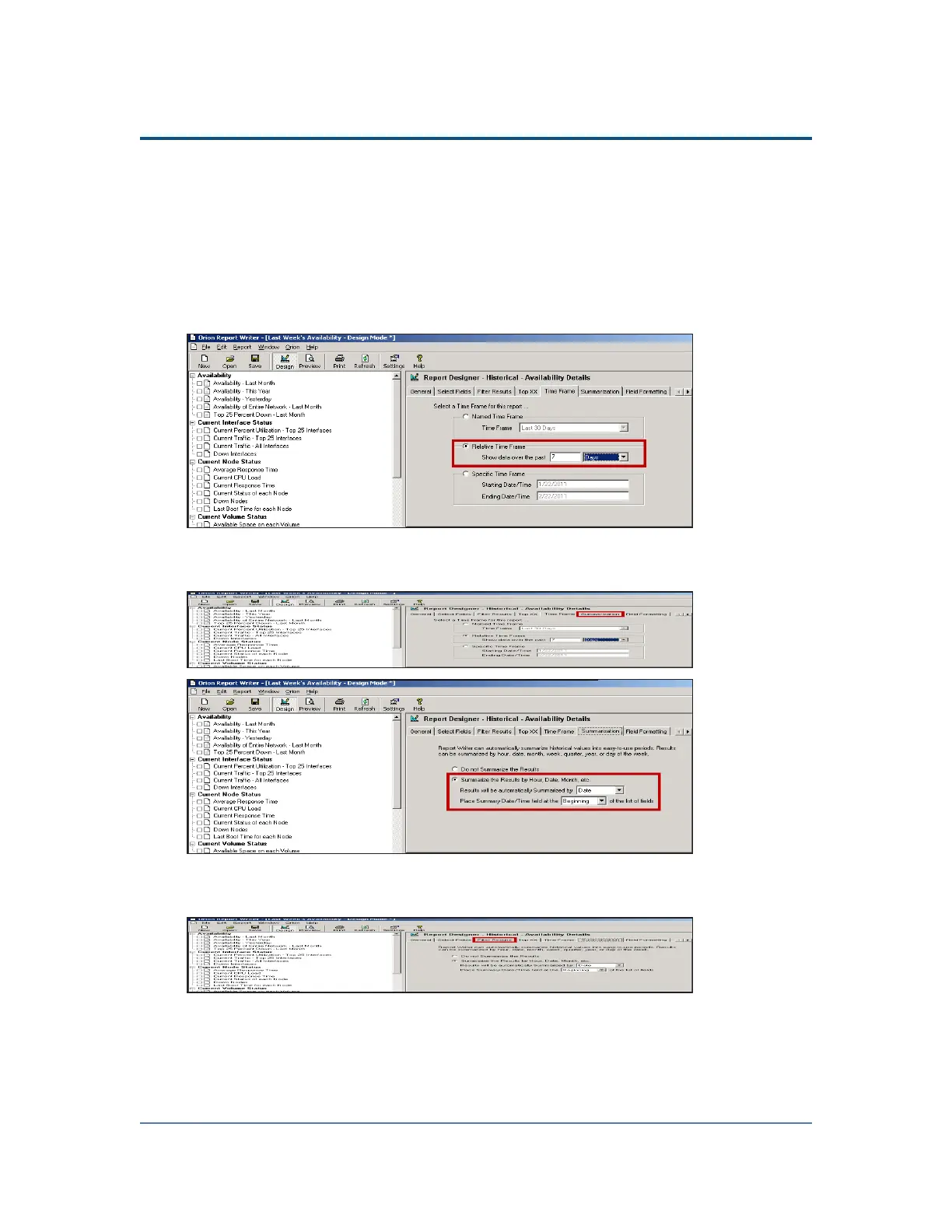
Click Time Frame.
14. Adjust the time frame as needed.(for example, switch to a Relative Time Frame,
with the past 7 Days as the data range).
15. If you want to break down the report day-by-day, click Summarization and
specify your choices.
16. If you want to filter your report, click Filter Results and specify filter rules,
as on the Select Fields tab.
17. Click File > Save to save your work.
97



 To Next Page