Managing Groups and Dependencies
Display of Group Status"
8. Click Submit.
Managing Group Members
The following procedure manages the objects included within a defined group.
1. Click Start > All Programs > SolarWinds > Orion Web Console.
2. Click Settings in the top right of the web console, and then click Manage
Groups in the Node & Group Management grouping of the Orion Website
Administration page.
3. Check the group you want to edit, and then click Add & Remove Objects.
Deleting Groups
Complete the following steps to delete an existing group.
1. Click Start > All Programs > SolarWinds > Orion Web Console.
2. Click Settings in the top right of the web console, and then click Manage
Groups in the Node & Group Management grouping of the Orion Website
Administration page.
3. Check the group you want to delete, and then click Delete.
Managing the Display of Group Status
The status of any particular group is determined by the status of the members of the
group. There are three methods for determining the status displayed for a selected
group of monitored objects:
Note: For more information about object states in Orion Platform, see "Editing Object
Properties".
n
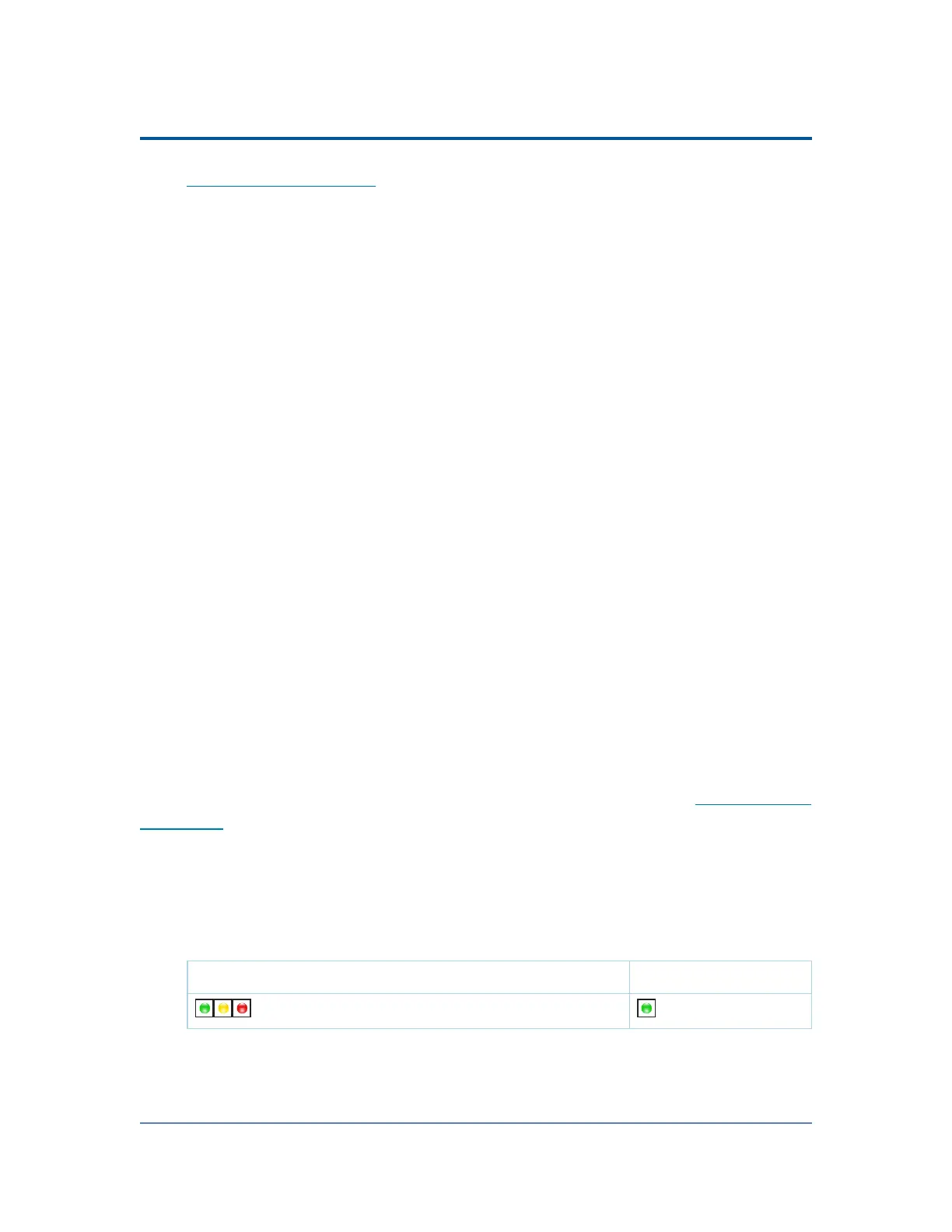
Show Best Status is most useful for displaying groups that are defined as
collections of redundant or backup devices. The following table indicates how
the Show Best Status option operates:
Note: Compare Group Status results under the Show Best Status option with
results for the same groups of objects under the Show Worst Status option.
Object States Group Status
(Up, Warning, Down) (Up)
182



 To Next Page