8.
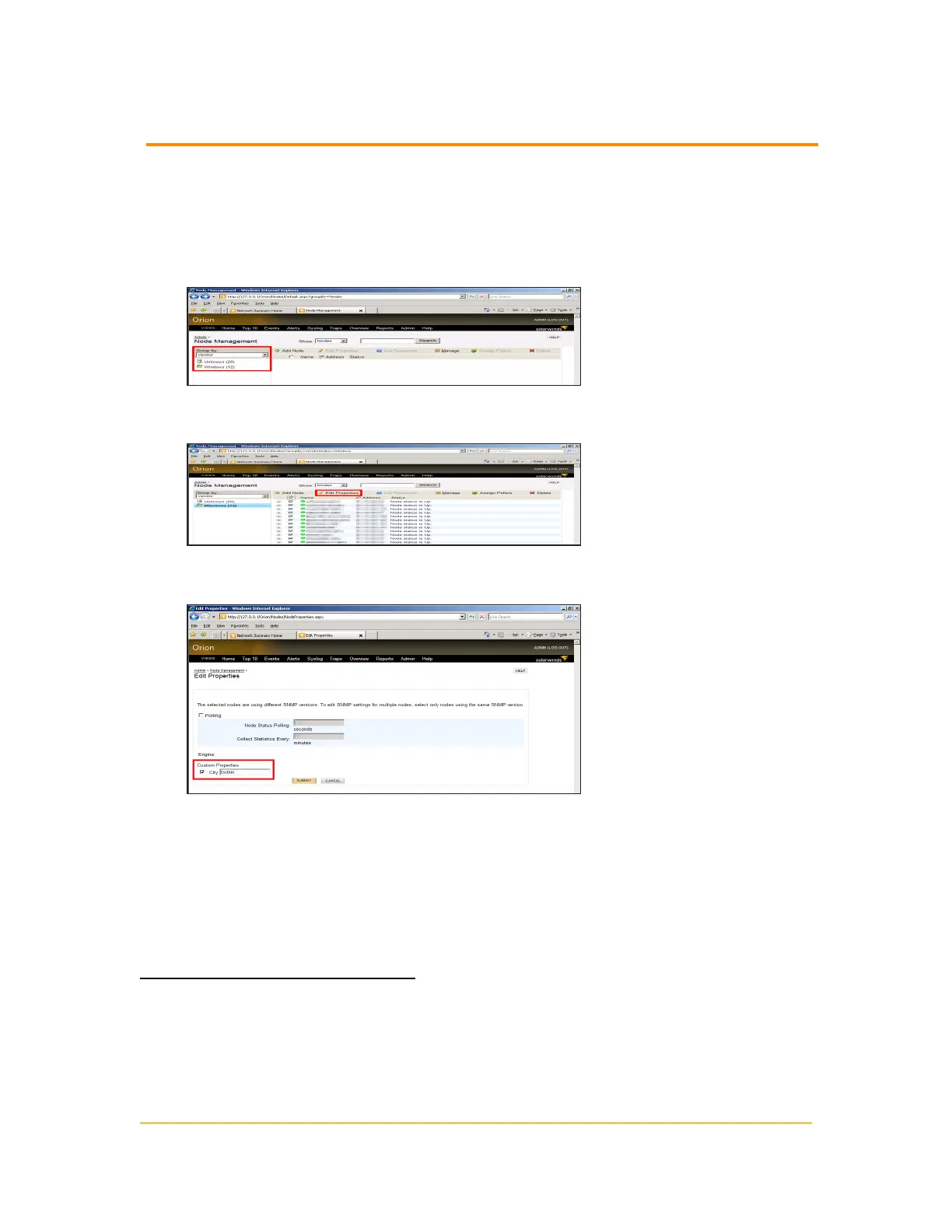
Select the type of nodes to which you want to apply the State property using
either of the following methods:
Use the search tool above the node list to search your Orion Platform database.
Select an appropriate Group by criteria, and then click the appropriate group
including the node.
9.
Check all nodes to which you want to apply the State property, and then click
Edit Properties on the Node Management toolbar.
10.
Check State, type the appropriate state name for the node or group of nodes
you selected, and then click Submit.
Creating an Alert Using a Custom Property
The following example creates multiple alerts using the State custom property
defined previously. Each alert will trigger when a node goes down. Upon triggering,
each alert will perform a specific action that depends on the value of the State
custom property for the node triggering the alert.
To create a new advanced alert:
1. Click Start > All Programs > SolarWinds > Alerting, Reporting, and Mapping >
Advanced Alert Manager.
2. Click Configure Alerts.
326
Creating an Alert Using a Custom Property



 To Next Page