Common Orion Tasks
4.
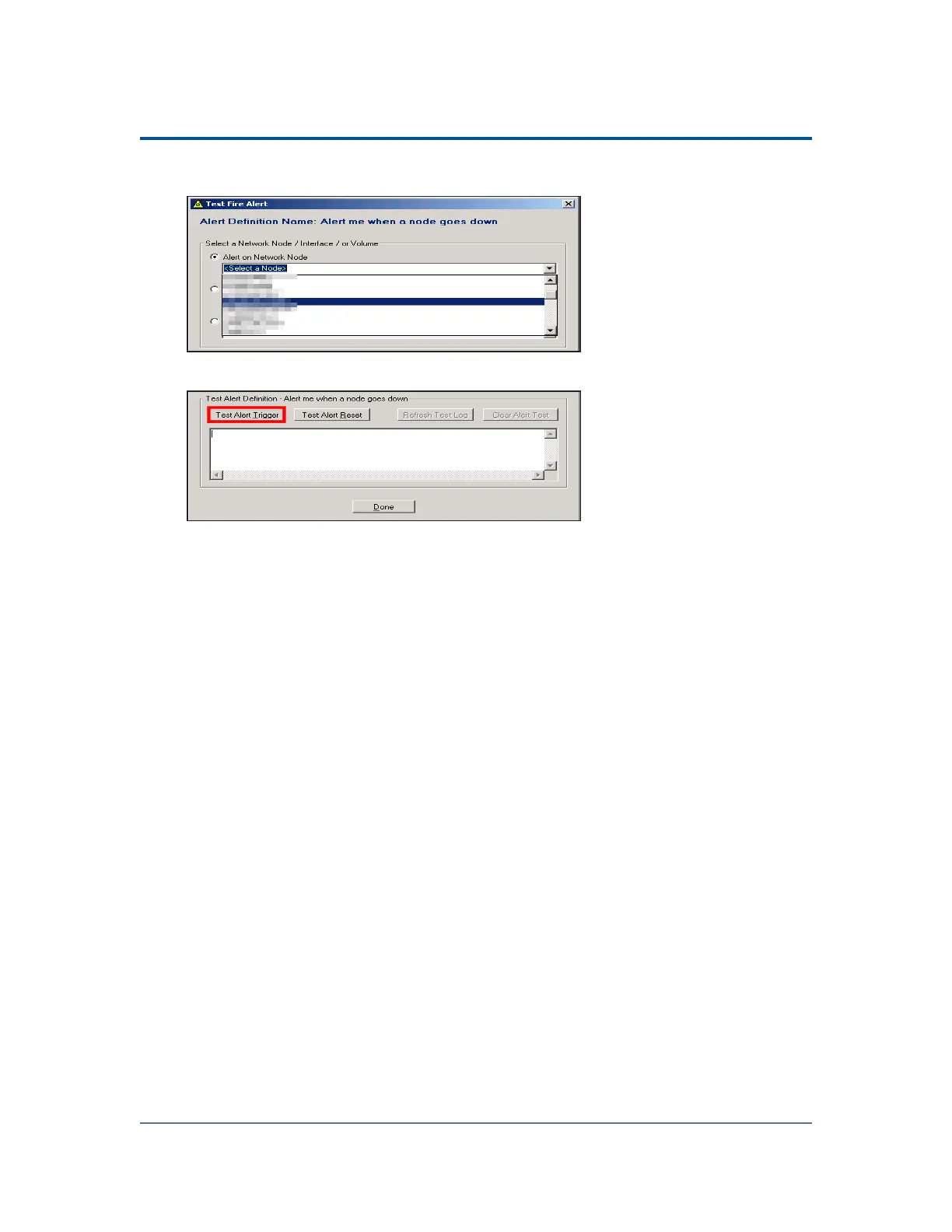
Select Alert on Network Node, and then select your Server.
5.
In the Test Alert Definition area, click Test Alert Trigger.
6.
Review the alert test log as the test completes.
Viewing the Results of Each Alert Actions
After the test is complete, you can view the results of each of your alert actions as
follows:
n
To view the results of your email alert action, open EvaluationAlertLog in your
Orion folder, typically <Volume:>\Program Files\Solarwinds\Orion.
n
To view results of your Syslog message action, click Start > All Programs >
SolarWinds > Syslog and SNMP Traps > Syslog Viewer.
n
To view the results of your Syslog message action, click Start > All Programs >
SolarWinds > Syslog and SNMP Traps > Trap Viewer.
Scheduling and Emailing Business Hours Reports
You are the SolarWinds administrator for your company and you have just been
assigned the task of sending daily reports to your Executive team in regards to peak
response times to devices on your network. Orion Report Writer and Report
Scheduler will help you accomplish this task.
333



 To Next Page