Operating & Maintaining the Objet24 3D Printer
6–10
DOC-34014 Rev. C
Resuming Production After Printing has Stopped
Iftheprintingprocessisinterrupted,ObjetStudiostopssendingslicesto
theprinter.Thiscanhappen,forexample,iftheprintingmaterialrunsout
inthemiddleofaprintjob,andyoudon’treplacetheemptycartridge
immediately.AftertheprinterchangestoStandbyorIdlemode,youneed
to
resumeprintingfromtheJobManagerscreenofObjetStudio.
To continue printing the model:
1. Iftheprinterisinofflinemode,switchittoonlinemodebyclickingthe
redbuttonatthebottomoftheprinter interface(seefigure 6‐3on
page 3).
Thebuttonchangesfromredtogreen(seefigure 6‐7onpage 8).
2. Ifyoudon’tknowwhyprintinghasstopped,makesurethatthe
connectionbetweenthe printerandtheservercomputerisactive.
3. IntheJobManagerscreenofObjetStudio,clicktheResumeicon .
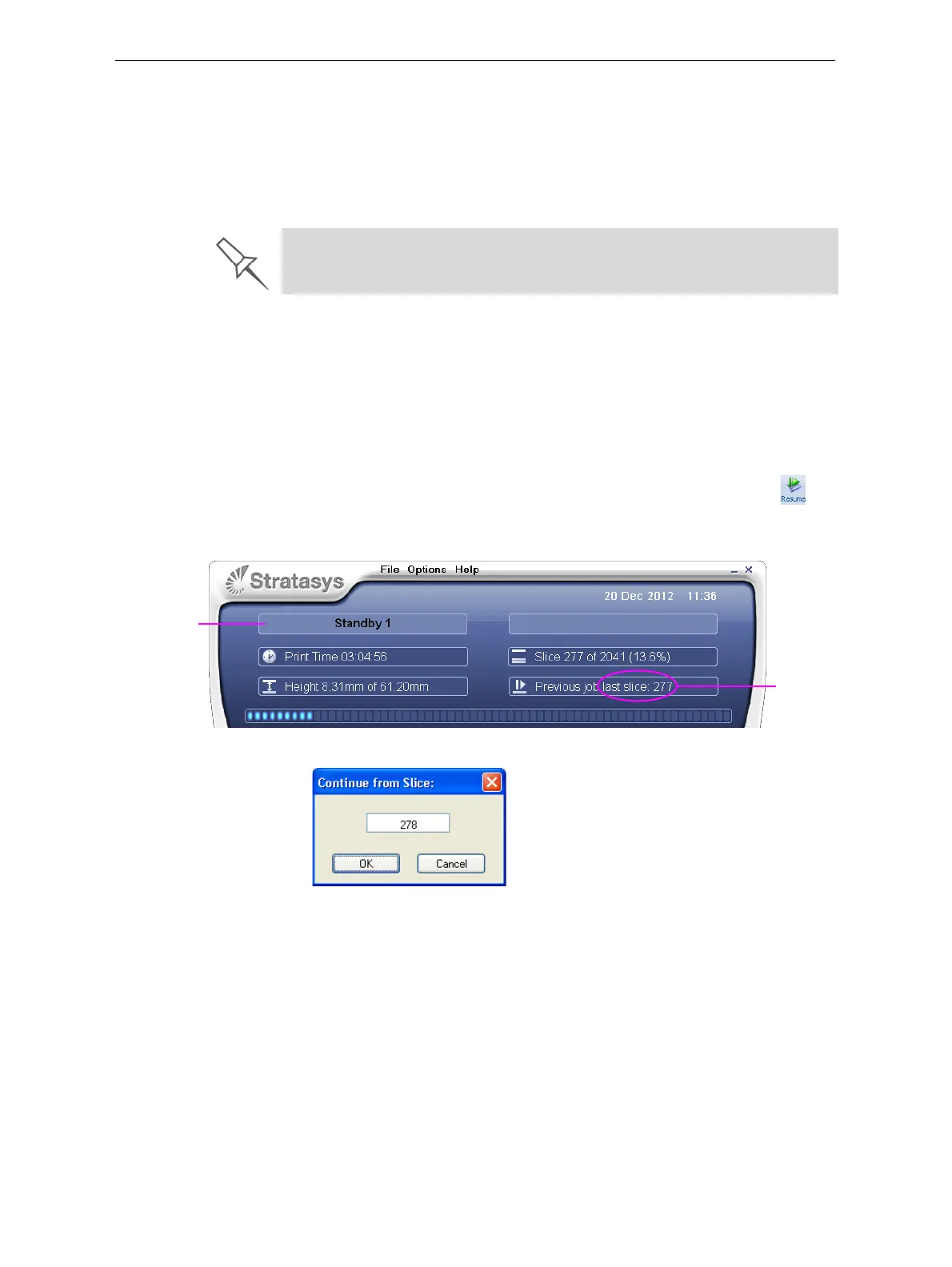
4. IntheContinuefromSlicedialogboxthatappears,confirmtheslice
number,aftercheckingtheprinterinterface.
Figure 6-10: Printer interface after interrupted printing
Figure 6-11: Continue from Slice confirmation in Objet Studio (Job Manager
screen)
5. If,foranyreason,thecorrectnumberdoesnotappearinthedialog
box,enterthenumberandclick
OK.
After printing stops, the printer goes into Standby mode, when heating of
print heads is reduced. About 20 minutes later, the printer goes into Idle
mode, when heating of print heads is stopped.
Printer mode
Last slice
printed











 To Next Page