DOC-34014 Rev. C 5–21
Objet24 User Guide
Avoid Support-Material Rule
Thisruleconsidersmodelsthathavelargeholesorhollows,openonat
leastoneside(likeapipeoracontainer).
¾ Itmaybeadvantageoustoprintamodelstandingup,sosupport
materialdoesnotfillthehollow,eventhoughprintingthemodellying
downwouldbemuchfaster.
Manipulating Objects on the Build Tray
Positioning
Objects on the
Z-Axis
Whenyouusetheautomaticpositioningoptiontoarrangeobjectsonthe
buildtray(see“A u t o m a t i c Orientation”onpage 18),theobjectsare
positioneddirectlyonthetray.Ifyoudonotinsertobjectswithautomatic
positioning,theyoftenappeareitheraboveorbelowthetray.
To position objects directly on the tray:
1. Selecttheobject.
2. FromtheObjectmenu,select
Lay On.
To ensure that objects are always positioned directly on the tray:
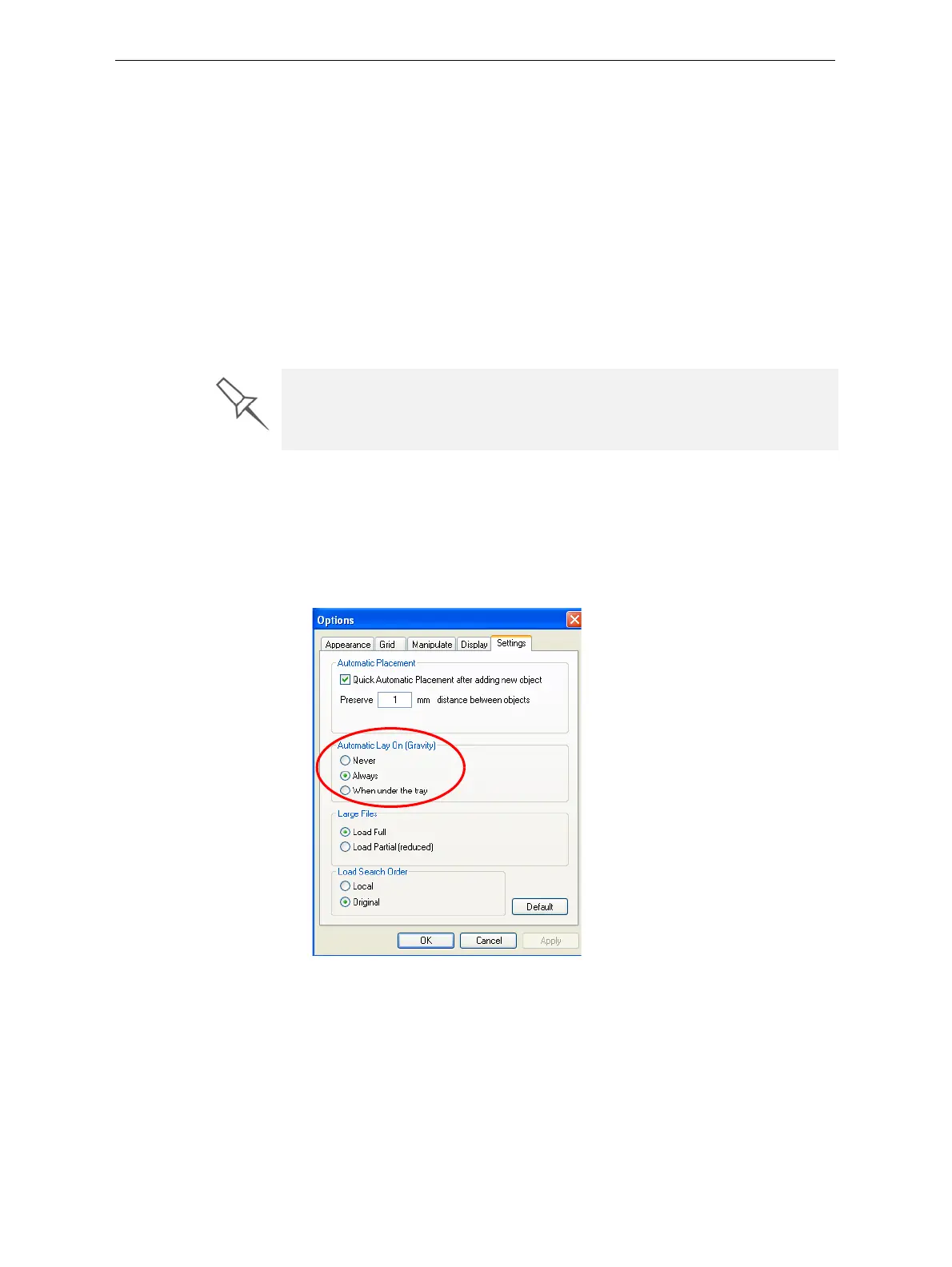
1. FromtheToolsmenu,selectOptions,anddisplaytheSettingstab.
Figure 5-21: Options dialog box, Settings tab
2. IntheAutomaticLayOn(Gravity)section,selectAlways.
Other Z-axis options (in the Automatic Lay On section):
• When under the tray—Thedisplayofobjectsthatarebelowthebuild
trayisautomaticallychangedsothattheobjectisattraylevel.
• Never—Thedisplayofobjectsthatareaboveorbelowthebuildtrayis
notchanged.
In practice, the Objet system prints all models on the build tray on a one-
millimeter bed of support material. The importance of positioning objects
directly on the build tray with Objet Studio is to correctly display the objects
on the screen.











 To Next Page