DOC-34014 Rev. C 5–57
Objet24 User Guide
Monitoring and Managing Print Jobs
IntheJobManagerscreenofObjetStudio,youmonitorandmanagejobs
senttotheprinter.ThereareafewdifferencesbetweenObjetStudioon
clientworkstationsandonthecomputerconnecteddirectlytothe3D
printer—theserverworkstation.
• ObjetStudioinstalledonaclientcomputeronlydisplaysthequeueand
statusforjobssenttothe3Dprinterserverfromthatcomputer,andit
allowstheusertoeditonlythesejobs.
Note: If there are several Objet printers on the local network, client
computers can connect to any of them, but only one at a time.
• ObjetStudioinstalledonthecomputerdirectlyconnectedtoaspecific
3Dprinter(server),displaysthequeueandstatusforalljobssenttothat
3Dprinterbytheserverandbyallclientcomputersonthenetwork.It
alsoallowseditingandmanipulationofalljobs,andenablesre‐sending
previously‐printedjobstotheprinter.
Job Manager
Screen
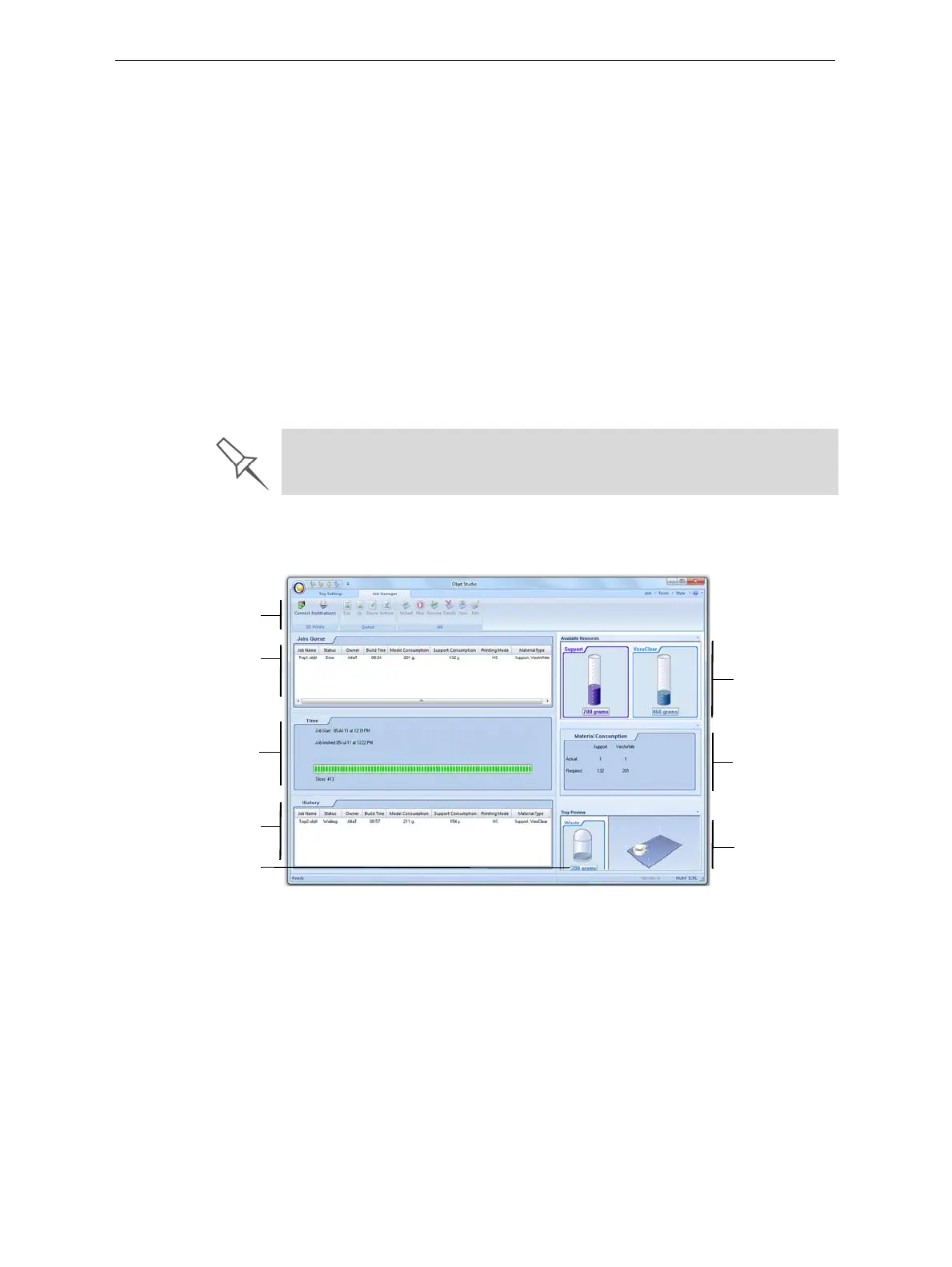
TheJobManagerscreenontheclientandserverworkstationslooks
identical.Theonlydifferenceisthatoptionsonlyrelevanttotheserver
workstationaredisabledforclientinstallations.
Figure 5-83: Job Manager screen
TheJobManagerscreenisdividedintopanels:
• JobsQueue
• PrintingProgress
• History
• AvailableResources
• MaterialConsumption
• TrayPreview
• Waste
If Objet Studio is not connected to a printer (or printer server), you can
prepare tray files for any Objet printer. Later, these files can be used by
Objet Studio on the appropriate printer server.
Jobs Queue
Print History
Tray Preview
Materials
consumption
Available
resources
Waste status
Job Manager
Ribbon
Print Progress











 To Next Page