S CLASS™ cutter User’s Manual
Contour Cutting 3-10
3.3.4 Loading the graphic into the cutter
Load the printout into the cutter as described in section 1.5. Make sure that the marker
indicating the Origin is situated at the bottom right corner of the cutter.
3.3.5 Setting the parameters for the OPOS sensor
The OPOS parameters are variables that define the distance, size, and number of markers.
Most cutting software sets these parameters automatically and even starts the special load
procedure.
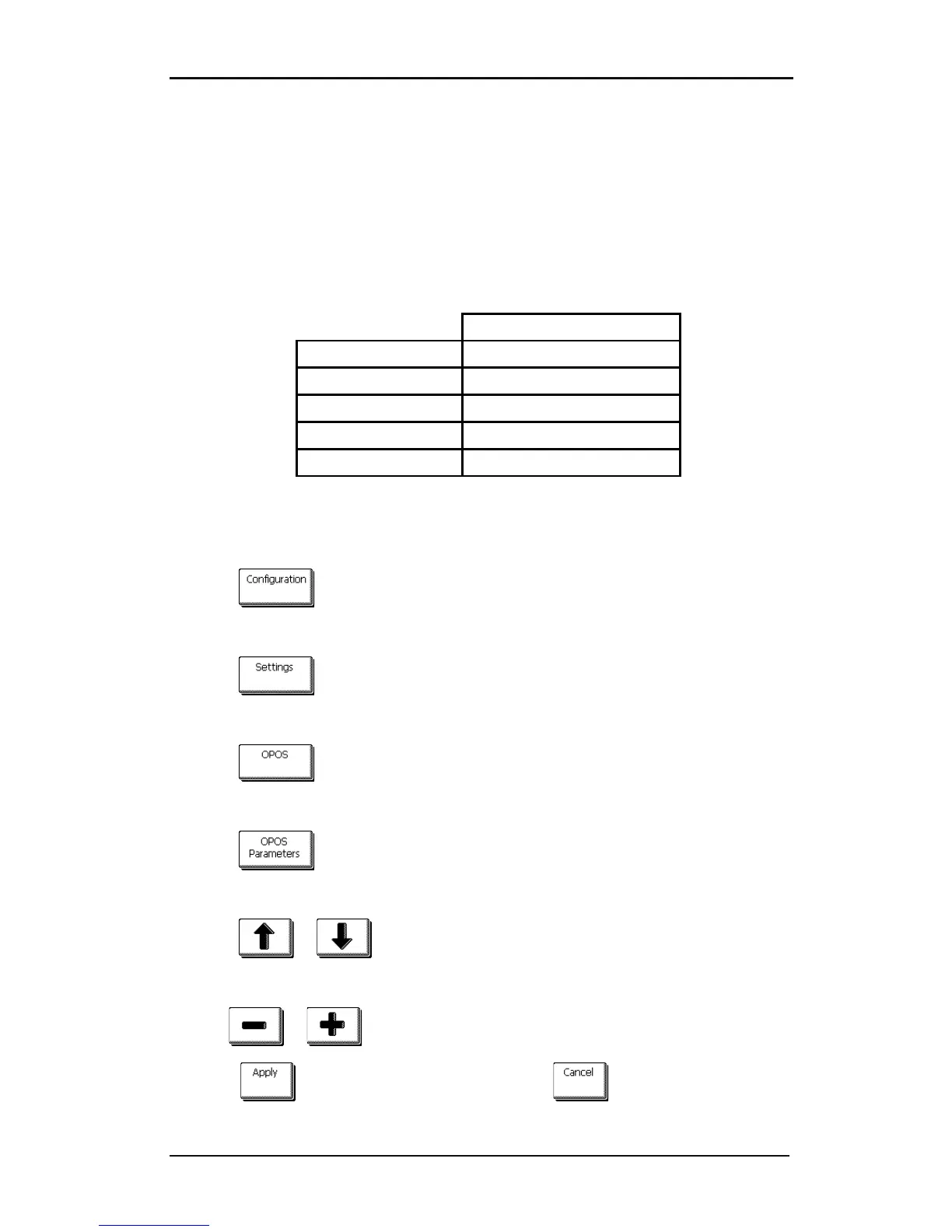
Range
X distance 30 mm to 1300 mm
Y distance 30 mm to 1600 mm
X size 1.2 mm to 10 mm
Y size 1.2 mm to 10 mm
Marker Count on one line 2 to 64
Changing OPOS setting:
1. Power on the cutter.
2. Press .
The main menu will appear on screen.
3. Press .
The configuration menus will appear on screen.
4. Press .
The different OPOS configuration menus will appear on screen.
5. Press .
The different OPOS parameters will appear on screen.
6. Press or to select the parameter that needs to be changed.
The chosen parameter will be inverse.
7. Use or to change the value.
8. Press to confirm the new values. Or Press to exit the menu without
changing the value.







 To Next Page