S CLASS™ cutter User’s Manual
Contour Cutting 3-11
3.3.6 Registering the markers
Most cutting software will initiate the special load procedure after the parameters are sent.
If the software does not do this, then initiate the loading sequence from the cutter’s touch
panel.
Registering the markers:
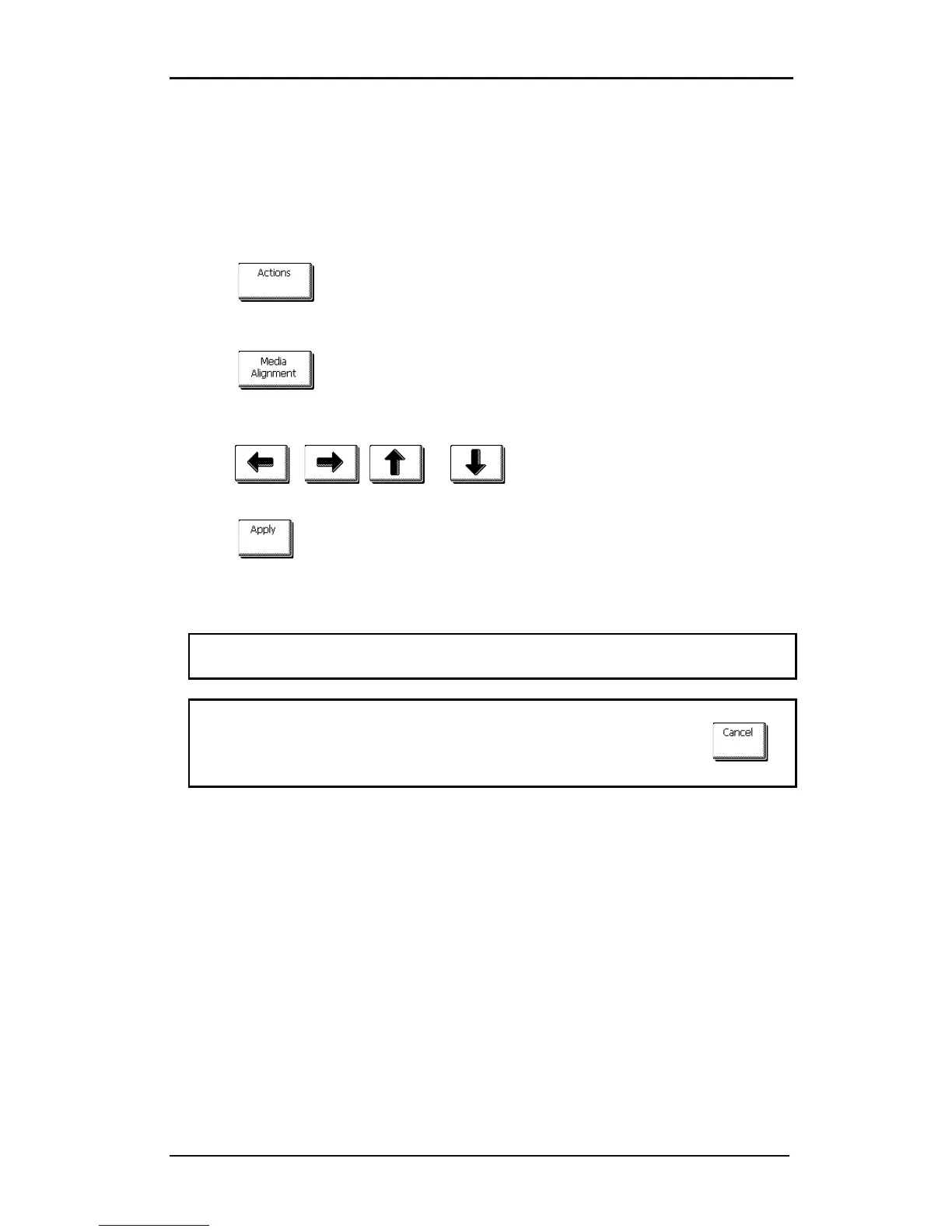
1. Press .
The main action menu will appear on the screen.
2. Press .
The cutter will lower the sensor. The display will show the message: ”put knife on first
marker.”
3. Use , , or to maneuver the knife on top of the first
marker.
4. Press to confirm.
The cutter will reload the media to check if the loaded length matches with the OPOS
parameters used. Then it will return and read the markers.
NOTE: If a marker cannot be read, then the user will be given the option to re-position
the knife (sensor) or to abort.
NOTE: If an error occurs or the cutter cannot read the markers after three attempts, the
following message will be displayed: ”Markers could not be sensed, press to
continue.”







 To Next Page