S CLASS™ cutter User’s Manual
Detailed Operation 4-3
4.3.1 Settings
This menu bundles all the settings of the S CLASS™ cutters. All settings in this section, apart
from the OPOS parameters, are user-dependent (information is contained within each of
the eight individual user settings, see section 4.3.3.).
4.3.1.1 Tool
The Tool submenu is used to select the default tool at power-up.
Press the button, then use or to change the tool to another default tool.
Press to confirm or to cancel. After changing the tool, the cutter will ask
the user to confirm that there was a tool change just before it comes online.
NOTE: Do not forget to check and/or recalibrate the tool settings when a tool has been
changed (see section 2.2.1). Also, OPOS calibration must be redone (see section 3.2.1).
4.3.1.2 Advanced cutting
The cutting menu groups the different parameters to optimize the cutting quality.
Overcut:
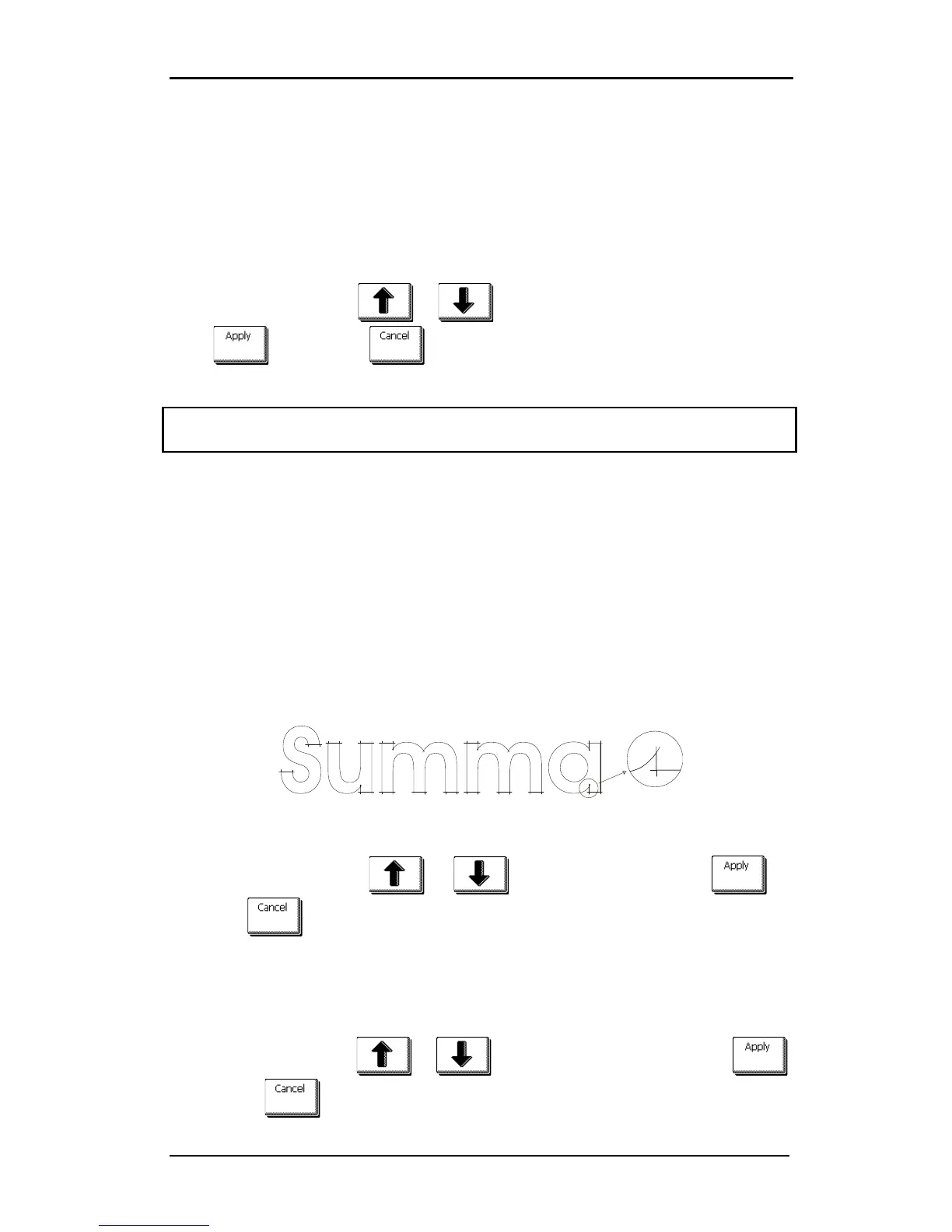
The Overcut submenu enables you to generate an overcut in order to facilitate weeding the
cut. Each time the knife goes up or down, the cutter cuts a bit further. Figure 4.3 below
shows what overcut does with a tangential knife. A sample cut-out with a drag knife would
show fewer overcuts, since there would be fewer up/downs (usually only one per
curve/letter).
The overcut setting can be disabled (=0) or set to any value between 0(=off) and 10. One
unit is about 0.1 mm or 0.004 ".
FIG 4-3
4-3 OVERCUT
Press the button, then use or to change the value. Press to
confirm or to cancel. The default overcut is set to 1.
OptiCut:
OptiCut increases the cutting quality in case the knife is worn out or not calibrated correctly.
OptiCut is default-set to OFF.
Press the button, then use or to set OptiCut to ON or OFF. Press
to confirm or to cancel.







 To Next Page