S CLASS™ cutter User’s Manual
Contour Cutting 3-15
3. Press .
The different OPOS configuration menus will appear on screen.
4. Press .
5. Use or to set OPOS sheet mode “on” or “off.”
6. Press to confirm, or press to exit.
7. Press
to get online again.
8. Register the markers and cut the first contour as described in sections 3.3.5 and 3.3.6.
The cutter will stop after the first contour has been cut and come online again.
9. Raise the pinch rollers and manually remove the sheet.
10. Insert the next sheet into the cutter. Lower the pinch rollers.
NOTE: The second and any following sheets must be loaded in the cutter at the same
position as and with the same orientation of the first sheet. When in OPOS sheet mode,
the cutter stores the distance between edges of the sheet and the first OPOS marker.
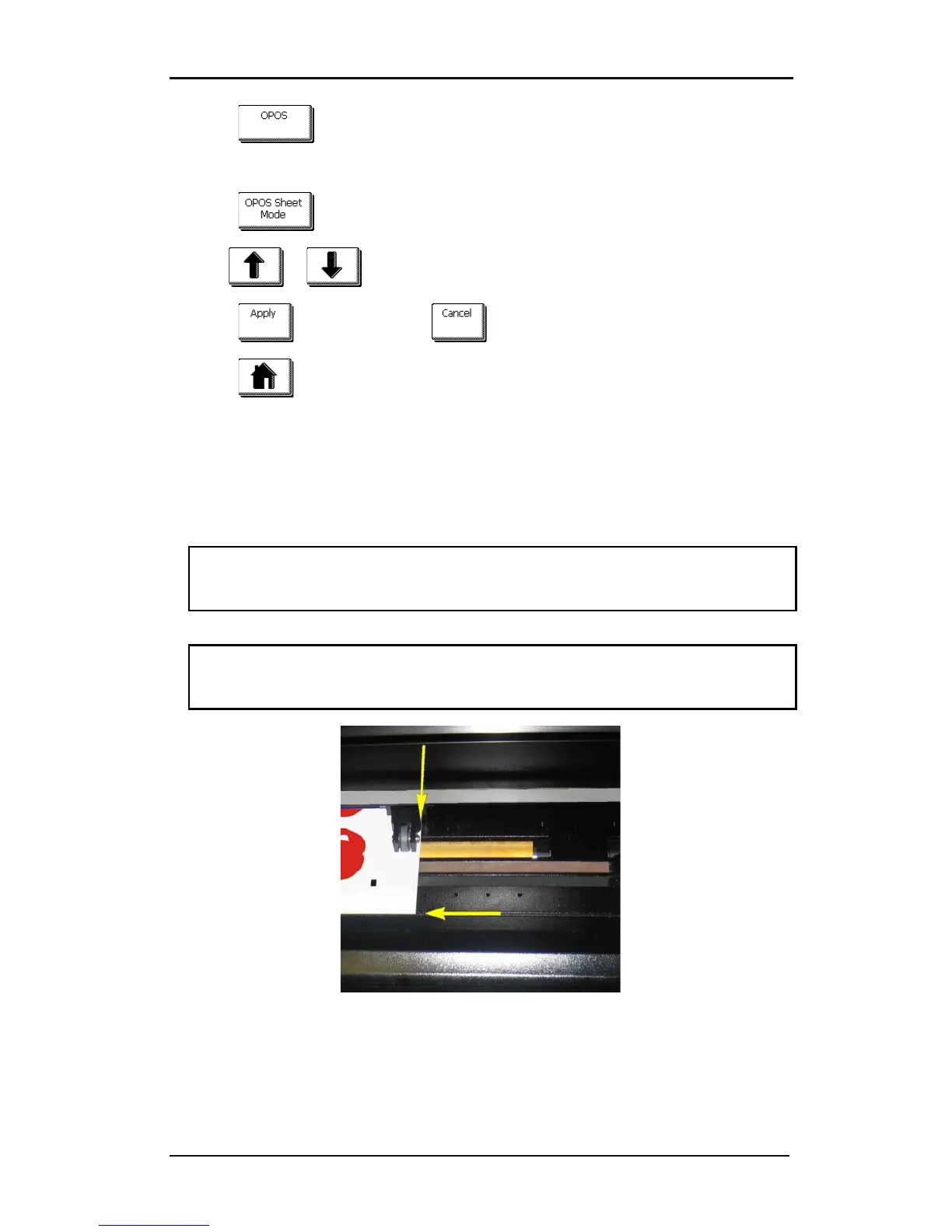
TIP: Use easy orientation points to be able to quickly position the sheet. In the figure
below, a rim of the base plate and the side of the pinch roller assembly are used to align
the sheets.
FIG 3-1
3-1 POSITION MEDIA FRO MULTIPLE SHEET







 To Next Page