Transfer Files between Your Phone and a Computer
You can use the supplied USB cable to connect your phone directly to your computer and transfer music,
photos, and other content files.
●
If you want to save data to an SD card on your phone, make sure the SD card is installed and
active. See SIM/SD Card.
●
Avoid removing the SD card while transferring data.
Transfer Files between the Phone and a Computer
1.
Connect your phone to your computer using the supplied USB/charging cable.
Insert the USB-C end of the cable to the phone.
Insert the another end of the cable into an USB port on your computer.
2.
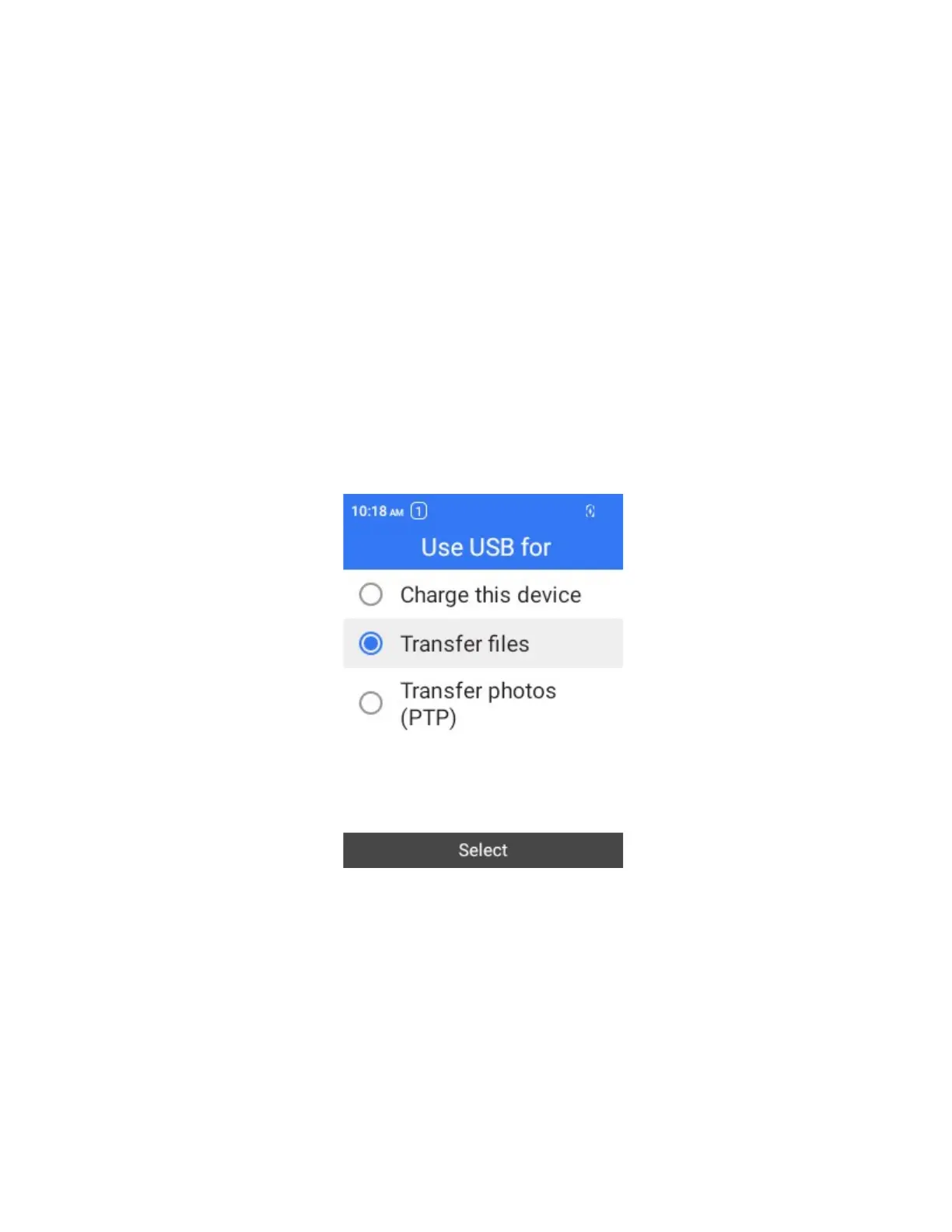
From the home screen, press OK to enter Apps List, then go to Settings > Phone settings > USB,
then select Transfer files
3.
On your computer, navigate to the detected device (such as through the My Computer menu)
and open it.
4.
If available, select a drive (SD card or internal shared storage).
5.
Select a folder (for example, Music for songs and albums) and copy files to it from
your computer.
6.
When you are done, disconnect your phone from your computer.
The transferred files are now saved to your phone or SD card.


 To Next Page