3.
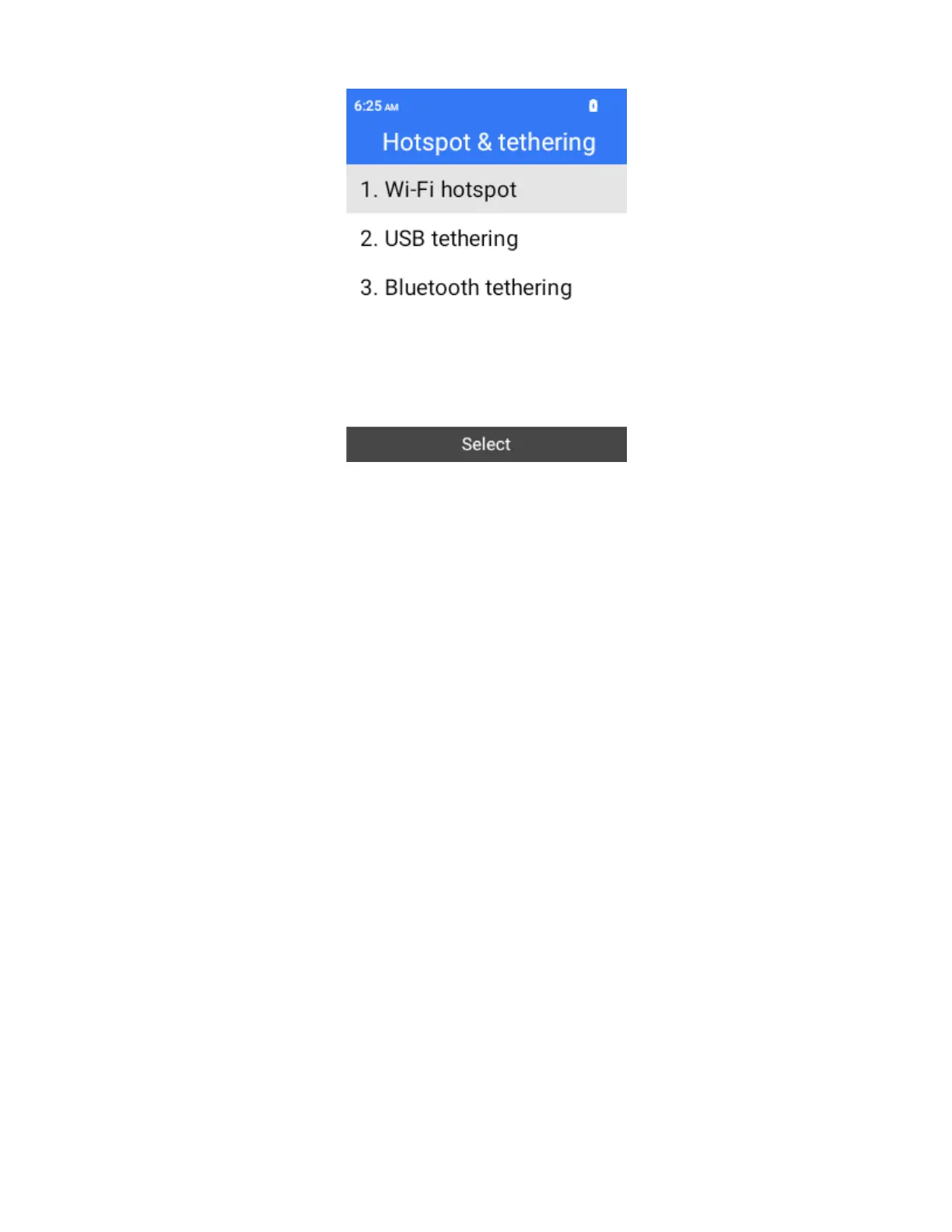
Configure hotspot and tethering with the following options:
Wi-Fi hotspot: Share your phone's mobile data services with other devices. The feature works
best when used in conjunction with 4G data services (although 3G service can also be used).
Select Wi-Fi hotspot > Options > Set up Mobile hotspot to set up hotspot name, password,
and more.
USB tethering: Share your device’s internet connection with a computer that connects to your
device via USB cable.
Bluetooth tethering: Share phone’s internet connection via Bluetooth.
4.
Select the corresponding function to turn enable hotspot or tethering.
Note: The best way to keep using the phone as a hotspot is to have it connected to a power supply.
Important: Write down the password for this communication (shown onscreen).
Connect to Hotspot
1.
Enable Wi-Fi functionality on your target device (laptop, media device, etc.).
2.
Scan for Wi-Fi networks from the device and select your phone hotspot from the network list.
3.
Select this phone and follow your onscreen instructions to enter the password (provided on
the hotspot page).
The device is connected via your phone’s hotspot.
4.
Launch your Web browser to confirm you have an internet connection.
Bluetooth
Bluetooth
®
is a short-range communications technology that allows you to connect wirelessly to Bluetooth
devices, such as headsets and hands-free car kits, and Bluetooth-enabled handhelds, computers, printers, and
wireless phones. The Bluetooth communication range is usually approximately 30 feet. Your phone supports
Bluetooth 4.2.


 To Next Page