For an existing contact, select the contact name and select a number type for the new number.
For a new contact, enter the name and any additional information.
4.
Select SAVE.
The contact is added.
View a Contact
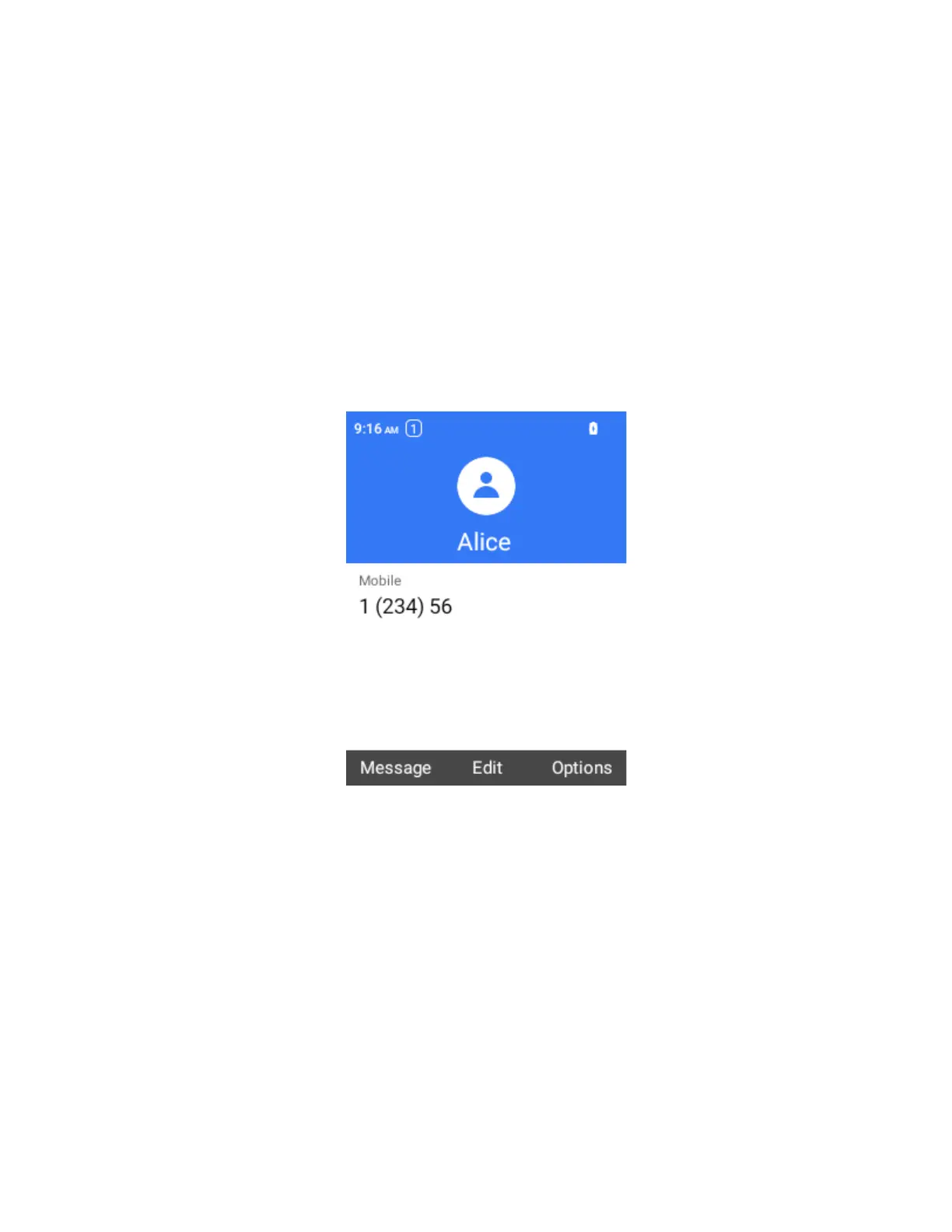
View a contact’s details by displaying a contact entry.
1.
From the home screen, press OK to enter the Apps List, then select Contacts.
You will see the Contacts list.
2.
Select an account to view its details.
The contact’s detailed listing appears.
Edit a Contact
Once you’ve added a contact, you can add or edit any of the information in the entry, assign a caller ID
photo, customize with a unique ringtone, and more.
1.
From the home screen, press OK to enter the Apps List, then select Contacts.
You will see the Contacts list.
2.
Select a contact to view its details.
The contact’s detailed listing appears.


 To Next Page