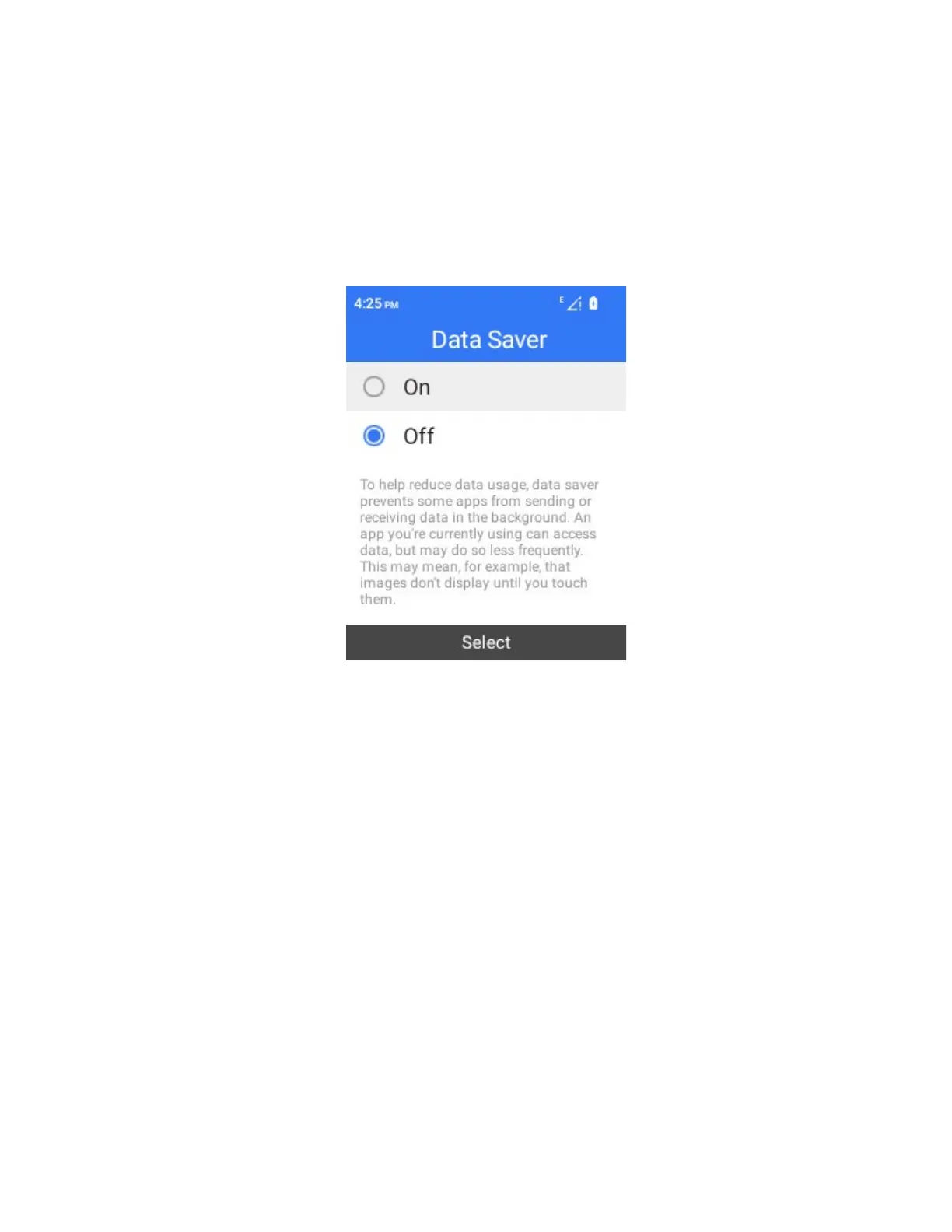
Data Saver
To help reduce data usage, Data Saver prevents some apps from sending or receiving data in the
background. An app you are currently using can access data but may do so less frequently. This may
mean, for example, that images don’t display until you select them.
1.
From the home screen, press OK to enter the Apps List and select Settings.
2.
Select Wireless & networks > Mobile network > app data usage > Data Saver.
The Data Saver menu opens.
3.
Select ON to turn the Data Saver on.
VPN
You can connect your phone to a private network, like your school or company's network, when you're
not there. You make this kind of connection through a virtual private network (VPN).
Get VPN Information
Get your VPN information from your administrator. You could need to install a VPN app and start set-up
in that app. The app could come from the Google Play Store or from your administrator.
Enter VPN Information
1.
From the home screen, press OK to enter the Apps List and select Settings.
2.
Select Wireless & networks > VPN.
3.
Select Add VPN.
4.
Enter the required information.
5.
Select Save.


 To Next Page