4.
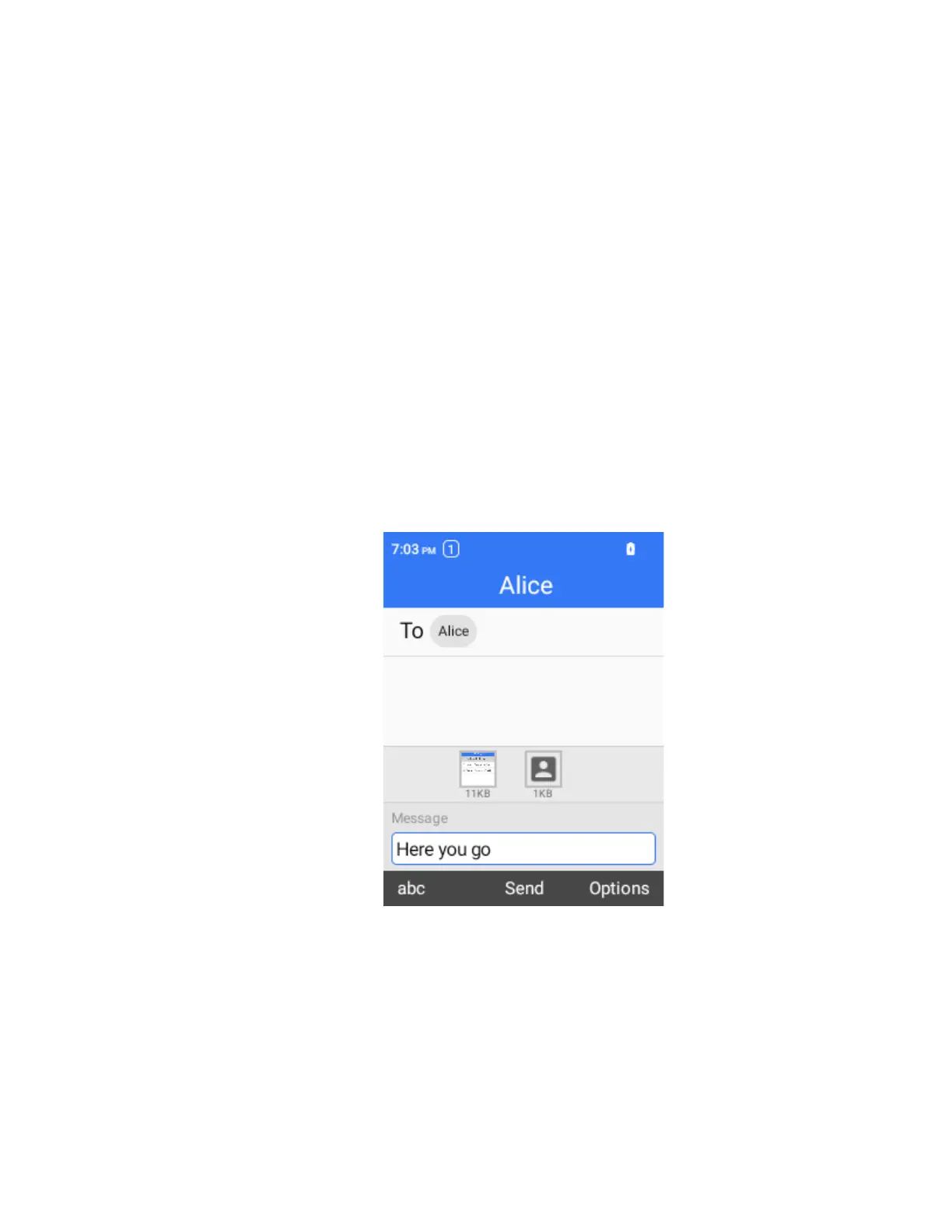
Select the “Type text message” box, then start composing your message.
5.
When done, select Send to send the text message.
Send a Multimedia Message (MMS)
You can send a multimedia message (MMS) with photos, video files, or contact cards
1.
From the home screen, press OK to enter the Apps List, then select Messages. Alternatively, press the
Right Soft Key from the home screen to enter Messages.
2.
On the Messages screen, select New.
3.
Fill in one or more recipients. You can:
Enter phone numbers directly in the Enter recipient field. As you enter information, any
matching phone numbers from your contacts list are displayed. Select a match to enter
that number or address directly.
4.
Select the “Text message” box, and then start composing your message.
5.
Select Options > Add attachment.
6.
Select the attachment. You can choose to add pictures, audio, videos, and/or contact.
7.
Select Send to send the MMS message.
Save and Resume a Draft Message
To save the draft message, while composing a text or multimedia message, use the Up Navigation
Key to move the cursor to the very front of the text box, then press the Return Key, and select Save
draft.
To resume composing the message:
1.
On the Messages screen, select the message to resume editing it.
2.
When you finish editing the message, select Send.


 To Next Page