Apps and Features
The following topics outline essential apps and features of your phone.
Connectivity
The following topics address your phone’s connectivity options including Wi-Fi, Bluetooth, and more.
Wi-Fi
Wi-Fi provides wireless internet access over distances. To use your phone’s Wi-Fi, you need access
to a wireless access point or “hotspot.”
The availability and range of the Wi-Fi signal depends on a number of factors, including infrastructure and
other objects through which the signal passes.
Turn Wi-Fi On and Connect to a Wireless Network
1.
From the home screen, press OK to enter the Apps List, then select Settings.
2.
Select Wireless & network > Wi-Fi.
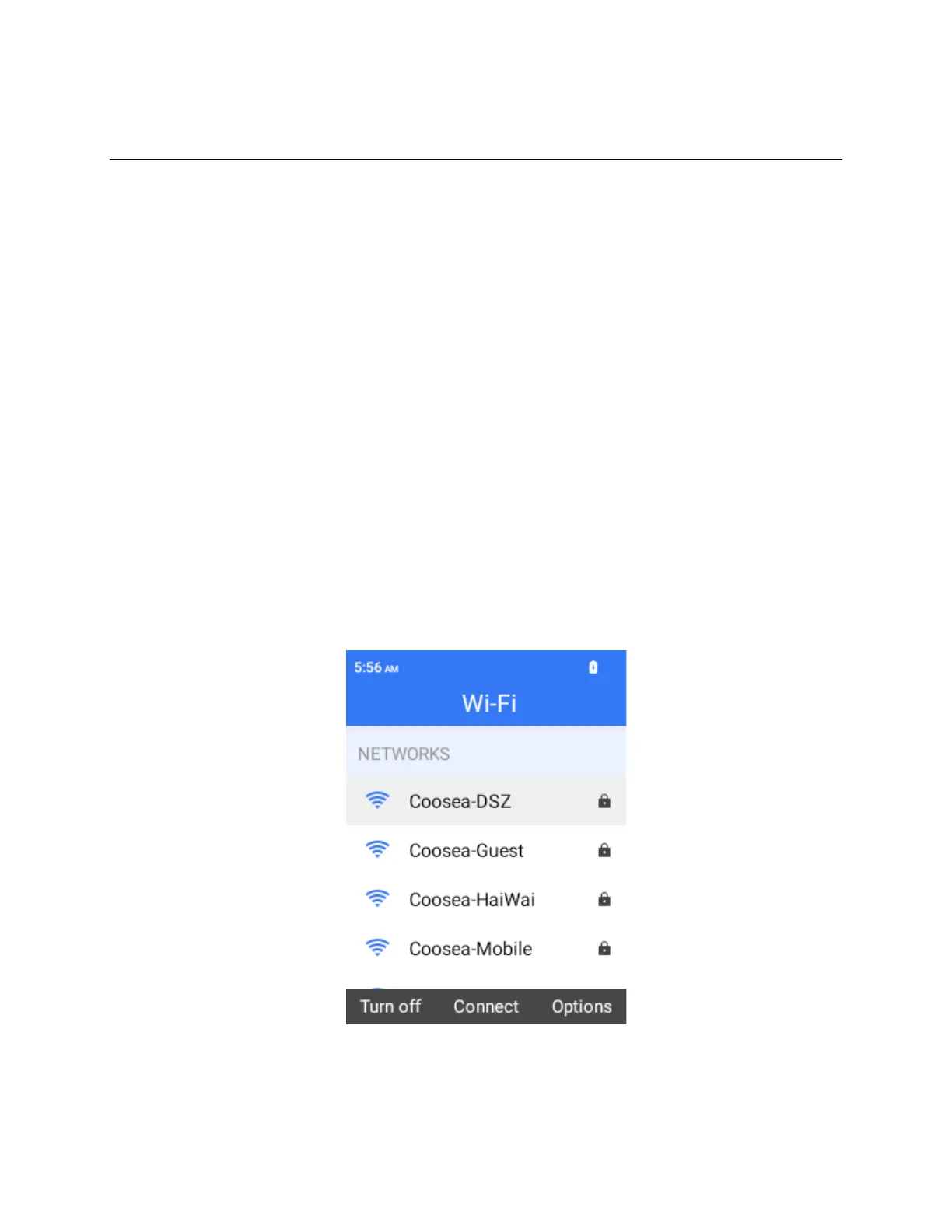
The Wi-Fi settings menu appears.
3.
Press the Left Soft Key to turn Wi-Fi on.
Wi-Fi is enabled. You will see the names and security settings of in-range Wi-Fi networks.
To disable Wi-Fi, press the Left Soft Key again.
4.
Press OK to select a Wi-Fi network to connect, enter the password (if it’s not an open network), and then
press OK to Connect
.
Your phone is connected to the Wi-Fi network. You will see the wifi icon in the status bar.


 To Next Page