Voicemail
The following topics describe how to set up and use your phone's voicemail and visual voicemail features.
Voicemail Setup
Follow the instructions below to set up voicemail on your phone. You should set up your voicemail and
personal greeting as soon as your phone is activated. Always use a passcode to protect against
unauthorized access. Your phone automatically transfers all unanswered calls to your voicemail, even if
your phone is in use or turned off. You can set up voicemail via Settings > Call settings > Voice mail.
1.
From the home screen, press 1 and hold to dail your voicemail number
Your phone dials the voicemail access number
2.
You may be asked to provide following information depending on your SIM card. (Order may not be
consistent):
Create your passcode.
Record your name announcement and greeting.
Set the language preference (press 1 for English and 2 for Spanish)
Important: Voicemail Passcode – It is strongly recommended that you create a passcode when setting
up your voicemail to protect against unauthorized access. Without a passcode, anyone who has access
to your phone is able to access your voicemail messages.
3-way Calling & Conference Calling
With conference calling, also known as 3-way calling, you can talk to two people at the same time. When
using this feature, the normal airtime rates will be charged for each of the two calls.
1.
On the phone screen, enter a number and select (or place a call from Log or Contacts).
2.
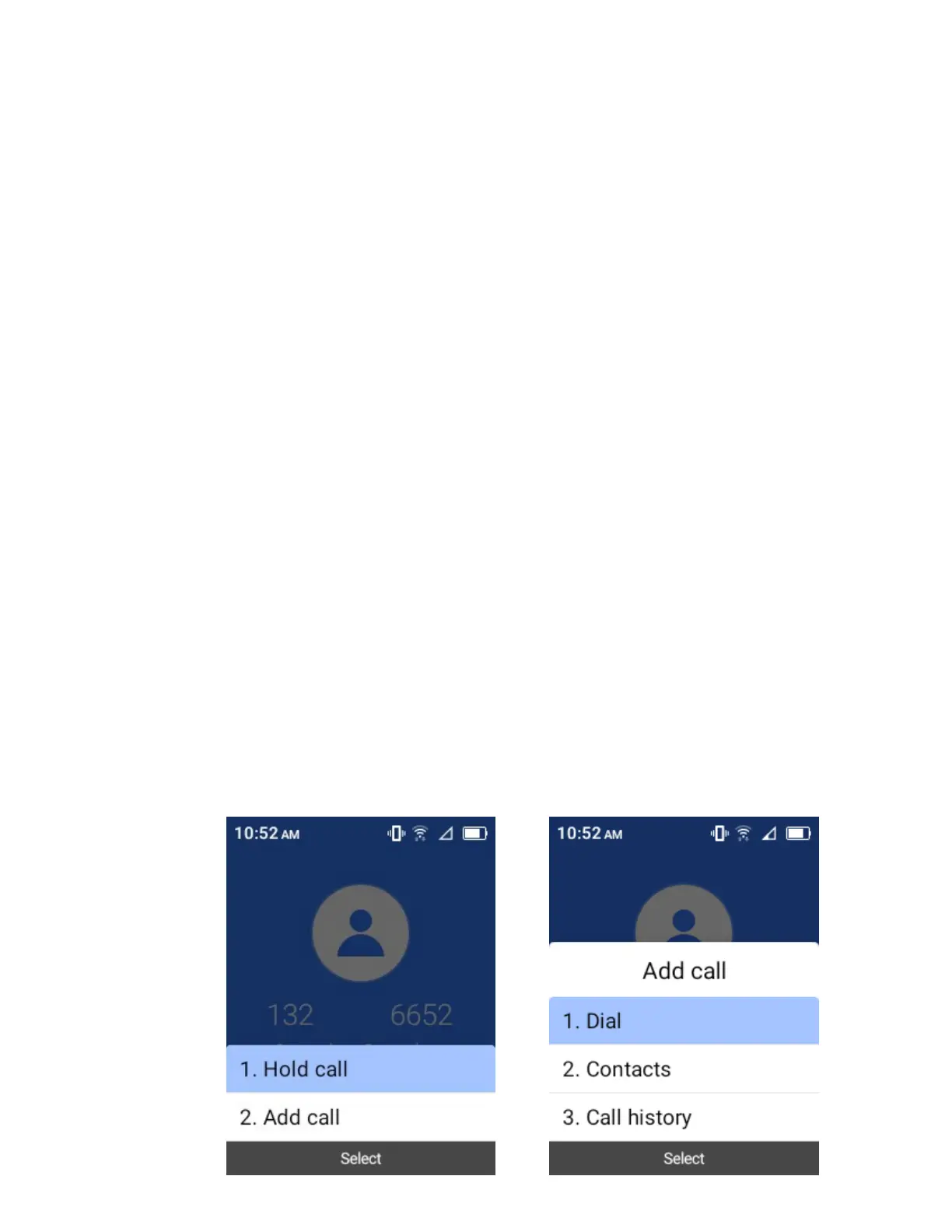
Once you have established the connection, select Add call, and dial the second number (or
place the call from Log or Contacts).
This puts the first caller on hold and dials the second number.


 To Next Page