GB.GOLDSKE.160901
16 www.swegon.com
We reserve the right to alter specifications without notice.
Airow
Status
Regulation mode
Boost
Unit
Air adjustments
Outdoor air compensation
Booster diffusers
Operation level Supply air
Extract air
Unit
Remaining time
Required time h
min.
FORCING
UNIT
AIRFLOW ADJUSTMENTS
Airow
Supply air
Extract air
Supply air duct
Supply air duct, set point
Extract air duct
Extract air duct, set point
Status
Regulation mode
Boost
Unit
Air adjustment
Outdoor air
compensation
Booster diffusers
Operation level
Dashboard
Stop
Alarm log
Timer, low speed
Flow chart
4.1.2 How to use the micro terminal
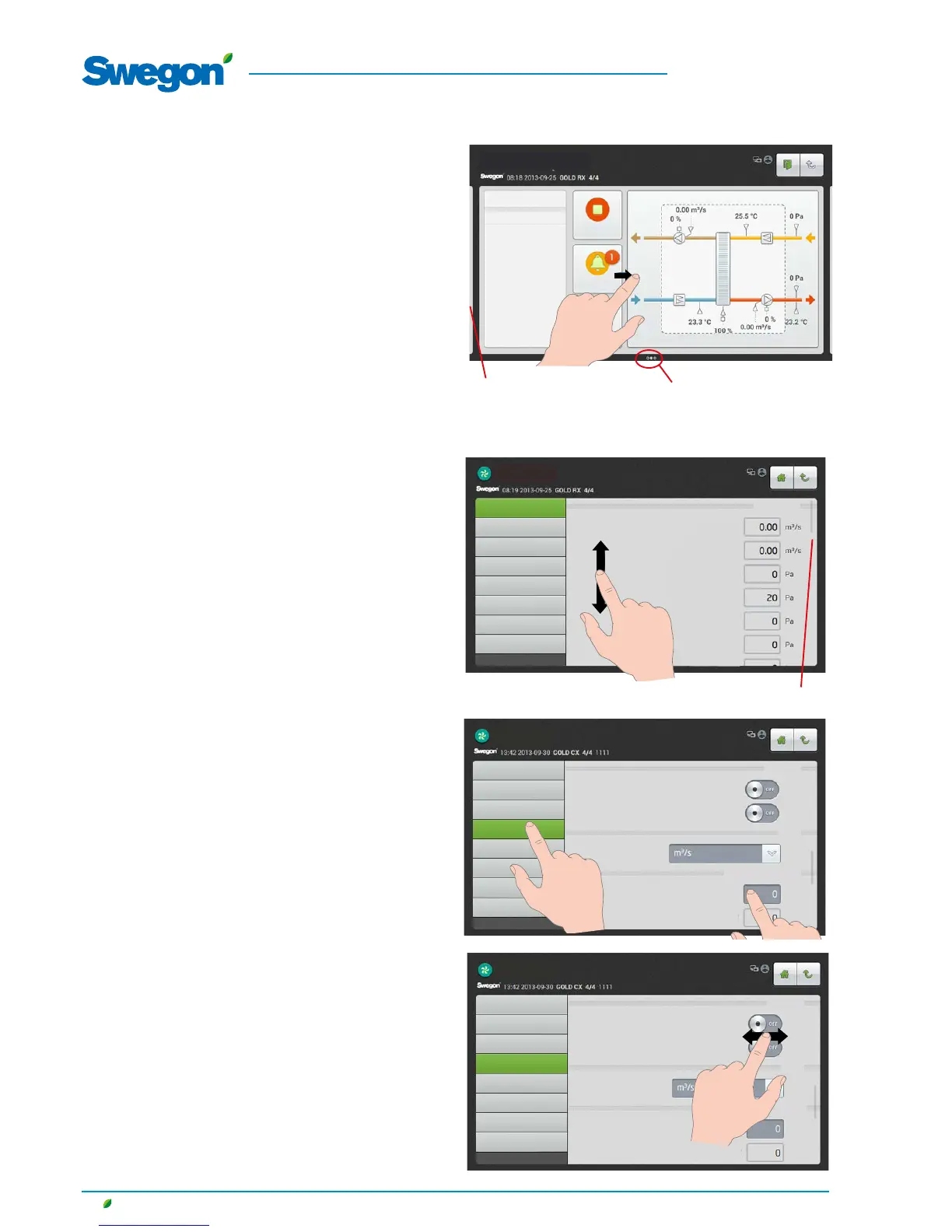
When a scroll bar is displayed on the touch screen, the screen's
content can be scrolled upward or downward.
Scroll bar
When a light grey surface is displayed to the right and/or to the
left on the touch screen and an image indication is displayed at
the bottom edge, this indicates that it is possible to navigate to
one side or both sides.
Light grey
surface
Image indication
(In this case the screen indicates that it is
possible to navigate to both sides)
Status
When the On/Off button is displayed on the touch screen, drag
or point to it so that it shows the required position.
Press the object you want to open or highlight.
Airow
Status
Regulation mode
Boost
Unit
Air adjustments
Outdoor air
compensation
Booster diffusers
Operation level Supply air
Extract air
Unit
Remaining time
Required time h
min.
FORCING
UNIT
AIRFLOW ADJUSTMENTS




 To Next Page