SonixTouch Q+ Service Manual 00.053.204, Revision A Chapter 8: DICOM
8-19
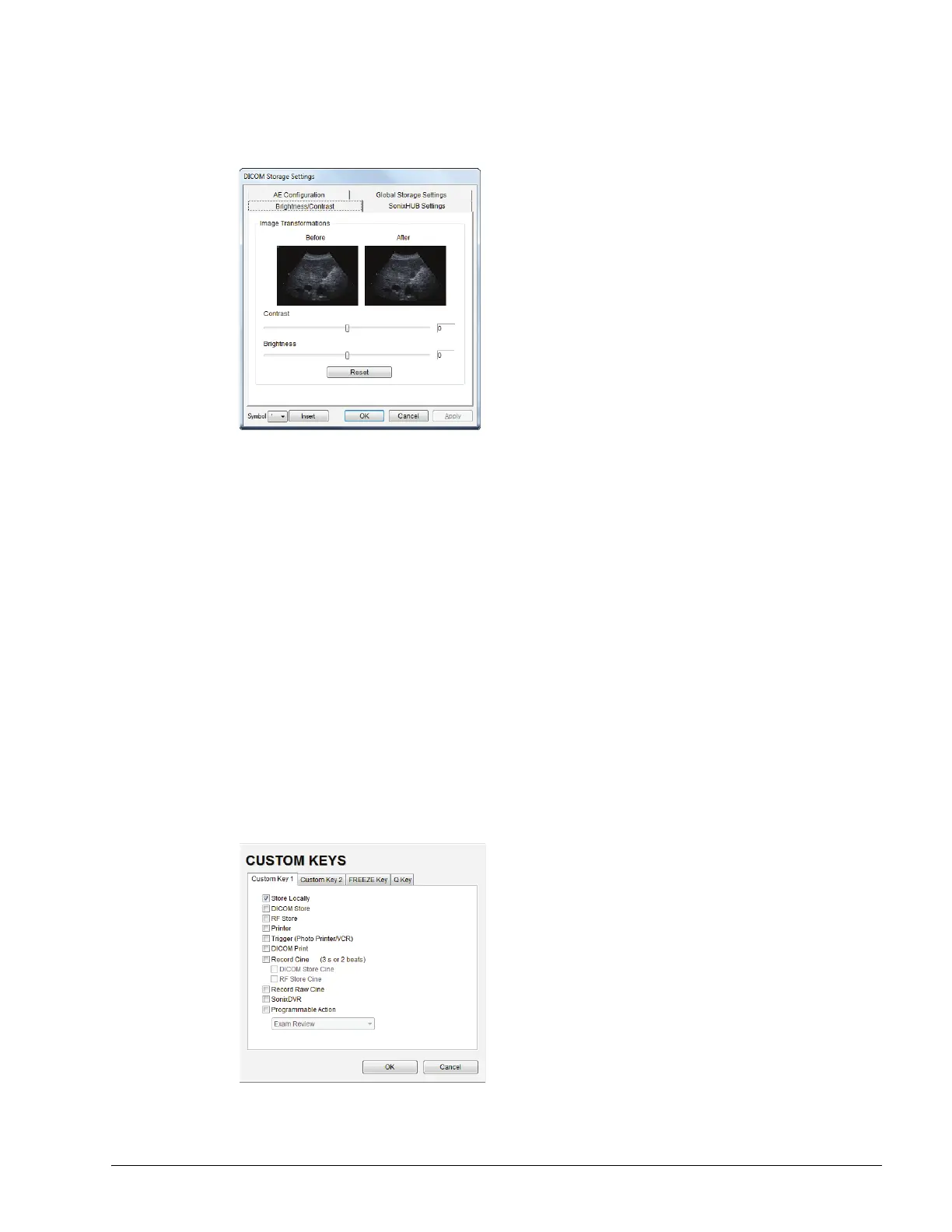
To Configure Storage Brightness and Contrast Settings:
1. Tap the touch screen Menu button.
2. Select Administrator > DICOM > Storage… > Brightness and Contrast.
3. Select the appropriate Brightness and Contrast levels.
4. Select OK to accept the changes or Cancel to exit without saving.
To Delete DICOM Storage Devices:
1. Tap the touch screen Menu button.
2. Select Administrator > DICOM > Storage….
3. Under Devices, highlight the relevant Name.
4. Select Delete to remove the device from the list.
5. Repeat step 3 and step 4 as many times as necessary.
6. Select OK to accept the changes or Cancel to exit without saving.
8.2.3.3 Custom Keys and DICOM Store
To Configure Custom Keys for DICOM Store:
1. Tap the touch screen Menu button.
2. Select Administrator > Custom Keys.
3. Configure the appropriate Custom Key to DICOM Store (e.g., Custom Key 1 or Custom Key 2).
4. Select OK to accept the changes or Cancel to exit without saving.


 To Next Page