SonixTouch Q+ Service Manual 00.053.204, Revision A Chapter 8: DICOM
8-3
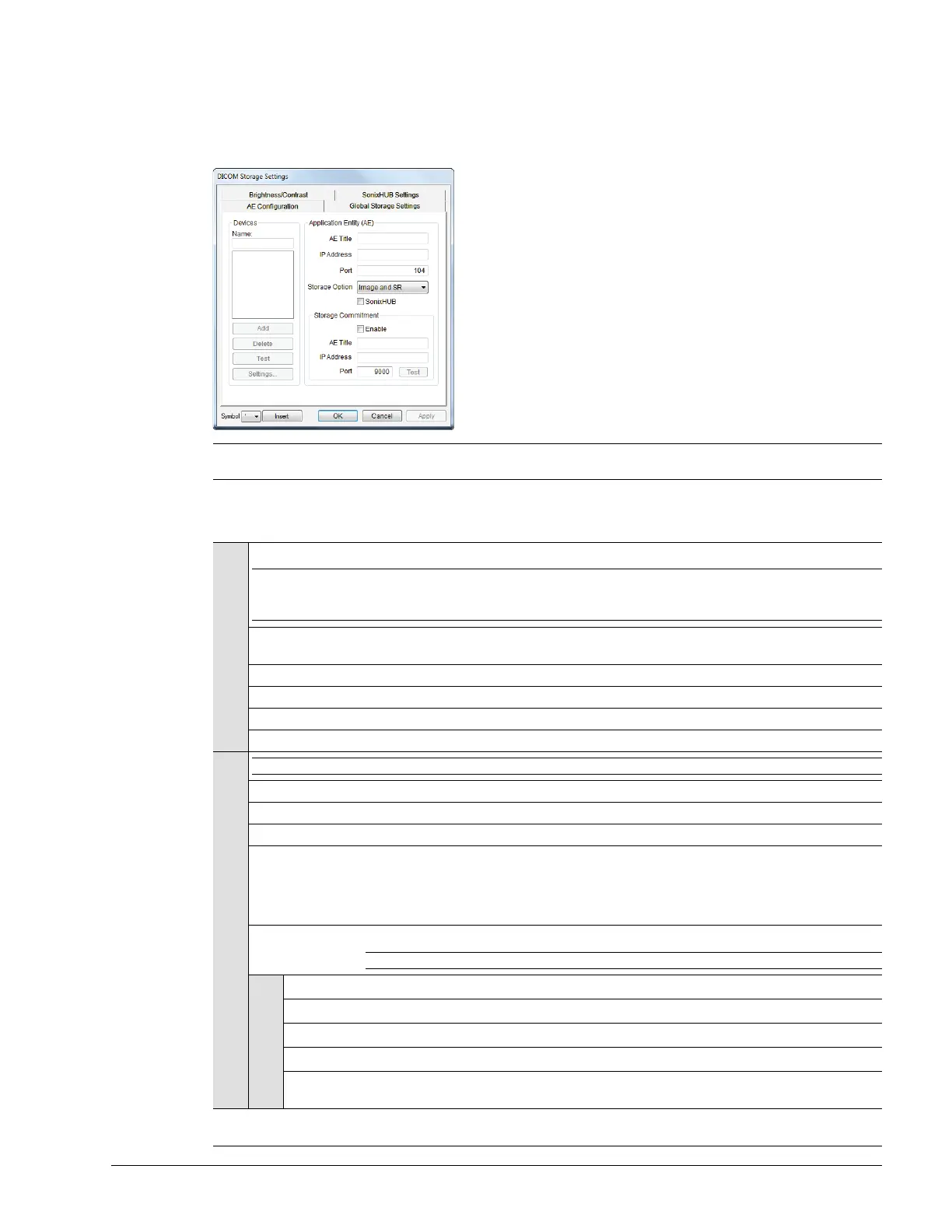
8.1.2.1 DICOM Storage Settings – AE Configuration
The DICOM Storage AE Configuration dialog enables configuration of AE devices.
Figure 8-3: DICOM Storage Settings – AE Configuration
Table 8-2: DICOM Storage Settings – AE Configuration
Note: In addition to the four tabbed settings options, select the Settings... button to access Storage Settings
(8.1.2.2).
Devices
Use the Devices option to add as many DICOM Storage Servers as required.
Note: If more than one DICOM Storage Server is configured, during data transfer the Operator has the option of
selecting which Storage Server(s) will receive the data.
These options are only available when a Device is (or has been) added.
Name
Enter/select the Name of an AE Storage Device and populate the four AE fields: Structured
Report Only, AE Title, IP Address and Port.
Add Select to Add the new AE Storage Device.
Delete Select to Delete the selected AE Storage Device.
Test Select to send verification request to DICOM Storage Device (ping to verify connection).
Settings... Select to access Storage Settings (Figure 8-4 and Table 8-3).
Application Entity (AE)
Note: The data entered/edited in the following fields is specific to the selected Device Name.
AE Title AE Title of the Storage SCP.
IP Address Unique identifier of Storage SCP.
Port Listening Port of the Storage Service Class Provider (SCP).
Storage Options
Select the Storage Option to be used during data transfer.
• Image and SR: transfers both Images and Structured Report
• Image: transfers only Images
• SR (Structured Report): transfers only the Structured Report.
SonixHub
Select to enable/disable SonixHub.
Note: This setting is only available if SonixHub is licensed.
Storage
Commitment
Enable Select to enable Storage Commitment functionality.
AE Title AE Title of the Storage Commitment SCP.
IP Address Unique identifier of Storage Commitment SCP.
Port Listening Port of the Storage Commitment SCP.
Test
Select to send verification request to DICOM Storage Commitment Device (ping to verify
connection).
Insert (Symbol)
Enables the insertion of text symbol(s) not available on the keyboard (e.g., punctuation,
symbols and letters from other languages).


 To Next Page