Chapter 8: DICOM 00.053.204, Revision A SonixTouch Q+ Service Manual
8-20
8.2.3.4 DICOM Print Settings
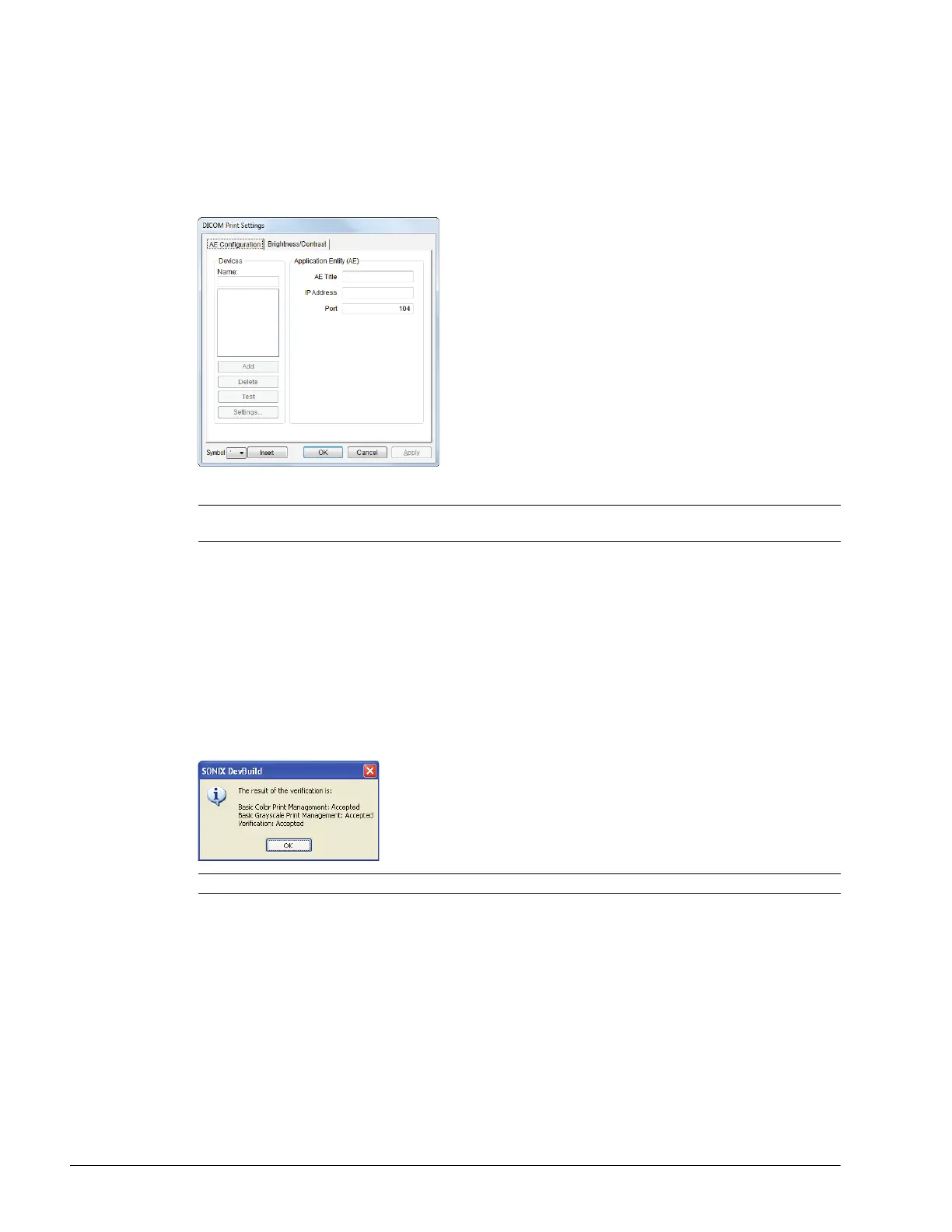
To Configure DICOM Print Settings:
1. Tap the touch screen Menu button.
2. Select Administrator > DICOM > Print….
3. Using the DICOM Print data collected in 8.2.1 complete the following Application Entity (AE) fields: (SCP)
AE Title, IP Address and Port.
4. Enter a Name under Devices and select Add.
5. Select OK to accept the changes or Cancel to exit without saving.
To Test DICOM Print Devices:
1. Tap the touch screen Menu button.
2. Select Administrator > DICOM > Print….
3. Under Devices, highlight the relevant Name.
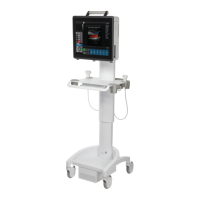
4. Select Test to activate the C-Echo command for the highlighted SCP.
5. If successful, the Test result will produce a message similar to this example.
6. Select OK to continue.
Note: As far as DICOM is concerned, the device Name is meaningless. Because multiple devices can be
added, the sole purpose of the Name is to provide clarity for the Operator.
Note: The network must be connected with the relevant server running.


 To Next Page