Chapter 8: DICOM 00.053.204, Revision A SonixTouch Q+ Service Manual
8-16
8.2.3.2 DICOM Storage Settings
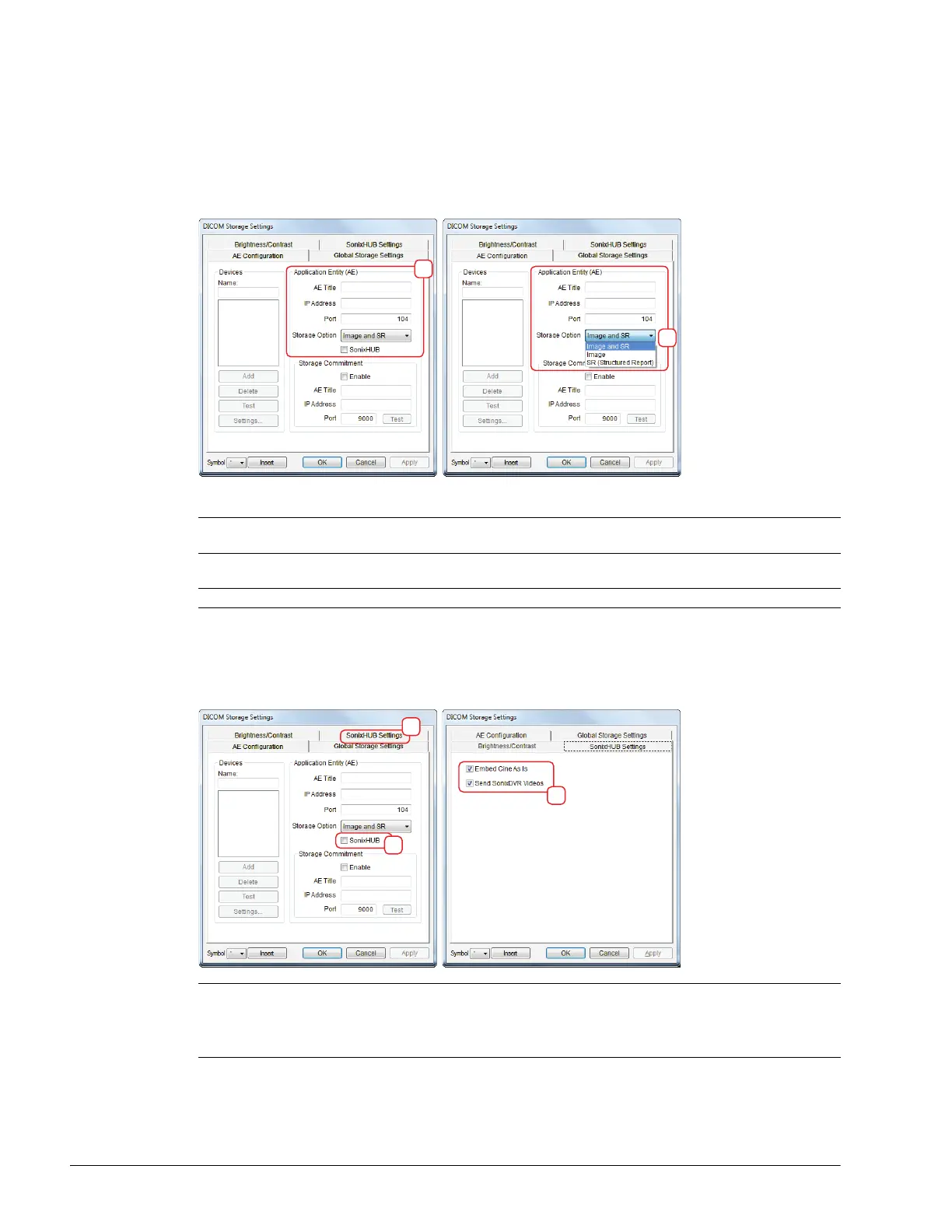
To Configure DICOM Storage Settings:
1. Tap the touch screen Menu button.
2. Select Administrator > DICOM > Storage….
3. Using the data collected in 8.2.1 complete the following Application Entity (AE) (1) fields: (SCP) AE Title, IP
Address and Port.
4. Enter a Name under Devices and select Add.
5. Select the relevant Storage Option (1a): Image and SR, Image and SR (Structured Report).
6. SonixHub users should select the:
• SonixHub checkbox (1b)
• SonixHub Settings tab (2) and configure the fields as required (2a): Embed Cine As Is and Send
SonixDVR Videos.
Note: As far as DICOM is concerned, the device Name is meaningless. Because multiple devices can be
added, the sole purpose of the Name is to provide clarity for the Operator.
Note: Select Image for any SCPs that don’t support the SR option.
Note: If a device is configured for SonixHub and a Custom Key is also set to DICOM Store, then any
captured still images or Cines (for a valid patient) will be entered in the storage queue for transfer to the
specified device.
For details on the DICOM Store Custom Key option, refer to 8.2.3.3 Custom Keys and DICOM Store.


 To Next Page