Page 120
Programming a Flow Test
Follow these steps to program a flow test—
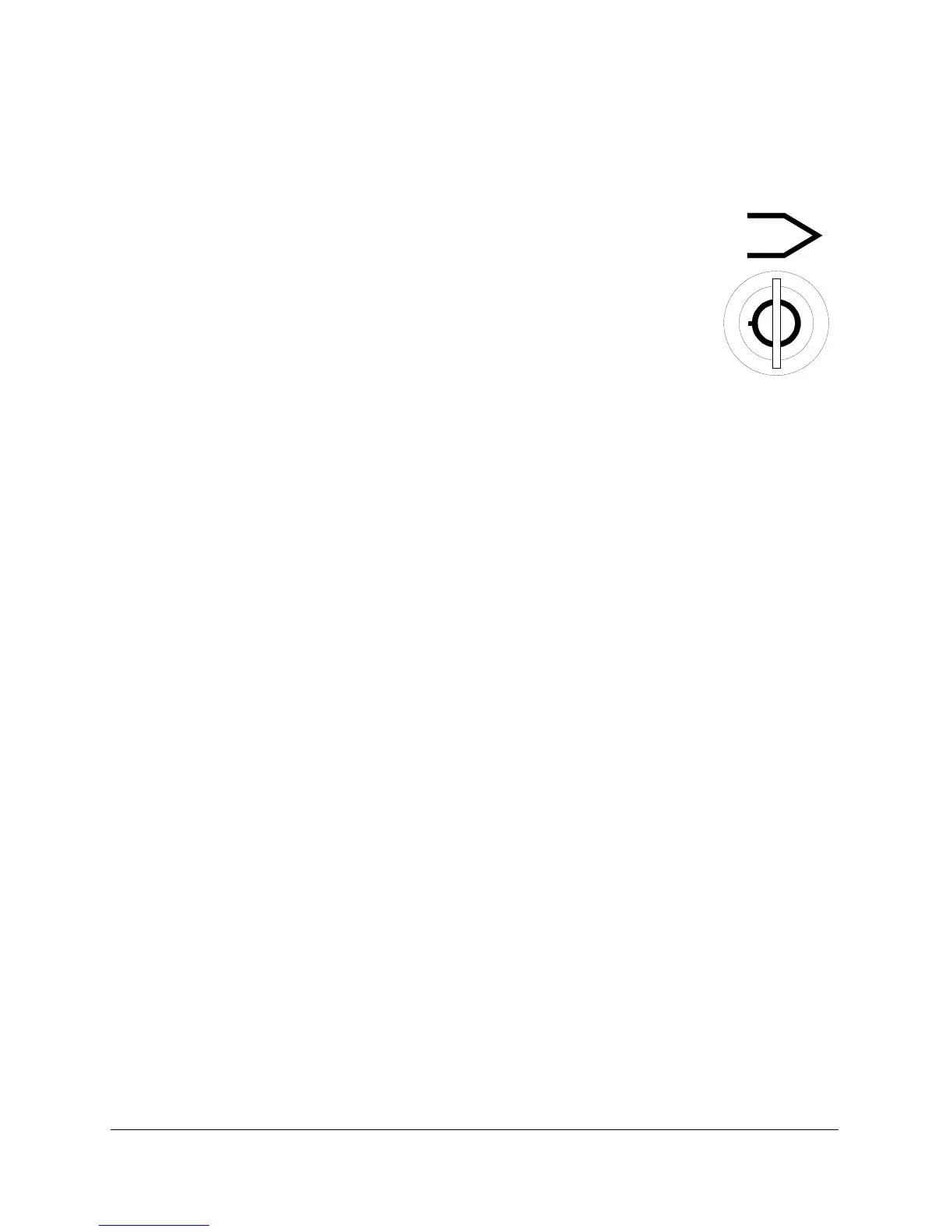
1. Turn the LOCKOUT keyswitch to program mode.
Test Parameters is highlighted on the setup menu.
Press the ENTER/BACK keypad. Use the INCREMENT
and DECREMENT keypads to select the program
number to edit.
2. Press NEXT to highlight Test Type. Use the
INCREMENT keypad to select Flow.
3. Press the NEXT keypad to highlight Test Pressure. Connect a part
with a known acceptable flow rate, then press the INCREMENT
keypad once. Now use the pressure regulator knob to adjust the test
pressure reading. After the reading is set, push the NEXT keypad.
The highlight bar moves down to Pressure Error.
Read pages 37 - 39 for more information about setting the test
pressure.
4. Use the INCREMENT and DECREMENT keypads to set the value for
pressure error. Pressure error is how much overshoot or undershoot
is allowed around the test pressure. Pressure error is needed to
ensure the product reaches the correct pressure before Sprint LC
takes flow readings.
5. Press the NEXT keypad to highlight Coupling. Use the GoTo
keypad to enter the pop-up menu and set the values for coupling
time. If no external fixtures are connected to the coupling port, set
the coupling time to zero seconds and the setting to OFF. Press the
BACK Keypad to exit.



 To Next Page