E-20 Videojet DataFlex 6530 Service Manual - Rev AA
E.1.15.1Disabling a Slave Printer
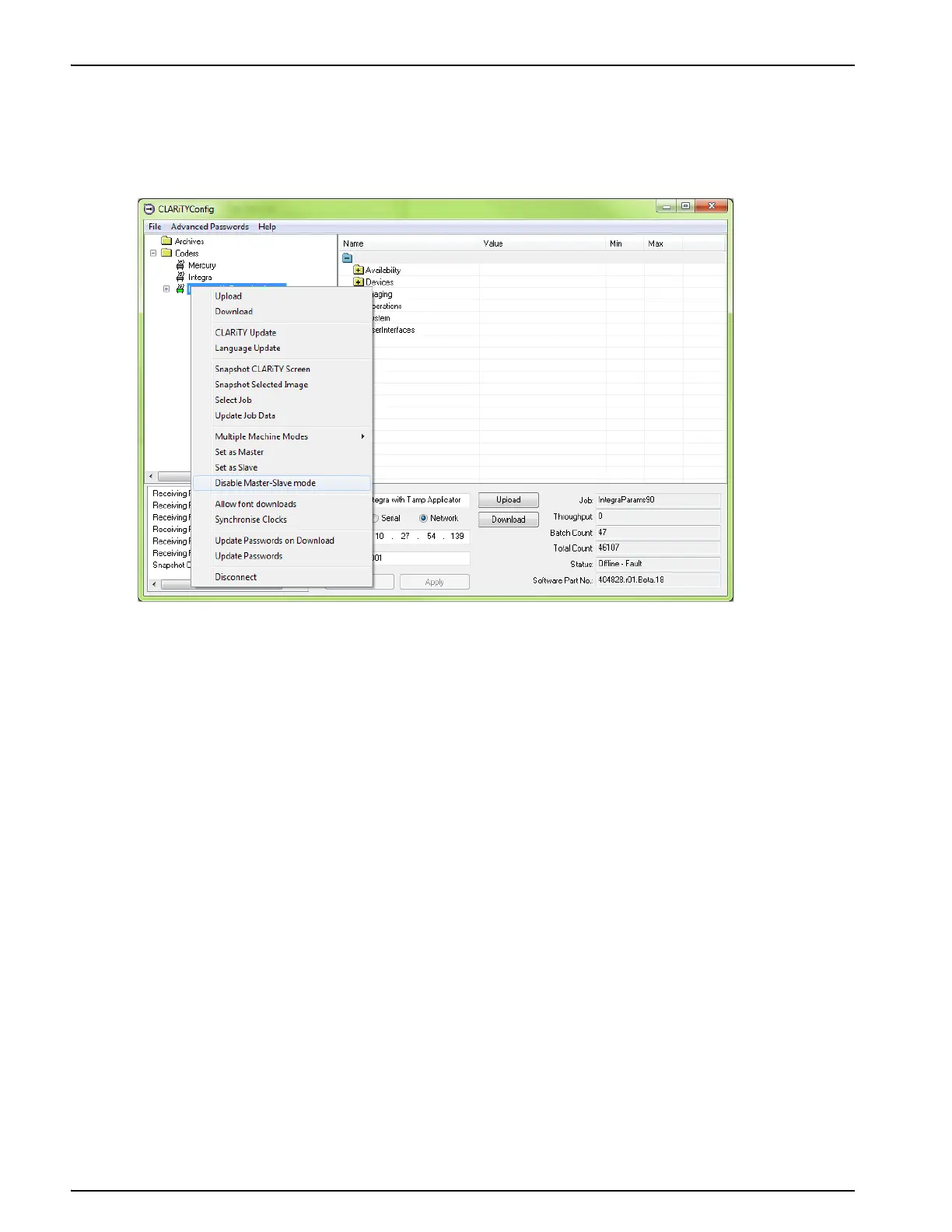
1. Establish communications between CLARiTY Configuration Manager and the first Slave
printer (“Connecting the CLARiTY Configuration Manager to the Printer” on page 4-8).
2. Right click on the 'New Printer' icon when the icon turns 'green' and Select 'Disable
Master/Slave mode', from the list as shown in Figure E-22.
A confirmation box appears asking you to confirm this action.
3. Click Yes and the Slave printer is deleted from the Master/Slave group and begins to
function as a standalone printer.
Note: If the Slave printers are Standard Videojet DataFlex 6530 printers, the 'JOB' button is enabled
and the Slave's 'Job' database is empty or contains only the last Job selected.
The Master/Slave group database is held by the Master Videojet DataFlex 6530 printer.
Therefore, if a printer is disabled from the Master/Slave network and becomes a stand alone
unit, any additional Jobs required have to be downloaded from CLARiSOFT.
Note: If you are intending to replace the Slave, it is advisable to configure the new Slave printer,
before disabling the currently activated Slave.
If using basic configuration, ensure the old Slave has been disconnected from the network
and configure the new Slave with the previous Slave network number.
If using advanced configuration you need to configure the new Slave with a fresh IP address
and configure the Master to communicate with this new address.
If the Slave is not being replaced, configure the Master to only connect to the remaining
Slaves.
Figure E-22: CLARiTY Config - Slave Disabling



 To Next Page