4-8 Videojet DataFlex 6530 Service Manual - Rev AA
Installation
4.7.3 Connecting the CLARiTY Configuration Manager to the Printer
Connecting CLARiTY Configuration Manager to the Printer using an RS 232 connection
To connect the CLARiTY Configuration Manager to the printer, proceed as follows:
1. Connect the PC serial port to the PSU using the null-modem cable.
Ensure that all other programs (such as, Active sync and other PDA applications) that use the
serial port are disabled.
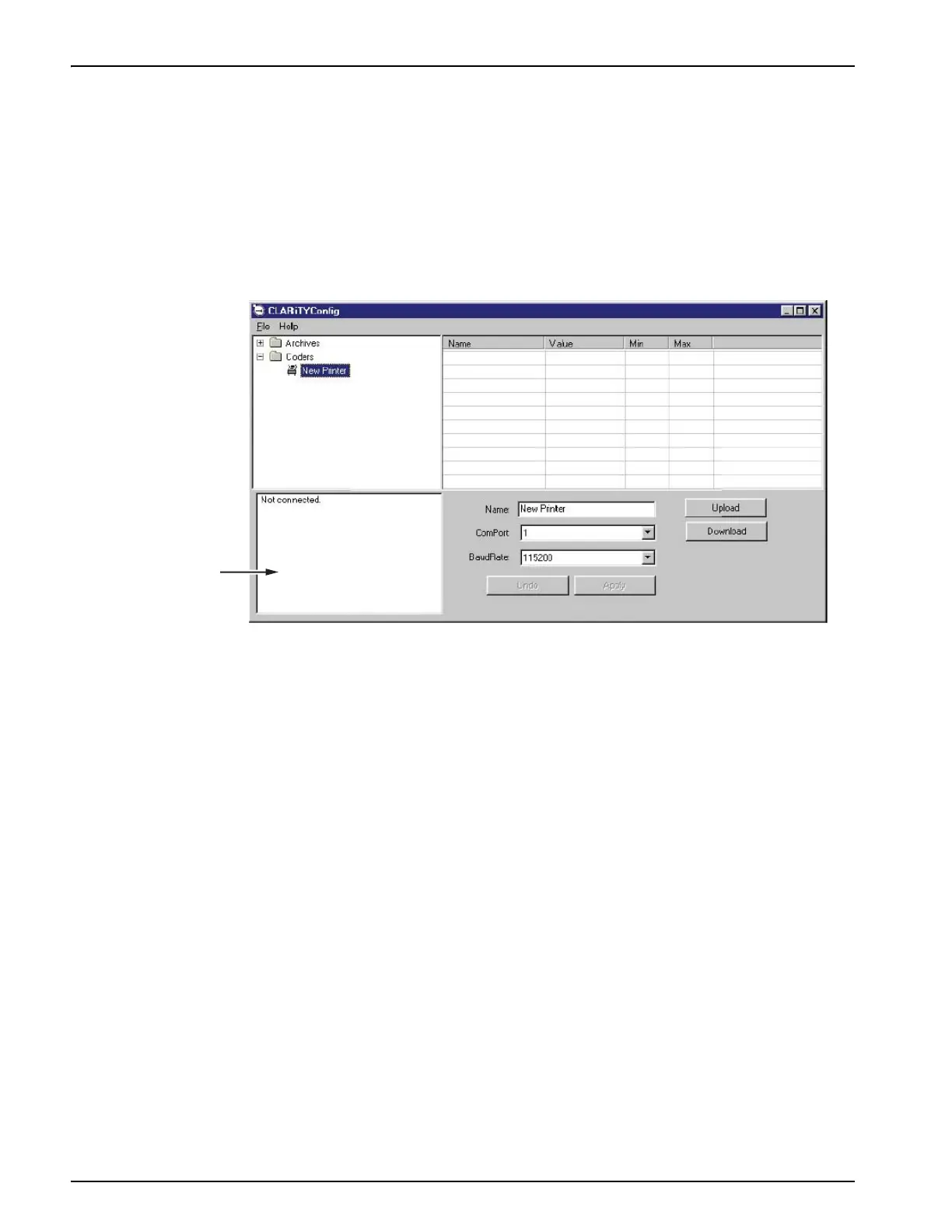
2. Run the CLARiTY Configuration Manager on the PC (Figure 4-8).
3. Ensure that the printer status panel (at the bottom left of the window) reports the message
“Connection Active” and the new printer icon turns green.
If the status displays “Not connected”, as shown in Figure 4-8, disable or quit the other
applications running on the PC that are using the serial port. Check that the baud rate
settings on the Configuration Manager matches with the printer’s baud rate.
4. Click the Upload button. The progress of the operation is displayed in the status pane. This
uploads the printer parameters set to the PC.
The list of folders containing the configuration parameters appears in the parameter listing
(in the right hand frame of the Configuration Manager).
Note: It is possible to setup the IP address using the CLARiTY user interface Archive feature with
USB. Refer to “Creating, Editing and Restoring a USB Archive on Printer” on page 4-14.
Figure 4-8: CLARiTY Configuration Manager



 To Next Page