4-12 Videojet DataFlex 6530 Service Manual - Rev AA
Installation
4.7.4 Editing Parameters
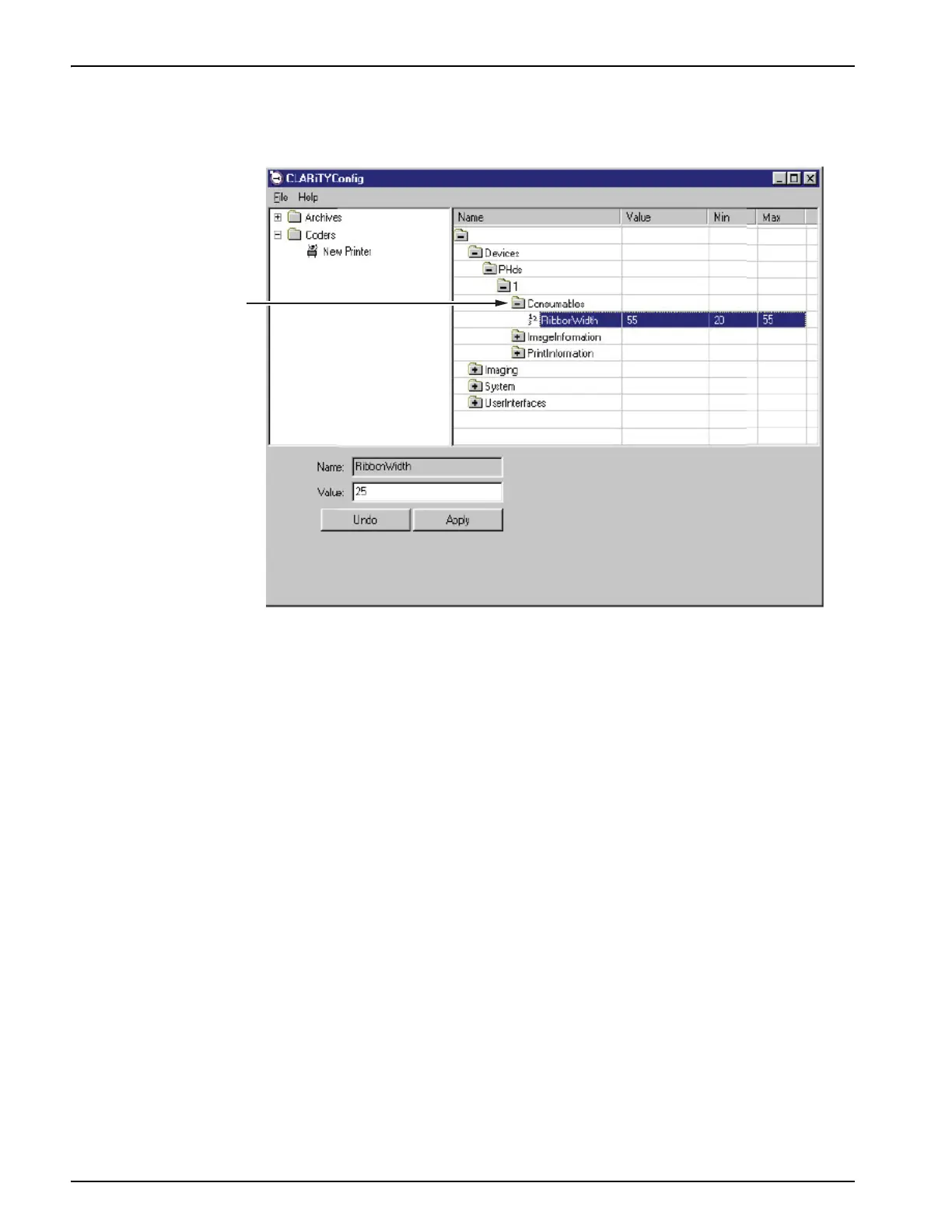
Figure 4-13 displays the list of parameters that are available in the printer settings.
Click the folder required to open or close it or to gain access to the parameters it contains. You
may have to click and open a number of nested folders to get to the parameter that you want.
There are a number of different types of parameters. Click 'Help' on the menu at the top of the
screen, and select 'Key To Legends' to get a complete list of the different types of parameters.
To change the value of a parameter, proceed as follows:
1. Click the required parameter from the parameter list. The current value is displayed in the
‘Value’ box at the bottom of the screen.
2. Change the value to the required value using the mouse and the keyboard.
3. Click the Apply button. The value displayed in the parameters list is updated to reflect the
change.
Note: Event parameters do not have values that can be set. Touching the Trigger button that is available
in the bottom pane causes the printer to perform the given action immediately.
For many parameters, it may be satisfactory to leave them with their default values. Some of the
parameters may need tuning after some initial prints have been made. Some of the listed
parameters are available at the CLARiTY panel. It may be more convenient to make final
adjustments at the panel rather than using the CLARiTY Configuration Manager.
Parameters List
Figure 4-13: Parameter Settings



 To Next Page