9 Analyzing Exam Data and Creating Reports Instructions for Use
2660021169042 Rev. A 2018-039.4 Working with Viewport Images
140 / 246 2660021169042 Rev. A 2018-03
9.4.8.2 Adjusting Slab Thickness Using the B-Scan
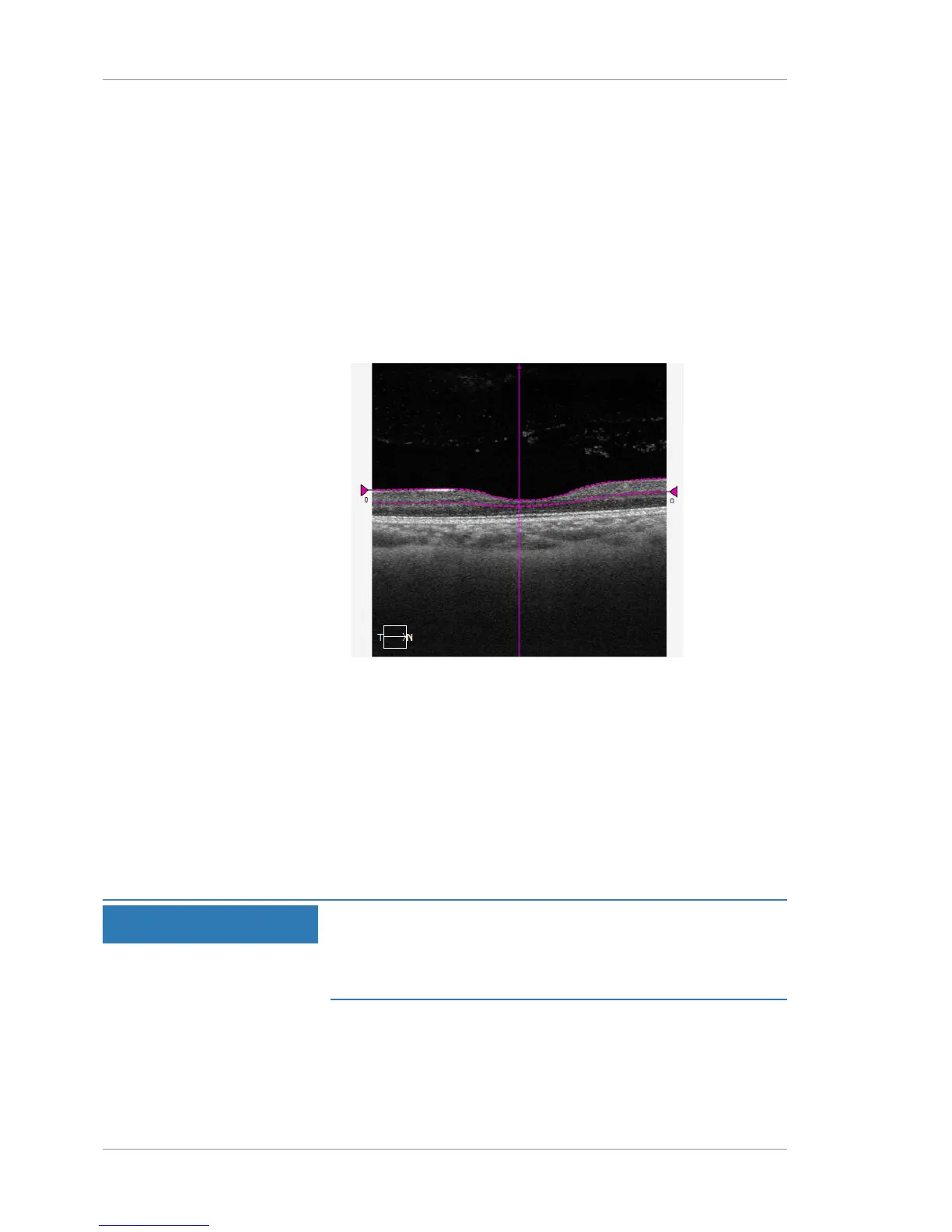
Presets detect an upper and lower boundary for retina layers in a
patient's scan. For example, the preset for the Superficial layer
uses the boundaries ILM and IPL.
You can adjust the thickness or depth of a slab by changing the
boundaries manually. Since the images in the viewport are inter-
active, they change to show the adjusted slab boundaries.
To adjust slab thickness using the B-scan:
Action 1. In the B-Scan, select a triangle at the end of a segmentation
line and drag the layer boundary up or down.
2. To move the entire slab within the B-scan, click outside the B-
scan, press SHIFT, and scroll the mouse wheel up or down.
ð The OCT en face image and offset values update to show
the adjusted slab position.
9.4.8.3 Edit Layer Segmentation with AutoPropagation
Edit Layer Segmentation is available from the Angiography Analysis
screen and can be used to edit the ILM and RPE layer segmenta-
tions.
To use Edit Segmentation with AutoPropagation:
NOTE
Optimize the use of this feature
by iteratively making edits on both the horizontal and vertical B-
scans, and then propagating them.
u See the examples shown in the figures that follow.
Action 1. From the Angiography Analysis screen, select Edit Segmen-
tation Results window.







 To Next Page