6 Configuring Software Instructions for Use
2660021169042 Rev. A 2018-036.1 System Administration
64 / 246 2660021169042 Rev. A 2018-03
NOTE
First Name, Last Name and Password are case-sensitive.
When you add a new user, you must provide at least one name
(last name or first name). All other fields are optional.
To edit a user:
Prerequisite
þ Log in as Admin [}59]
Action 1. Select Tools >Options > Users.
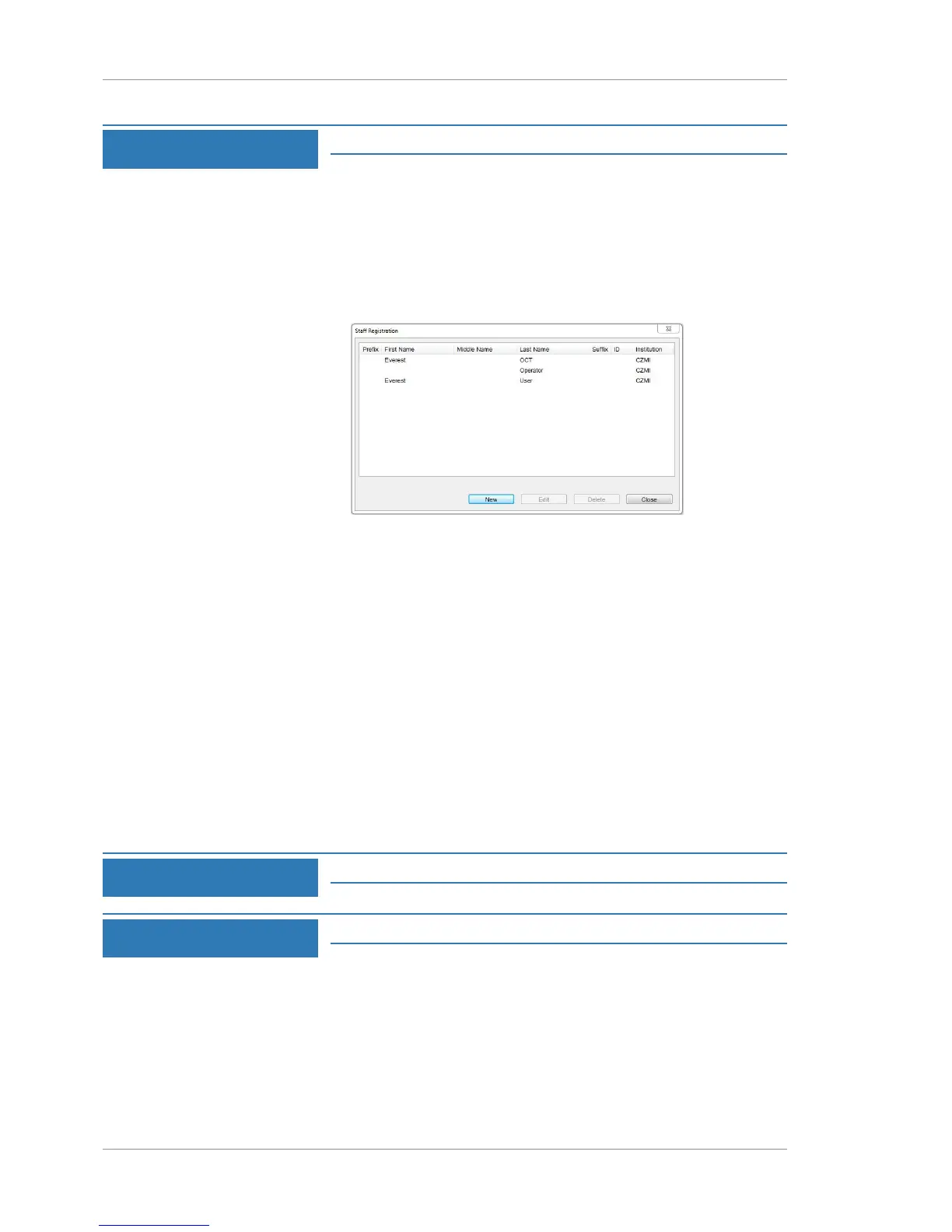
ð The Staff Registration dialog opens.
2. Select the user you want to edit.
3. Click Edit.
ð The Edit Staff dialog opens.
4. Update the user's Last Name, First Name, Middle Name,
Suffix, Prefix, and ID user type as required.
5. To reset their password, for Password, type a temporary
password for the user and for Verify Password, retype the
temporary password.
6. Click Save.
7. If you changed the user's password, provide the user with the
new password and ask them to log in and set a different
password.
6.1.4.5 Deleting a User
NOTE
Only Administrators can complete this task.
NOTE
You cannot delete a user that any exam data references.
To delete a user:
Prerequisite
þ Log in as Admin [}59]
Action 1. Select Tools >Options > Users.
ð The Staff Registration dialog opens.







 To Next Page