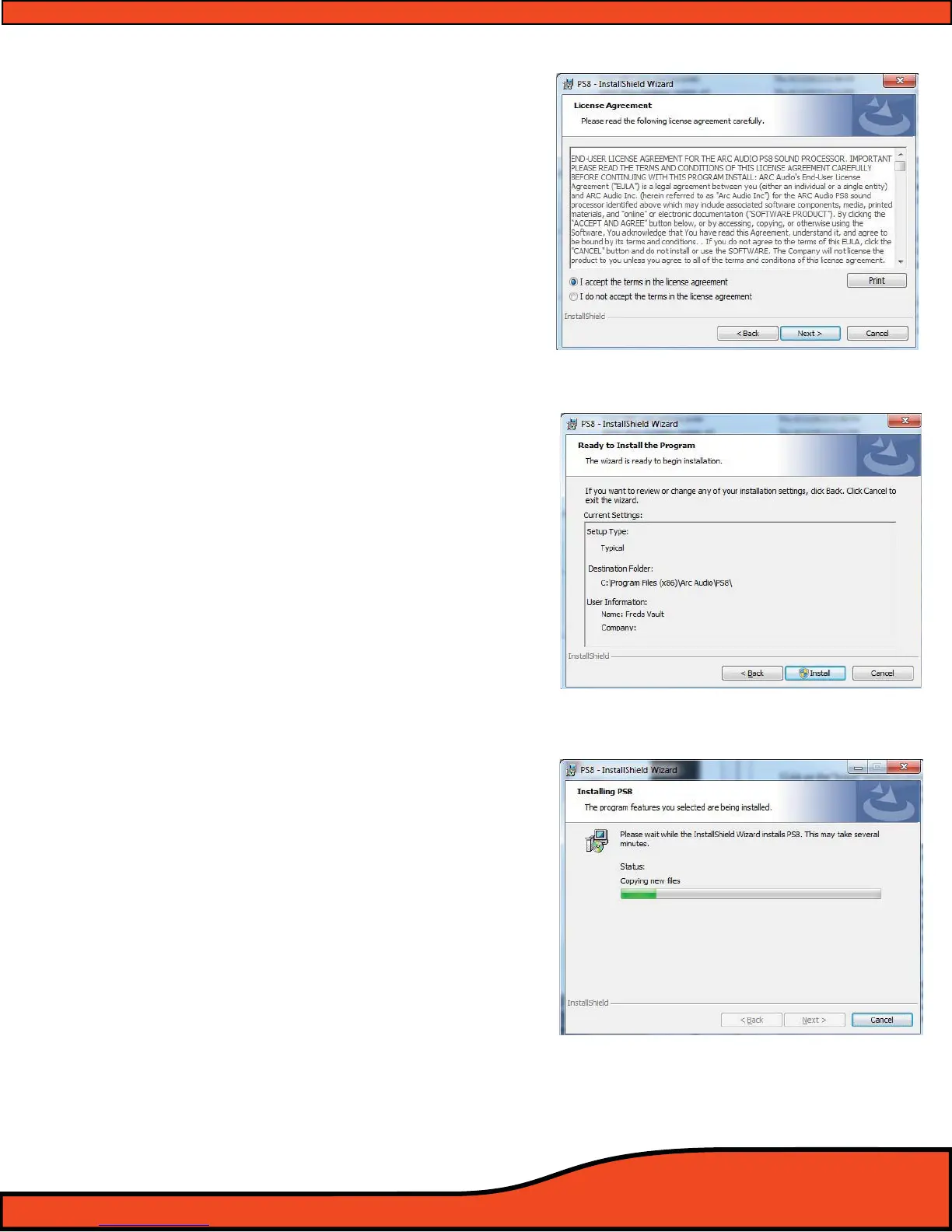
Step 7- Read the PS8's "End User License Agreement" (EULA)
and then check the check box next to the "I Agree to the
above terms and conditions" then select "NEXT" to
proceed with the installationor "Cancel" to stop the
installation.
Note: Be sure to read the terms and conditions of the
EULA. There is a lot of important information in the EULA
especially for users who plan on using the PS8 in
advanced user mode. By accepting the terms and condi-
tions of the EULA you are accepting all portions of the
EULA in it’s entirety
Step 8- The installation will automatically select a recom-
mended (Default) location for the PS8 software to be
installed onto your PC.
(See diagram 7.5)
Click on the “Install” button to proceed with the installa-
tion or “Cancel” to stop the installation process. You may
also select “Back” to return to the previous step in the
installation process.
Step 9- After conrming to proceed with the installation
process you will be given a visual installation process
screen. At this time depending on your computers
security settings you may be prompted with a pop up
window asking you to give permission for the installer to
access and make changes to your computer to complete
the installation. Click "OK" and the installation will com-
plete within a few moments.
(See diagram 7.6)
Diagram 7.4
Diagram 7.5
Diagram 7.6


 To Next Page