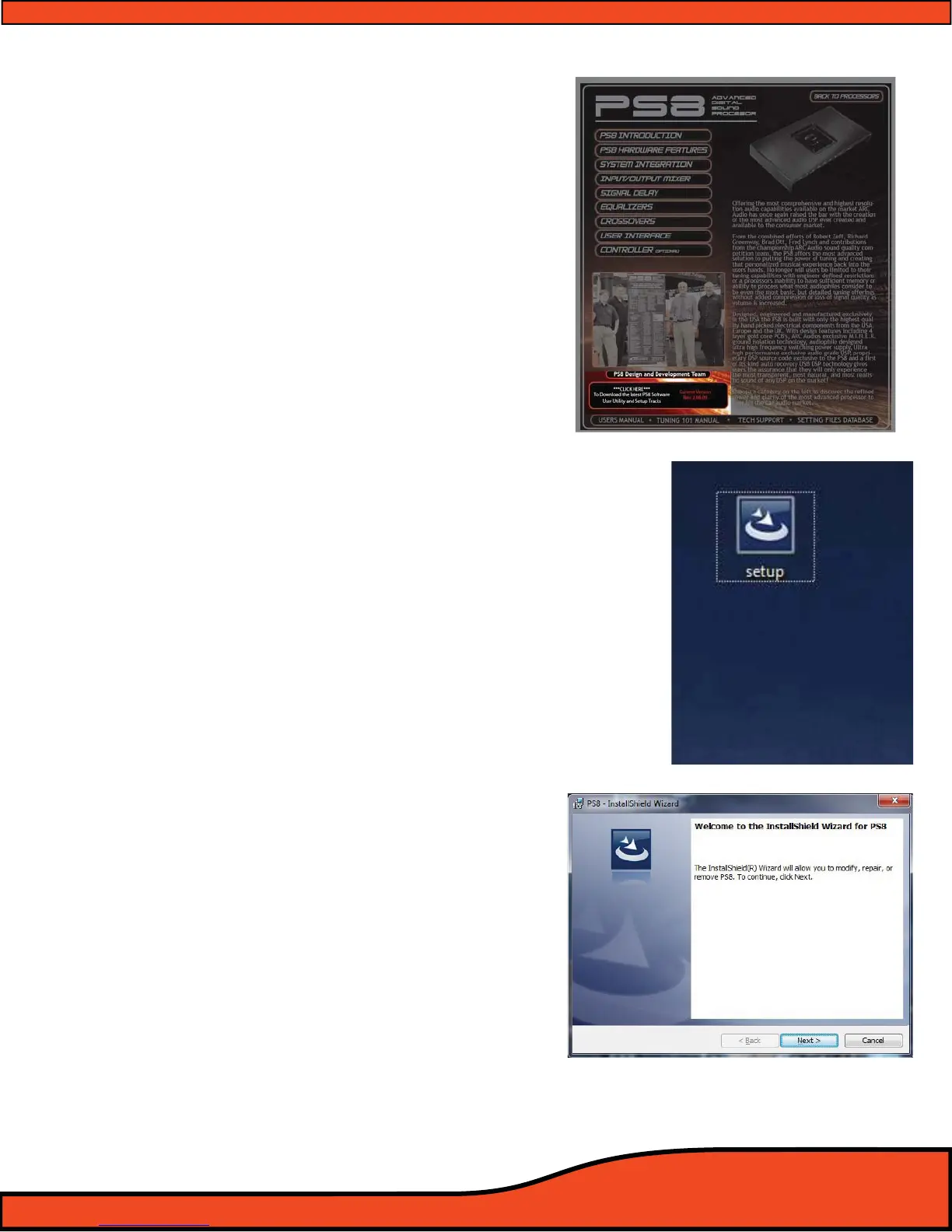
Diagram 7.1
Diagram 7.2
Diagram 7.3
7.4- PS8 Software Installation Guide
7.4.1 - Software Installation
Step 1- Download the latest version of software
from the ARC Audio website on the PS8
product page on the PC you plan to use
with your PS8
Step 2- Download and save the associated le to
your computers desktop and extract the
enclosed zip folder to your PC
Step 3- Open the Zip le and drag the setup le
le in this folder onto your desktop.
(See diagram 7.2)
Step 4- Identify the desktop location that you placed
the PS8 Software installation les.
Step 5- Next double click on the "setup" icon.
Note: Depending on your PC's security settings you may be prompted
with a security warning upon launching this le. If you receive this mes-
sage when attempting to install the PS8 software, no worries as long as
you are loading this le from the original disc the software is safe for
installation on your computer. If prompted, press the "Yes" button.
Step 6- InstallShield Wizard Accept
At this point the InstallShield Wizard will help
you thru the installation process. To begin
the installation process press the next button
(See diagram 7.3)


 To Next Page