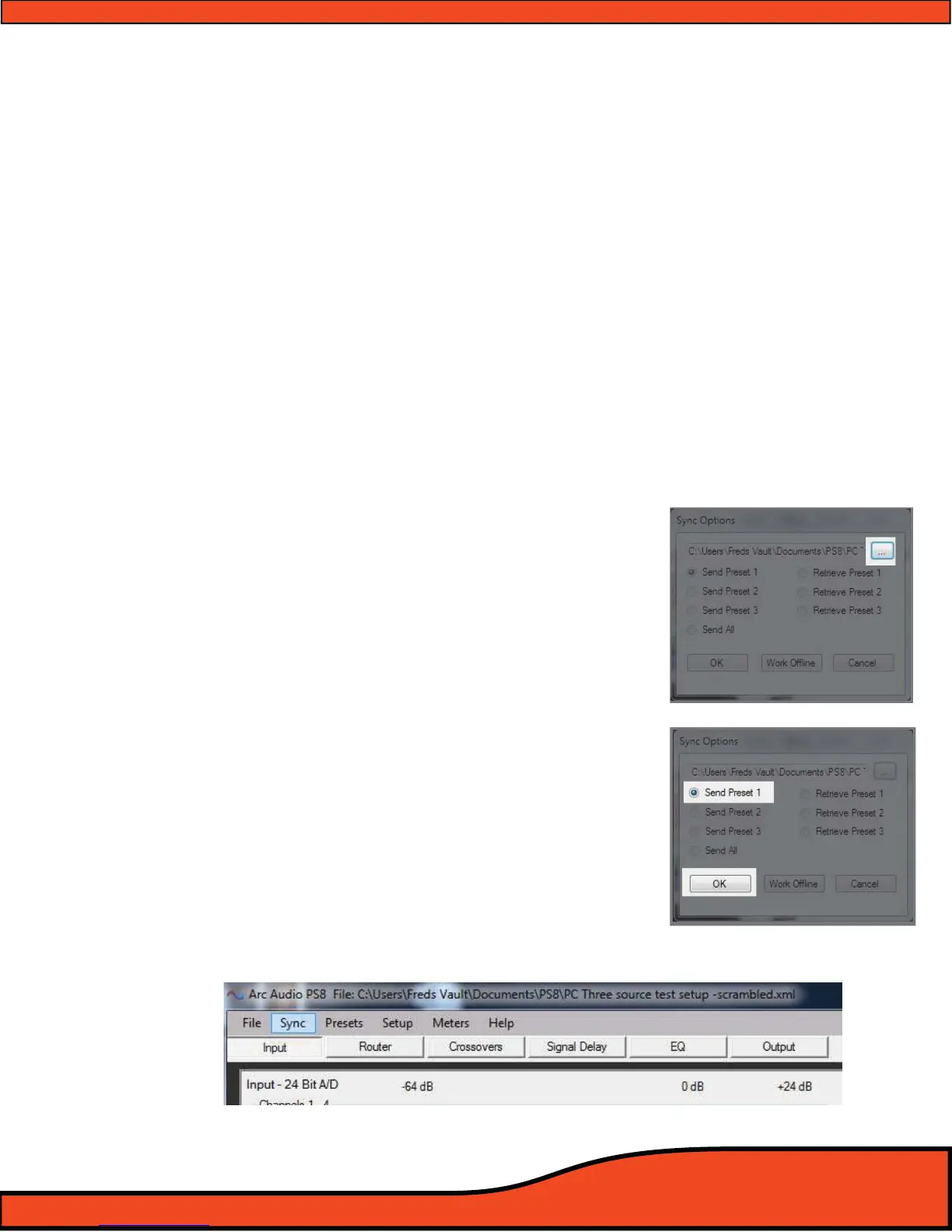
Diagram 11.13
Diagram 11.14
Diagram 11.15
...Presets continued
11.34 - How presets work
The "Settings File" and "Presets" on the PS8 dier slightly from typical presets found on other
processors. On the PS8 Settings le such as the ones you store on your PC when using the PS8
have Preset 1-3 stored within an individual le name. Then each of the individual presets hold
variations that you can create ranging from dierent inputs, mixer/router congurations, channels
turned on/o, varying EQ settings and more.
When storing settings le on our PC they are indicated as "Settings" package les by the type of
le they are saved as denoted as ".XML" les. Individual settings les can also be stored on your PC
and can be saved on your PC as ".PRE" le.
11.35 - How to save and Sync all three presets from your PC to the PS8
After you have connected your PC to the PS8 you will be prompted with a pop up panel that will
ask you to send or retrieve presets from the PS8 or work oine (See Section 9.0). For the purpose
of this manual we will discuss sending three new presets or one individual setting le to a PS8.
Step 1 - Click on the ellipsis and select your desired master settings
le from your PC and click ok
(See diagram 11.13)
Step 2 - Click the check box for "Send Preset 1" (See diagram 11.14)
Step 3 - Click on "OK" and the user interface will automatically
update your screen, place you on "Preset 1" or "P1" and send
all of the setting for this preset to the PS8.
Step 4 - Select "Sync" from the top header button panel
(See diagram 11.15) and you will be prompted once again by
the Sync selection panel


 To Next Page