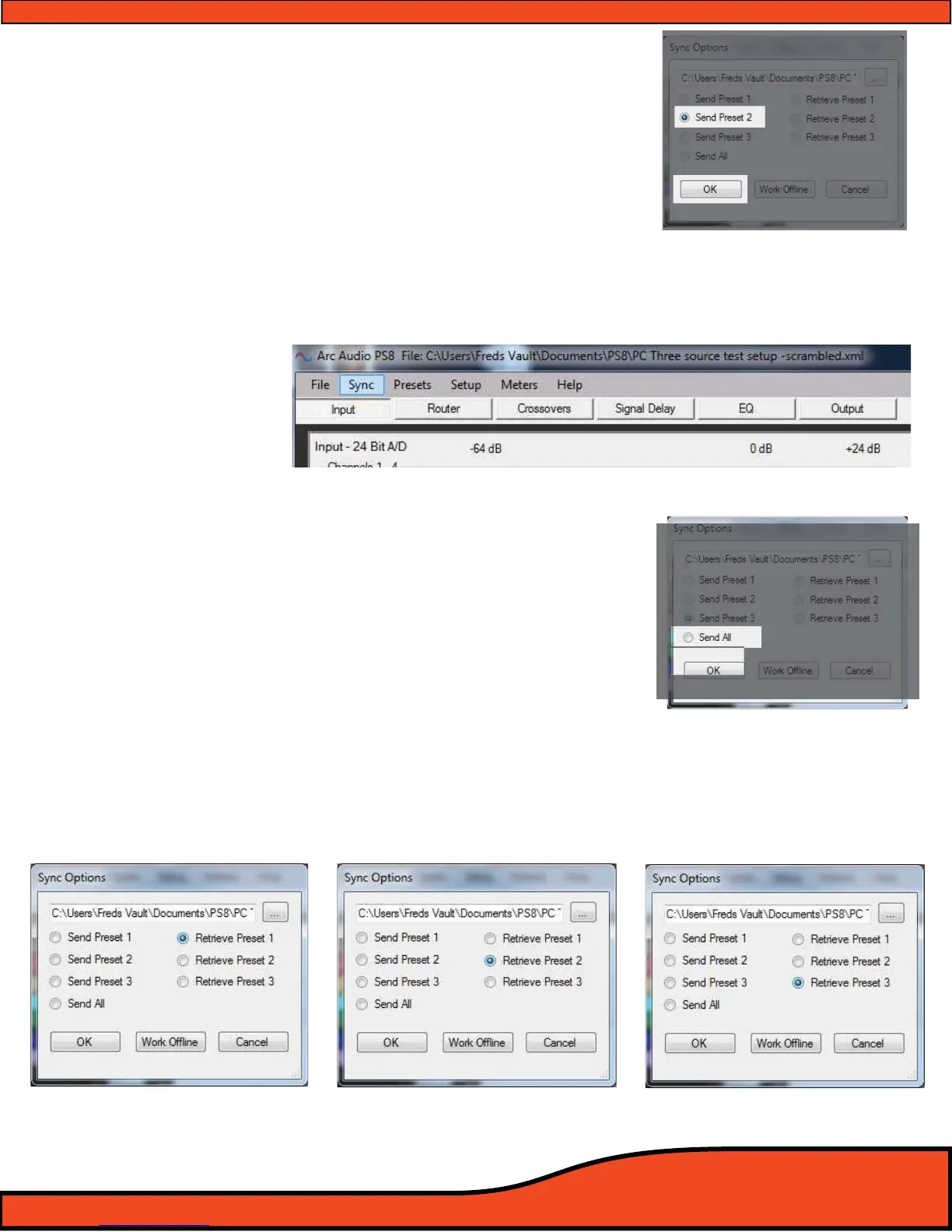
Step 5 - Select "Send Preset 2"
(See Diagram 11.16) and press on the
"OK" button. After this the software will be change over to
"Preset 2" or "P-2" and it will automatically sync the informa-
tion to preset 2 to the PS8
Step 6 - Select "Sync" from the top header button panel
(See diagram 11.17) and you will be prompted once again by
the Sync selection panel
Step 7 - Select "Send Preset 3"
(See diagram 11.18) and press the OK
button. After this the software will be change over to
"Preset 3" or "P-3" and it will automatically sync the informat-
ion to preset 3 to the PS8
11.36 - Retieving Presets and Syncing from the PS8 to the PC-If you are retrieving presets from the PS8 you
will repeat this same process however instead you will be indicating the user utility to "Retrieve
Preset 1"
(See diagram 11.19) etc with the same process as above.
Diagram 11.16
Diagram 11.17
Diagram 11.18
Diagram 11.19


 To Next Page