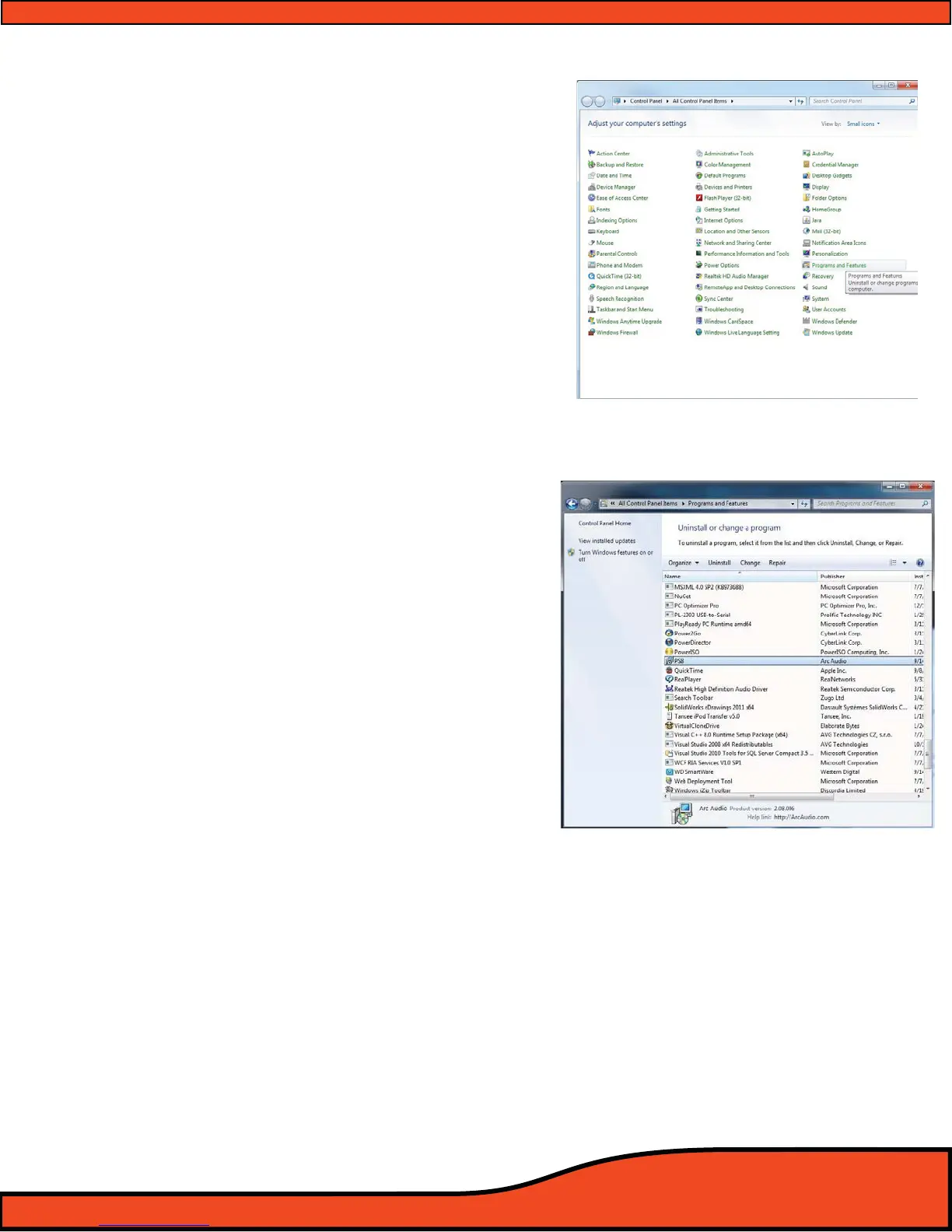
Diagram 7.9
Diagram 7.10
Step 2- Depending on your page format search and
locate the control panel option labeled as "Pro
grams" or " "Programs and Features" and double
click on that feature button
(See diagram 7.9)
Step 3- Scroll down and locate the le name "PS8" and
click once on it to select and highlight this
program.
(See diagram 7.10)
Step 4- Next with the "PS8" software selected locate the
button on the top of the page labeled as "Unin-
stall" and your PC will take over from there.
Note: During the installation process your PC, depend-
ing on your security settings may prompt you with a pop
up message asking for conrmation and permission to
remove this program and/or make changes to your
computer. Click OK and your Windows installer utility
will complete the software removal process.
Note: If you are removing the software for the purpose
of updating it to a newer and up to date version It is
recommended that after any removal of your existing
system you restart your computer before reinstalling any
new versions of the PS8 user software.
7.6 - PS8 Software Update
To update the PS8 software to the newest version you will be required to do a full uninstall of the current version
you have installed on your PC. After uninstalling your current version you can update to the latest version of soft-
ware by installing it the same way you did the rst time.
For step by step instructions to uninstall the PS8 software please see
(See Section 7.5)
For step by step instructions for installation of the new software please (See Section 7.4)


 To Next Page